
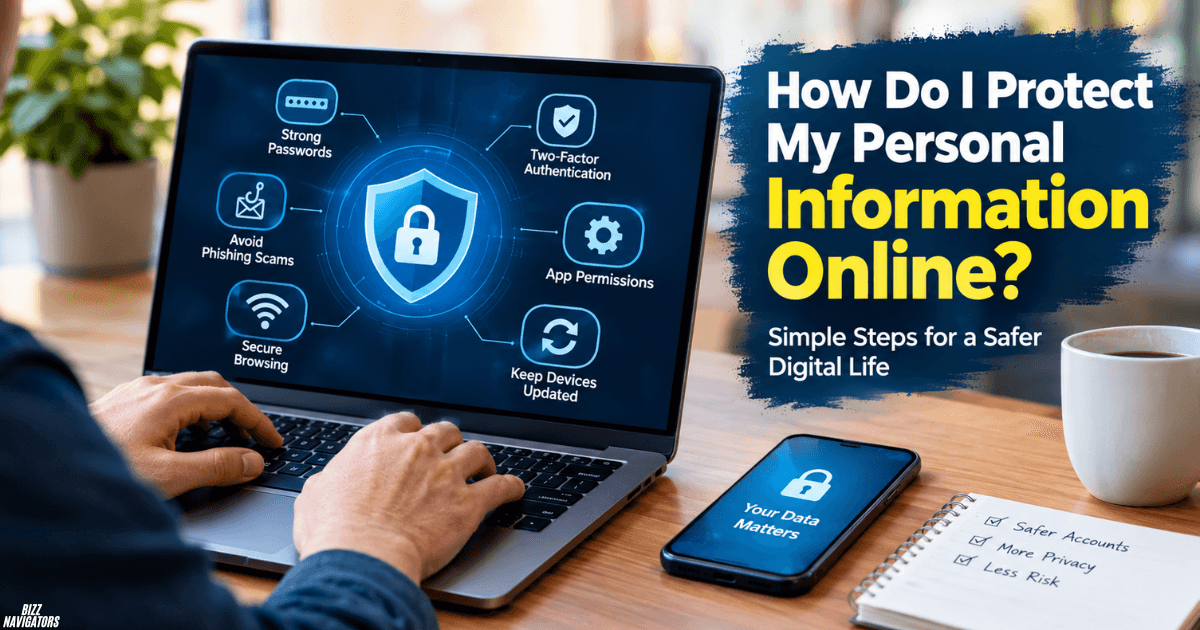
Introduction: How Do I Protect My Personal Information Online
You can protect your personal information online by using strong, unique passwords, enabling two-factor authentication, avoiding phishing scams, updating your devices, and limiting the information you share. Reviewing app permissions and securing your Wi-Fi network can also reduce the risk of hacking, identity theft, and unauthorized access to your accounts.
You do not need advanced technical skills to improve your online privacy. A few simple habits can make your email, social media, banking, and shopping accounts much harder to compromise.
1. Use Strong and Unique Passwords
Weak or reused passwords make it easier for criminals to access multiple accounts. If one website suffers a data breach, attackers may try the stolen password on your other accounts.
Follow these password security practices:
- Create long passwords or passphrases that are difficult to guess.
- Use a different password for every important account.
- Avoid names, birthdays, phone numbers, and common phrases.
- Use a reputable password manager to generate and store passwords.
- Change compromised passwords immediately.
For important accounts, aim for passwords of at least 15 characters when supported. The Federal Trade Commission (FTC) recommends strong, unique passwords and password managers as practical ways to protect online accounts.
2. Enable Two-Factor Authentication
Two-factor authentication (2FA) adds another verification step when you sign in. Even if someone steals your password, they may not be able to access your account without the second factor.
Enable 2FA on your email, banking, social media, cloud storage, and payment accounts.
Whenever possible, choose an authenticator app or a security key instead of relying only on text-message codes. These options can offer better protection against certain attacks, including SIM-swapping scams.
Never share verification codes with someone who contacts you unexpectedly. A legitimate support representative should not need you to reveal a login code over a suspicious call or message.
3. Learn to Recognize Phishing Scams
Phishing is a common online scam in which criminals impersonate trusted companies, banks, delivery services, or people you know. Their messages may ask you to confirm account details, claim a payment failed, or warn that your account will be closed.
Before clicking a link or opening an attachment, check the message carefully.
- Verify the sender’s email address and the website domain.
- Be suspicious of unexpected requests for passwords or payment details.
- Avoid opening attachments you were not expecting.
- Visit the official website directly instead of using a suspicious link.
- Contact the company through a verified phone number if something seems wrong.
Remember, a professional-looking message is not necessarily legitimate. Scammers can copy company logos and create convincing websites.
The FTC advises consumers to avoid clicking unexpected links and to contact the organization through a trusted channel instead.
4. Review App Permissions and Privacy Settings
Many apps request access to your location, contacts, microphone, camera, or photos. Some permissions are necessary for an app to work, but others may be unnecessary for its main purpose.
Review permissions regularly on your phone and computer.
For example, a navigation app may need location access, while a basic calculator usually does not. If an app requests access that does not make sense, deny it or choose a more limited option.
Also review your social media privacy settings. Limit who can see your posts, personal details, friends list, and location information.
Remove permissions you no longer need and uninstall apps you no longer use. Reducing unnecessary access helps limit how much personal information apps can collect.
5. Keep Your Devices and Software Updated
Outdated software can contain security weaknesses that attackers exploit. Updates often fix these vulnerabilities and improve device protection.
To keep your devices secure:
- Enable automatic updates for your operating system.
- Update your browser and installed applications.
- Install security updates promptly.
- Download software from official websites or trusted app stores.
- Remove applications you no longer use.
Use reputable security software when appropriate, particularly on computers exposed to frequent downloads or unfamiliar websites.
Do not ignore repeated update notifications without checking them. Keeping your software current is one of the simplest ways to reduce avoidable security risks.
6. Protect Your Personal Information on Public Wi-Fi
Public Wi-Fi at airports, hotels, cafes, and shopping centers can create privacy risks, especially when networks are poorly secured or impersonated by criminals.
When using public internet access, avoid sensitive transactions if you cannot verify the network’s security. Use your mobile data connection for banking or other sensitive activities when practical.
Follow these precautions:
- Confirm the network name with the venue.
- Avoid networks that look suspicious or imitate legitimate names.
- Disable automatic connections to unfamiliar Wi-Fi networks.
- Use HTTPS websites and keep your device updated.
- Consider a reputable VPN when you need additional protection on untrusted networks.
A VPN does not make you completely anonymous or protect you from every scam. You still need secure passwords, careful browsing habits, and account protection.
At home, change your router’s default administrator password and use modern Wi-Fi encryption, such as WPA3 or WPA2 where available.
7. Share Less Personal Information Online
The less sensitive information you publish, the less information criminals may be able to use against you.
Avoid publicly sharing your home address, phone number, travel plans, financial details, or photographs of documents containing private information.
Be especially careful with social media quizzes and public profiles. Questions about your childhood, family, or first school may reveal information that attackers could use to guess security-question answers.
Before submitting information to a website, ask yourself whether it is genuinely necessary. Check the site’s privacy policy and understand what information it collects and how it uses that information.
You should also delete old accounts you no longer need. Fewer unused accounts mean fewer places where your personal data may remain exposed.
8. Monitor Your Accounts and Watch for Identity Theft
Even careful internet users can experience data breaches or account compromise. Regular monitoring helps you spot unusual activity before a problem becomes more serious.
Check your bank statements, payment notifications, email security alerts, and recent account sign-ins. Enable transaction alerts where available.
Watch for warning signs such as:
- Password-reset emails you did not request.
- Login notifications from unfamiliar devices.
- Unrecognized purchases or financial transactions.
- Unexpected changes to account recovery details.
- Messages sent from your account without your knowledge.
If you suspect unauthorized access, change the affected password from a trusted device, secure your email account, revoke unfamiliar sessions, and enable 2FA. Contact your bank immediately if financial information may be compromised.
If you believe someone has stolen your identity, report the incident to the relevant authorities and financial institutions in your country. In the United States, the FTC’s IdentityTheft.gov provides reporting and recovery guidance.
9. Back Up Important Files and Secure Your Devices
Online privacy is only one part of digital security. Malware, device theft, and accidental deletion can also expose or destroy personal information.
Protect your devices with a screen lock, biometric authentication where appropriate, and device encryption when available. Set your phone or computer to lock automatically after a period of inactivity.
Back up important documents, photographs, and other files to a trusted cloud service or an external drive. Keep at least one backup separate from your everyday device so that malware or device failure is less likely to destroy every copy.
Never assume that a lost phone is automatically protected. Use the device’s built-in remote-lock or erase feature if necessary, and contact your mobile provider if your SIM card or phone has been stolen.
Quick Checklist for Better Online Privacy
Use this checklist to put the most important protections in place.
- Create unique passwords for important accounts.
- Enable two-factor authentication.
- Update your phone, computer, browser, and apps.
- Check app permissions and social media privacy settings.
- Avoid suspicious links, attachments, and unexpected requests.
- Secure your home Wi-Fi and limit public Wi-Fi risks.
- Review account activity and financial transactions.
- Back up important files and secure your devices.
Final Recommendation
Protecting your personal information online means building consistent habits, not relying on a single security tool. Start by securing your email account, using unique passwords, enabling two-factor authentication, and checking app permissions. Then work through the remaining steps as time allows.
For more practical information about cybersecurity, online privacy, and digital safety, explore the relevant resources on BizzNavigators to help you make informed decisions about everyday online threats.
Frequently Asked Questions
What is the best way to protect personal information online?
Start with unique passwords, two-factor authentication, updated software, and phishing awareness. Then review your privacy settings and share less sensitive information publicly.
How can I protect my personal information on social media?
Make your profile private where appropriate, restrict who can view your posts, avoid publishing sensitive details, and disable unnecessary location sharing. Review your account settings regularly.
Is it safe to enter personal information on websites?
It depends on the website and the information requested. Check the domain carefully, look for HTTPS, review the site’s legitimacy, and avoid submitting sensitive details through unexpected links. HTTPS encrypts the connection but doesn’t guarantee a website is trustworthy.
What should I do if my personal information is stolen?
Secure your email and affected accounts first, change compromised passwords, revoke suspicious sessions, and contact your bank if financial details are involved. Report suspected identity theft to the appropriate authorities.

At BizzNavigators, we answer the questions you’re actually searching for, honestly and clearly. We check our facts before we publish anything, and if we’re not sure about something, we tell you instead of guessing. Whatever you’re looking for- a tech fix, a business tip, or a simple how-to- we want to give you an answer you can trust.