
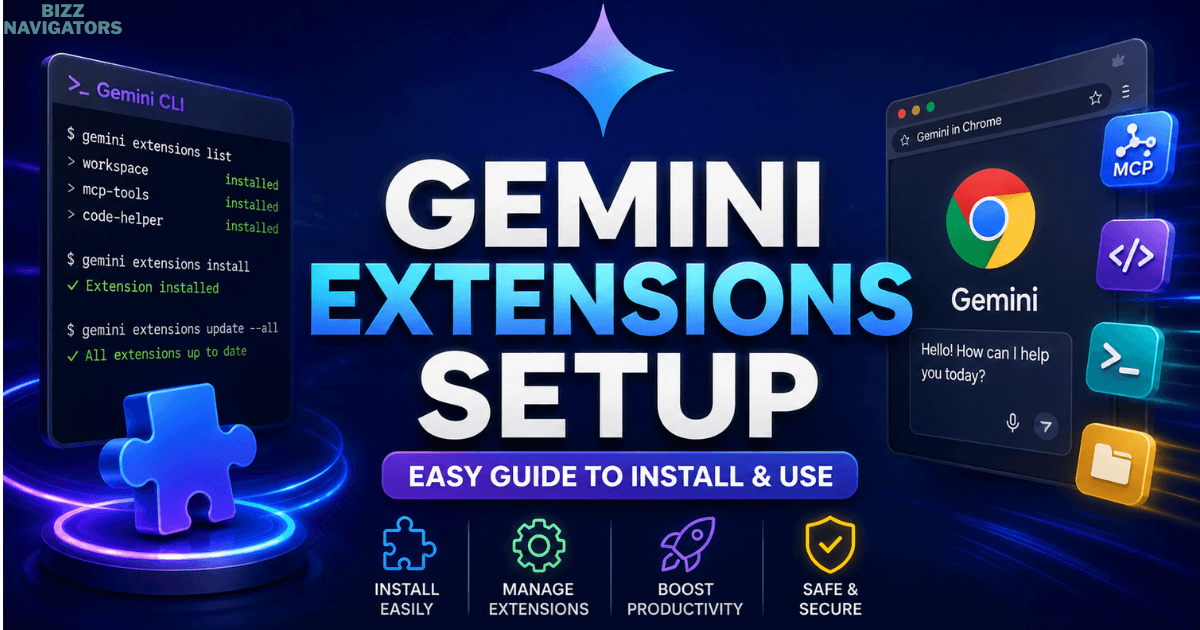
Gemini extensions setup: What does it mean?
Gemini extensions setup refers to configuring extensions that add tools, commands, context, and integrations to Gemini. The term can describe Gemini CLI extensions specifically, while Gemini in Chrome uses a different extension-like system for browser assistance. Knowing this difference helps you install the right tool without downloading unofficial software.
Google’s current Gemini CLI extension system lets developers and advanced users expand Gemini CLI with MCP servers, custom commands, context files, hooks, skills, themes, and sub-agents. Extensions can be installed from GitHub repositories or local paths and managed directly from the command line.
This distinction matters because many searches for “Gemini extension” actually refer to different products. A Chrome user may want Gemini in Chrome, while a developer may be looking for Gemini CLI extensions.
What are Gemini extensions?
Gemini extensions are packages that extend what Gemini can do by connecting it with additional tools, instructions, data sources, and workflows.
For example, a Gemini CLI extension can connect an AI agent to a database through an MCP server, provide project-specific instructions through GEMINI.md, or add reusable commands and skills.
The official Gemini CLI documentation describes extensions as a way to package multiple capabilities into an installable and shareable format.
A typical extension may include:
MCP server configurations
Context or instruction files
Custom commands
Agent skills
Hooks
Themes
Sub-agents
Tool restrictions
This makes extensions especially useful when Gemini needs to perform repeatable tasks rather than simply answer questions.
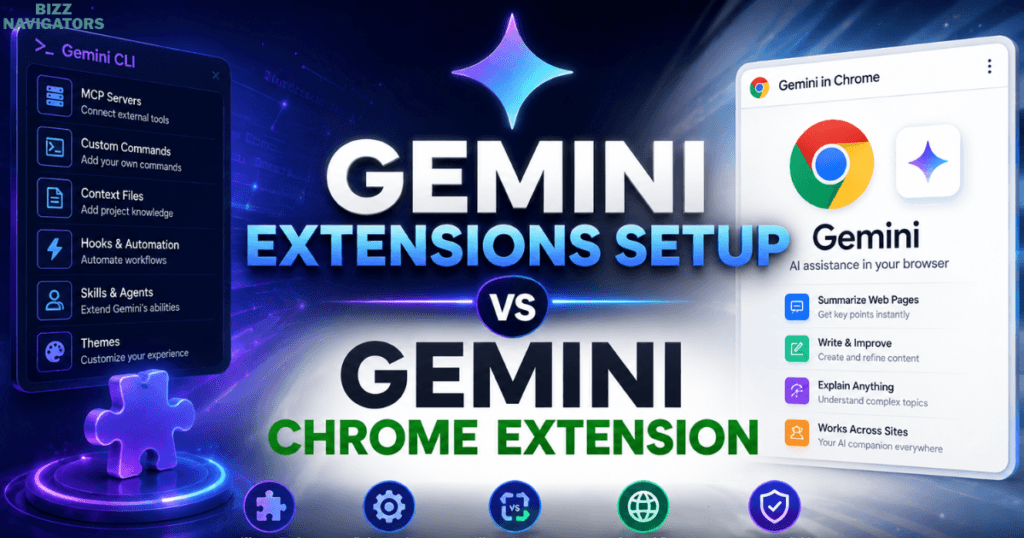
Gemini extensions setup vs Gemini Chrome extension
Gemini CLI extensions and Gemini in Chrome are not the same thing. Gemini CLI extensions are designed primarily for command-line workflows and developer tools, while Gemini in Chrome provides AI assistance directly inside the browser. Choosing between them depends on where you want Gemini to work.
Gemini CLI extensions
Gemini CLI extensions are installed and managed through terminal commands. They are suitable for coding, development, automation, project workflows, MCP integrations, and custom AI agents.
The basic installation pattern is:
gemini extensions install <source>
The source can be a GitHub repository or a local extension path.
Gemini in Chrome
Gemini in Chrome is a browser-based experience rather than a traditional Chrome extension that you download from a third-party website.
Google says Gemini in Chrome is being gradually released and requires supported hardware, Chrome versions, regions, languages, and account conditions.
Google also provides a Gemini web-app shortcut in Chrome. Users can type @gemini in the address bar and then enter a prompt to open Gemini.
How to complete Gemini extensions setup
The simplest Gemini extensions setup for Gemini CLI is to install Gemini CLI first, locate a trusted extension, and install it from its GitHub repository or local path. After installation, use the extension listing command to verify that it is active and restart the CLI when required.
1. Install and open Gemini CLI
Before installing a CLI extension, make sure Gemini CLI is working correctly on your computer.
The extension system is part of Gemini CLI, so installing an extension without having the CLI environment ready will not provide the expected experience.
2. Find a suitable extension
Gemini CLI has an official extension gallery where users can discover available extensions.
The gallery currently contains a large collection of community-built extensions. However, Google warns that the listed extensions come from public repositories and third-party developers. Google does not guarantee their functionality or security.
That makes source inspection an important part of a safe setup.
3. Install the extension
After finding a suitable extension, copy its installation command or use its repository URL.
For example:
gemini extensions install https://github.com/gemini-cli-extensions/workspace
The official documentation confirms that extensions can be installed from GitHub URLs or local paths.
If the extension requires GitHub access, Git must also be installed on your computer.
4. Verify the installation
Use:
gemini extensions list
This displays the installed extensions.
Inside an interactive Gemini CLI session, you can also use:
/extensions list
The official documentation recommends these commands for checking installed extensions and their status.

Gemini extensions setup download: What should you download?
You generally should not search for a random “Gemini extensions setup download” executable. For Gemini CLI, the safer approach is to install the CLI through its official distribution method and obtain extensions from their source repositories or the official Gemini CLI extension gallery.
This approach reduces the risk of installing modified or malicious software.
The Gemini CLI gallery specifically states that its extensions originate from public repositories and warns users to inspect source code, permissions, and actions before installation.
For a developer, a GitHub repository is therefore more useful than a generic “extension setup.exe” file.
Gemini CLI extensions list and management
Gemini CLI provides dedicated commands to list, install, update, enable, disable, uninstall, and create extensions. This makes extension management easier than manually editing multiple configuration files for every project.
Useful commands include:
| Task | Command |
| List extensions | gemini extensions list |
| Install extension | gemini extensions install <source> |
| Update one | gemini extensions update <name> |
| Update all | gemini extensions update –all |
| Enable | gemini extensions enable <name> |
| Disable | gemini extensions disable <name> |
| Uninstall | gemini extensions uninstall <name> |
| Create extension | gemini extensions new <path> |
| Link local extension | gemini extensions link <path> |
These commands are documented in the official Gemini CLI extension reference.
One useful detail is that extensions can be disabled globally or for a particular workspace. That gives developers more control when different projects need different tools.
Gemini CLI Workspace extension explained
The Gemini CLI Workspace extension is designed to bring additional workspace-oriented capabilities into Gemini CLI. It is installed like other Gemini CLI extensions and can be added directly from its repository using the standard extension installation command.
The official Gemini CLI documentation uses the workspace extension as an installation example:
gemini extensions install https://github.com/gemini-cli-extensions/workspace
This illustrates an important part of Gemini extensions setup: extensions are generally distributed as repositories rather than traditional browser add-ons.
Workspace-level configuration can also matter because Gemini CLI supports user and workspace extension scopes. Workspace configuration takes precedence when configuration conflicts occur.
Gemini CLI extensions and automation
Gemini CLI extensions can support automation by connecting Gemini with tools, custom commands, MCP servers, hooks, and project-specific instructions. This makes them useful for repeatable development and workflow tasks where a normal chatbot conversation would require the same setup repeatedly.
For example, an extension could give Gemini access to a specific API or database through an MCP server.
Another extension could provide reusable commands for a development team.
Google’s extension documentation also identifies MCP servers as a way to expose new tools and data sources to the model, such as internal APIs, databases, or local applications.
This is where Gemini extensions become more than simple add-ons. They can become part of an AI-powered workflow.

How to create your own Gemini CLI extension
Developers can create custom Gemini CLI extensions using built-in templates and then link them locally for testing. An extension normally contains a gemini-extension.json manifest that defines its name, version, description, tools, context, and other configuration.
A basic creation command is:
gemini extensions new ./my-extension
Gemini CLI provides templates for different extension scenarios, including MCP servers, context, and custom commands.
The extension manifest is stored as gemini-extension.json.
It can define MCP servers, context files, excluded tools, and planning configuration. Gemini CLI loads extensions from its extension directory when the application starts.
For local development, you can also use:
gemini extensions link <path>
This creates a symbolic link so developers can test changes without repeatedly reinstalling the extension.
Common Gemini extensions setup mistakes
Several mistakes can make an extension appear broken even when the installation itself worked.
Installing an unofficial download
Avoid treating every “Gemini extension download” website as trustworthy. Use official documentation, known repositories, and inspect third-party source code before granting an extension access to tools or data.
Confusing Chrome with Gemini CLI
A Chrome-based Gemini experience and Gemini CLI extensions use different technologies. Installing a CLI extension will not automatically add a Gemini button to Chrome.
Forgetting to restart Gemini CLI
The official extension reference notes that management changes and updates to slash commands take effect after restarting the CLI session.
Ignoring extension permissions
Extensions can introduce tools capable of interacting with files, APIs, databases, or local applications. Review what an extension can access before enabling it.
Using outdated installation instructions
Gemini CLI is actively evolving. Commands, extension capabilities, and availability can change, so current official documentation should take priority over old tutorials.
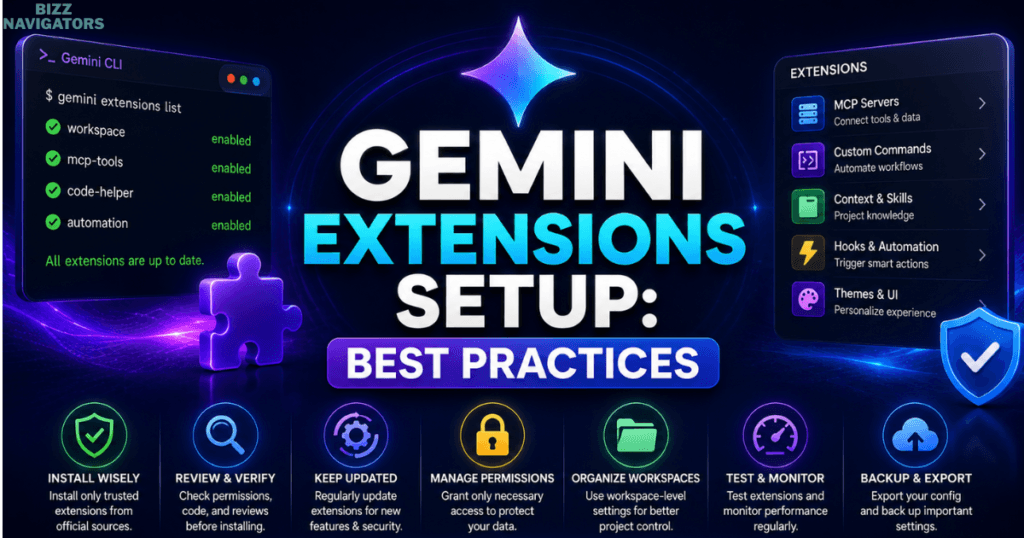
Gemini extensions setup: Best practices
A reliable setup starts with the smallest number of extensions you actually need.
Install one extension, verify it, and then add another. This makes troubleshooting much easier.
Keep extensions updated when appropriate:
gemini extensions update –all
For sensitive projects, review the extension repository before installation and avoid granting unnecessary permissions.
It is also useful to separate workspace-specific tools from extensions that should be available everywhere. Gemini CLI supports workspace-specific enable and disable operations, which can help keep projects organized.
Final takeaway
Gemini extensions setup is best understood as configuring Gemini for a specific workflow rather than downloading one generic extension. For Gemini CLI, the process centers on trusted repositories, the gemini extensions command group, extension verification, and careful permission management. For Chrome users, Gemini in Chrome is a separate browser experience with its own availability requirements.
The biggest advantage is flexibility. Instead of repeatedly giving Gemini the same instructions or manually connecting the same tools, extensions can package those capabilities into reusable components.
For developers, that makes Gemini CLI extensions particularly valuable for coding, workspace management, automation, MCP integrations, custom commands, and project-specific AI workflows.
Frequently Asked Questions
Is there a Gemini extensions setup download?
There is no single universal Gemini extensions setup download. Gemini CLI extensions are normally installed from GitHub repositories or local paths using the gemini extensions install command.
Is Gemini a Chrome extension?
Gemini in Chrome is a browser-integrated Gemini experience, not simply the same extension system used by Gemini CLI. Availability depends on Google’s supported regions, devices, accounts, languages, and rollout status.
How do I list Gemini CLI extensions?
Run:
gemini extensions list
Inside an interactive session, /extensions list can also show installed extensions.
Can Gemini CLI extensions automate tasks?
Yes. Extensions can package MCP servers, commands, skills, hooks, context, and other capabilities, allowing Gemini CLI to participate in repeatable development and automation workflows.
How do I update Gemini CLI extensions?
Update one extension with:
gemini extensions update <name>
Or update every installed extension with:
gemini extensions update –all

At BizzNavigators, we answer the questions you’re actually searching for, honestly and clearly. We check our facts before we publish anything, and if we’re not sure about something, we tell you instead of guessing. Whatever you’re looking for- a tech fix, a business tip, or a simple how-to- we want to give you an answer you can trust.
1 thought on “Gemini Extensions Setup: Easy Guide to Install and Use”