
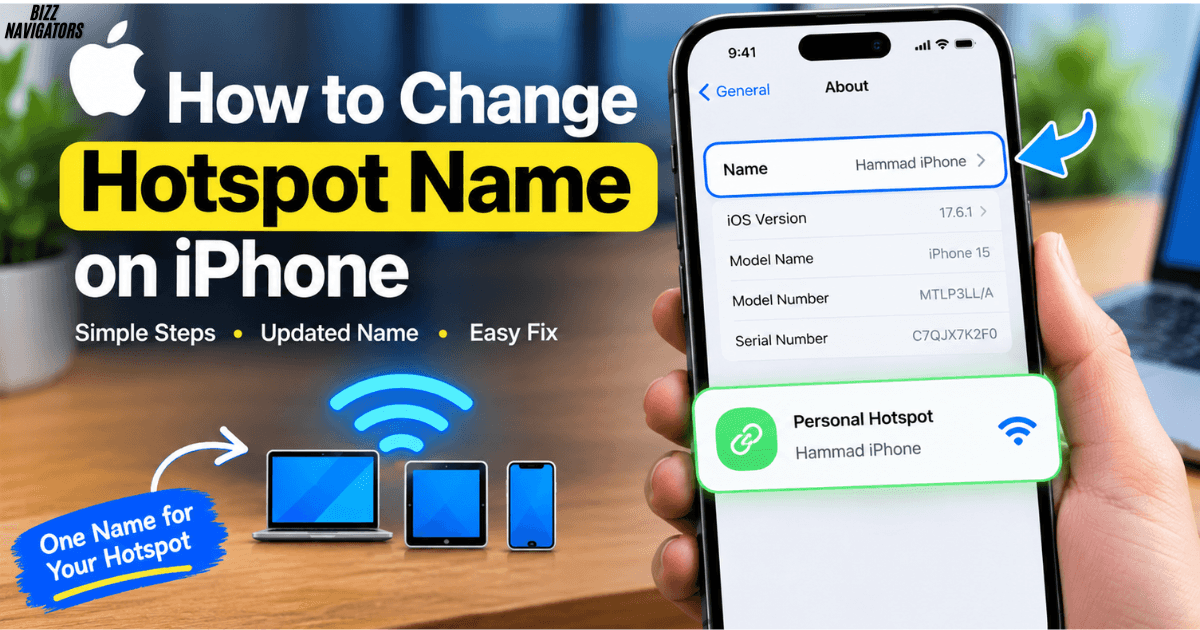
How to Change Hotspot Name on iPhone
To change your iPhone hotspot name, you need to change your iPhone’s device name. Apple does not provide a separate field for naming the Personal Hotspot.
Go to Settings > General > About > Name, enter your new name, and tap Done. The new device name will also be used as the name shown for your Personal Hotspot. Apple confirms that the iPhone name is used by Personal Hotspot, AirDrop, Bluetooth, iCloud, and computers.
Quick steps
- Open Settings on your iPhone.
- Tap General.
- Select About.
- Tap Name.
- Remove the existing name.
- Enter your preferred new name.
- Tap Done.
Your Personal Hotspot should now appear with the updated name when another device searches for available Wi-Fi networks.
Why Is the Hotspot Name Linked to the iPhone Name?
This is the part that often confuses people.
You might expect to find a Hotspot Name or Network Name option inside Personal Hotspot settings. On iPhone, there isn’t a separate option for this. Instead, Apple uses the device name as the Personal Hotspot name.
That means one name controls several device-identification features.
For example, if your iPhone is named Jackson’s iPhone, another device may see that name when searching for your Personal Hotspot. If you rename the iPhone to Jackson Mobile, the hotspot name changes accordingly.
Apple’s current support documentation specifically states that the name of the Personal Hotspot is the same as the name of the device providing it.
How to Rename Your iPhone for a New Hotspot Name
If you want a different name to appear when connecting a laptop, tablet, or another phone to your hotspot, follow these steps.
1. Open Settings
Find and open the Settings app on your iPhone.
You do not need to open Personal Hotspot first. The setting you need is located under your iPhone’s general device information.
2. Go to General
Scroll through Settings and tap General.
This section contains several system-level options, including information about your iPhone.
3. Open About
At the top of the General menu, tap About.
You will see information such as your iPhone model, software details, serial information, and the current device name.
4. Tap Name
Tap Name near the top of the About screen.
The current iPhone name will become editable.
5. Enter a New Name
Delete the existing name and type the name you want other devices to see.
For example, you could use:
- Jackson iPhone
- My iPhone
- Jackson Mobile
- Personal Hotspot
- Work iPhone
Choose something easy to recognize, especially if several iPhones are nearby.
6. Tap Done
Tap Done after entering the new name.
The iPhone will save the new device name, and that name becomes the Personal Hotspot name as well. Apple’s instructions use the same Settings > General > About > Name path for changing the iPhone name.
Does Changing the iPhone Name Also Change the Hotspot Name?
Yes. Changing the iPhone’s device name changes the name used by Personal Hotspot.
This is because the hotspot does not have an independent name field.
The change can also affect how your iPhone is identified through other Apple features. Apple says the device name is used by iCloud, AirDrop, Bluetooth, Personal Hotspot, and your computer.
So, if you only wanted to rename your hotspot, remember that you are actually renaming the iPhone itself.
That distinction is important if you want to keep a particular device name for other Apple features.
How to Check the New iPhone Hotspot Name
After changing the device name, you can check whether the new hotspot name appears correctly.
First, open Settings and go to Personal Hotspot. Depending on your iPhone and carrier configuration, you may find Personal Hotspot under Settings > Cellular.
Turn on Allow Others to Join if you want another device to connect.
Then use a nearby phone, tablet, Mac, Windows PC, or another Wi-Fi-enabled device to search for available networks. Your iPhone should appear using the new device name.
Apple explains that other devices can connect to an iPhone Personal Hotspot through their Wi-Fi settings and select the name of the iPhone providing the connection.
What If the Old Hotspot Name Still Appears?
Sometimes another device may continue showing the previous name for a short time.
Start by turning Personal Hotspot off and then turn it back on. Then refresh the Wi-Fi list on the device you’re trying to connect.
If the old name remains, try these steps:
- Confirm the new name under Settings > General > About > Name.
- Turn Personal Hotspot off.
- Turn Wi-Fi off and back on on the connecting device.
- Restart the iPhone if necessary.
- Search for available Wi-Fi networks again.
- Select the newly named hotspot.
If the other device previously saved the old hotspot, you may also need to forget that network and reconnect using the new name.
The hotspot password is a separate setting, so changing the iPhone’s name does not mean you have to create a new password.
Does Changing the Hotspot Name Change the Password?
No. The hotspot name and password are separate.
Changing your iPhone’s device name changes the name shown for Personal Hotspot, but it does not automatically change the Wi-Fi password.
To change the Personal Hotspot password, go to Settings > Personal Hotspot > Wi-Fi Password. On some iPhone configurations, Personal Hotspot is accessed through Settings > Cellular > Personal Hotspot. Apple documents this as the separate setting used to change the hotspot password.
This means you can rename your hotspot while keeping the existing password.
Can You Give the Hotspot a Different Name From Your iPhone?
No, not through the standard iPhone settings.
Apple links the Personal Hotspot name to the iPhone’s device name. There is no separate option that lets you keep one name for the iPhone and another name exclusively for the hotspot.
For example:
iPhone name: Jackson Mobile
Personal Hotspot name: Jackson Mobile
If you change the iPhone name to Work iPhone, the hotspot name changes to Work iPhone as well.
This is an important difference from many traditional Wi-Fi routers, where you can independently configure the network’s SSID.
Best Name to Use for an iPhone Hotspot
A good hotspot name should be recognizable without revealing unnecessary personal information.
Instead of using your full name, phone number, home address, or other identifying details, consider a simple name such as:
- My Mobile
- Work Phone
- Travel iPhone
- Jackson Mobile
- Personal Hotspot
A distinctive name can also make your iPhone easier to identify when several nearby devices have similar default names.
Keep in mind that the name is used beyond Personal Hotspot. Since Apple also uses the device name for features such as AirDrop and Bluetooth, choose a name that still makes sense outside hotspot connections.
Why Can’t I Find a “Change Hotspot Name” Option?
You are probably looking in the right general area but expecting the wrong setting.
The iPhone does not normally show a separate Change Hotspot Name field. Instead, Apple tells users to change the name of the device providing the hotspot.
Use:
Settings > General > About > Name
Once you change that name, it becomes the name associated with your Personal Hotspot.
So, if you searched through Settings > Personal Hotspot and could not find a name field, your iPhone is not necessarily missing an option. The name is controlled from the device information screen.
What If Personal Hotspot Is Missing?
Changing the hotspot name and making Personal Hotspot available are two different issues.
If you cannot find Personal Hotspot or it is unavailable, check that Cellular Data is enabled. Apple notes that Personal Hotspot requires carrier support, and availability can depend on your wireless provider and plan.
If the option is still unavailable, contact your carrier to confirm that Personal Hotspot is supported on your plan.
Changing the iPhone name will not activate a hotspot service that your carrier has not enabled.
Frequently Asked Questions
Can I change my iPhone hotspot name without changing my iPhone name?
No. The Personal Hotspot name uses the iPhone’s device name, so changing the hotspot name means changing the device name.
Where is the hotspot name on iPhone?
Go to Settings > General > About > Name. The name shown there is also used as the Personal Hotspot name.
Does renaming my iPhone affect AirDrop?
Yes. Apple states that the iPhone device name is also used by AirDrop and several other Apple features, including Bluetooth and iCloud.
Do I need to change my hotspot password after renaming the iPhone?
No. Renaming the iPhone does not automatically change the Personal Hotspot password.
Why does another phone still see my old hotspot name?
Refresh the Wi-Fi list, turn Personal Hotspot off and on, and confirm that the new name is saved under Settings > General > About > Name. If necessary, restart the devices and reconnect.
Final Answer
If you were searching for how to change hotspot name on iPhone, the solution is simple: change your iPhone’s device name.
Open Settings > General > About > Name, enter the new name, and tap Done. Your Personal Hotspot will use that new name because Apple links the hotspot name to the device name.
There is no separate hotspot-name box in the standard iPhone settings. Just remember that changing the device name can also change how your iPhone is identified through AirDrop, Bluetooth, iCloud, and other connected services.

At BizzNavigators, we answer the questions you’re actually searching for, honestly and clearly. We check our facts before we publish anything, and if we’re not sure about something, we tell you instead of guessing. Whatever you’re looking for- a tech fix, a business tip, or a simple how-to- we want to give you an answer you can trust.