
How to Find Your iPhone IMEI Number
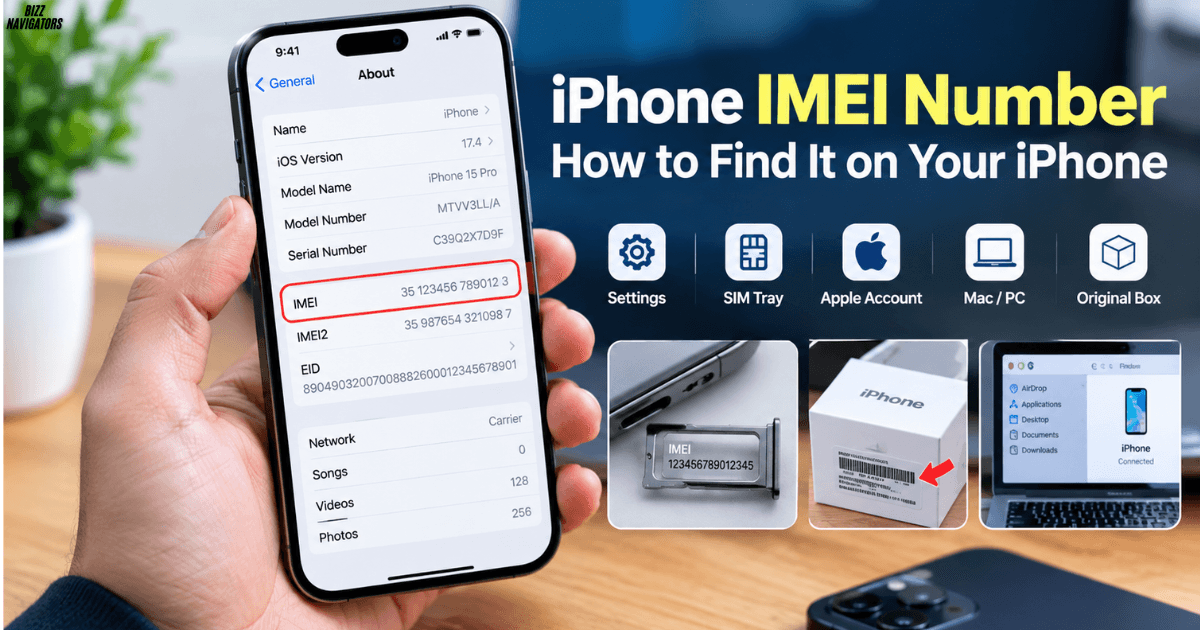
The easiest way to find your iPhone IMEI number is through Settings > General > About. Scroll down until you see IMEI or IMEI/MEID. You can also touch and hold the number to copy it.
If you cannot access Settings, you have other options, including the SIM tray on supported models, your Apple Account, Finder or Apple Devices, and the original iPhone packaging.
How to See IMEI Number in iPhone Settings
For most iPhone users, Settings is the quickest method.
Follow these steps:
- Open Settings on your iPhone.
- Tap General.
- Tap About.
- Scroll down.
- Find IMEI or IMEI/MEID.
- Touch and hold the number if you want to copy it.
You may also see other identifiers such as the serial number, EID, and ICCID on the same screen.
The IMEI is separate from your iPhone’s serial number, so make sure you copy the field specifically labeled IMEI.
Find My IMEI Number iPhone Without Opening Settings
If your iPhone cannot open Settings, check another location associated with the device.
Depending on your model, the IMEI may be printed on the SIM tray, engraved on the device, or available through your Apple Account or computer.
The exact physical location depends on the iPhone generation. Newer models may not have an IMEI printed on the exterior, so using your Apple Account or computer can be easier.
How Do I Find the IMEI Number on My iPhone Without a Working Screen?
If the screen is damaged, the iPhone will not start properly, or you simply cannot use Settings, you still have several options.
Check the SIM Tray
Some iPhone models with a physical SIM tray have the IMEI/MEID printed on the tray.
Remove the SIM tray carefully and check the small text. Use good lighting because the engraving can be difficult to read.
Apple lists several iPhone generations with IMEI/MEID information on the SIM tray, including many models from the iPhone 6s through iPhone 13 families.
However, this method does not apply to every iPhone. iPhone 14 models and later do not have an IMEI/MEID engraving on the device, according to Apple’s support documentation.
Check the iPhone Body on Older Models
Some older iPhones have the IMEI engraved on the back of the device.
This includes older generations such as the iPhone 5, iPhone 5s, iPhone 5c, iPhone 6 and iPhone 6 Plus.
If you have a much older iPhone, checking the back can be faster than connecting it to another device.
How to Find the IMEI Number on iPhone Before Setup
You do not always need to complete iPhone setup before checking its device information.
If you have a new or reset iPhone showing the Hello screen, turn it on and look for the Info button in the lower-right corner.
Tap the Info button to view available device identifiers before completing setup.
This is useful when you are checking an iPhone before activating it or transferring your data.
Find iPhone IMEI Number Using Apple Account
You can also find the IMEI remotely if the iPhone is associated with your Apple Account.
Go to your Apple Account page and sign in with the account used on the iPhone. Open the Devices section and select the relevant iPhone.
Depending on the device and account information available, you can view identifiers such as the IMEI/MEID and serial number.
This method is especially useful if you no longer have physical access to the iPhone.
Find the IMEI on Another Apple Device
If you own another iPhone or iPad signed in to the same Apple Account, you may be able to view information for the missing iPhone from that device.
Open Settings and tap your name at the top. Scroll through the list of devices associated with your Apple Account and select the iPhone.
This can help when the original iPhone is unavailable, lost, damaged, or unable to start.
Find the iPhone IMEI Using a Mac or Windows PC
A computer provides another reliable option when you cannot use the iPhone’s Settings app.
On a Mac
Connect your iPhone to the Mac and open Finder on macOS Catalina or later.
Select the iPhone from the sidebar. Depending on the information displayed, select the device details or phone number to view identifiers such as the IMEI/MEID.
On Windows
On a Windows PC, Apple supports the Apple Devices app for managing connected Apple devices. iTunes can also be used where applicable.
Connect the iPhone, select the device, and look through its available information for the IMEI/MEID.
This method is useful when the iPhone can connect to the computer, but its screen or Settings app is difficult to use.
Find the IMEI Number on the Original iPhone Box
If you still have the original iPhone packaging, check the barcode label.
The box can contain important device identifiers, including the serial number and IMEI/MEID.
This is particularly useful when you are checking an iPhone that is switched off or cannot be accessed.
Before using the number, compare the packaging information with the device details whenever possible. This can help confirm that the box belongs to the same iPhone.
What Is an iPhone IMEI Number?
IMEI stands for International Mobile Equipment Identity.
It is a device identifier associated with a cellular-capable iPhone. The IMEI is different from your phone number, SIM number, and serial number.
Apple uses device identifiers such as the IMEI when identifying an iPhone for support and service.
Your carrier may also request the IMEI when dealing with certain cellular or device-related issues.
IMEI vs Serial Number: What’s the Difference?
The IMEI identifies the cellular device, while the serial number is Apple’s device-specific serial identifier.
They serve different purposes, so do not assume they are interchangeable.
| Identifier | What it is used for |
| IMEI | Identifies the cellular device |
| Serial Number | Identifies the Apple device for support and service |
| EID | Identifies the eSIM component |
| ICCID | Identifies a SIM/eSIM subscription component |
| Phone Number | Identifies your mobile service line |
If a carrier or Apple specifically asks for your IMEI, provide the number labeled IMEI, not the serial number.
Why Would You Need Your iPhone IMEI Number?
You may need your IMEI for several legitimate reasons.
A mobile carrier can request it when troubleshooting cellular service or handling device-related issues. Apple Support may also use device identifiers to identify your iPhone.
The IMEI can also be useful when checking device information before buying or selling an iPhone.
If you are selling a used iPhone, avoid publishing the full IMEI publicly in an online listing. Share it only with a trusted party when there is a genuine reason to provide it.
What If I See IMEI and IMEI2?
Some iPhone models support multiple cellular lines, so you may see IMEI and IMEI2.
Do not automatically assume one is incorrect.
The labels can correspond to different cellular capabilities or lines supported by the device. If your carrier asks for a particular identifier, provide the one they specify.
For eSIM-related support, you may also be asked for the EID, which is different from the IMEI.
Can I Copy My iPhone IMEI Number?
Yes. When you find the IMEI under Settings > General > About, touch and hold the number.
When the copy option appears, select it and paste the number into the required form or message.
Copying the number instead of typing it manually reduces the chance of entering an incorrect digit.
Quickest Ways to Find Your iPhone IMEI
For a quick reference, use this order:
- iPhone working normally: Settings > General > About
- iPhone showing Hello screen: Tap the Info button
- Physical SIM model: Check the SIM tray if your model supports it
- No access to iPhone: Check your Apple Account
- Have a Mac or PC: Connect the iPhone and check Finder, Apple Devices, or iTunes
- Have the original box: Check the barcode label
- Older iPhone: Check the back or SIM tray, depending on the model
The Settings method remains the simplest option when the iPhone is accessible.
Final Answer: Where Is the iPhone IMEI Number?
The fastest answer is Settings > General > About, then scroll down to IMEI or IMEI/MEID.
If you cannot access Settings, check the SIM tray, Apple Account, Finder, Apple Devices, iTunes, or original packaging, depending on your iPhone model.
Always use the identifier labeled IMEI when a carrier or Apple specifically requests your IMEI number.

At BizzNavigators, we answer the questions you’re actually searching for, honestly and clearly. We check our facts before we publish anything, and if we’re not sure about something, we tell you instead of guessing. Whatever you’re looking for- a tech fix, a business tip, or a simple how-to- we want to give you an answer you can trust.
1 thought on “iPhone IMEI Number: How to Find It on Your iPhone”