
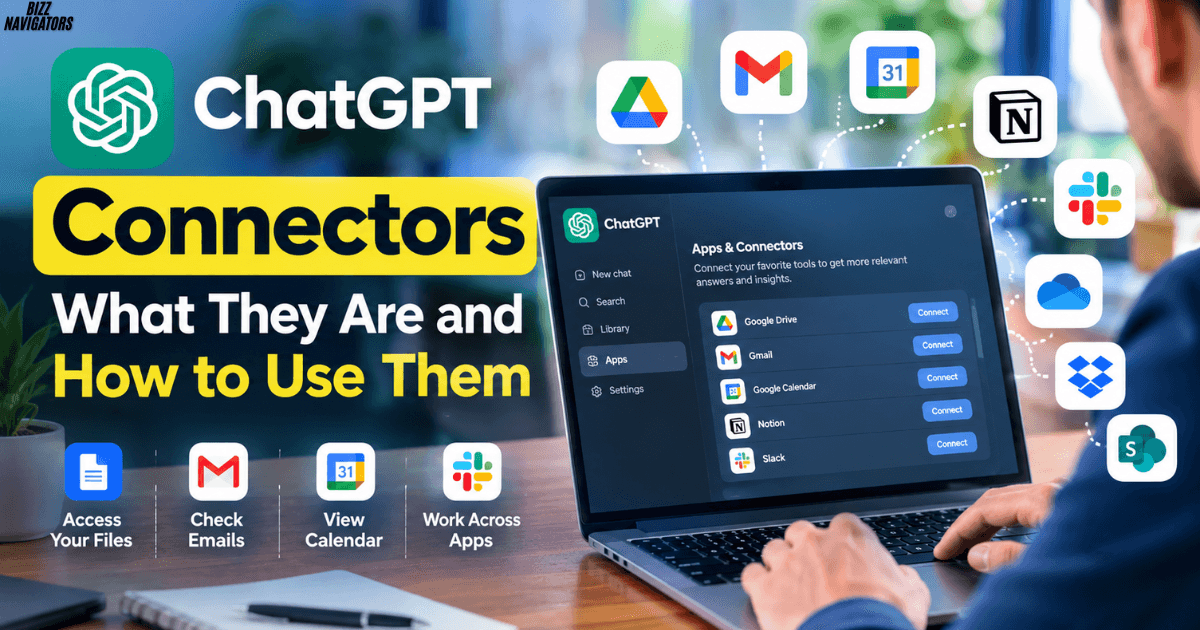
What Are ChatGPT Connectors?
ChatGPT connectors are integrations that let ChatGPT access information from connected apps and services. OpenAI now generally refers to these integrations as Apps, while the term “connectors” is still widely used for connected external services.
They can help ChatGPT search files, reference work information, retrieve relevant data, and combine information from multiple connected sources. What ChatGPT can access depends on the app, your permissions, and the features supported by that integration.
For example, a connected cloud-storage app can help you find information in your files without manually uploading every document.
How Do ChatGPT Connectors Work?
ChatGPT connectors work by creating an authorized connection between ChatGPT and another service.
You first connect the supported app and approve the requested permissions. ChatGPT can then use the available capabilities of that app when you ask it to find or work with relevant information.
The connection does not mean ChatGPT automatically gets unrestricted access to everything in your account. Access depends on the permissions granted and the integration’s available features.
A typical workflow looks like this:
- Open ChatGPT settings.
- Go to the Apps or Apps and Connectors area.
- Select the service you want to connect.
- Choose Connect.
- Sign in to that service.
- Review and approve the requested permissions.
- Use the connected app in supported ChatGPT conversations.
The exact interface can change as OpenAI updates its Apps experience.
ChatGPT Apps vs. Connectors: What’s the Difference?
ChatGPT Apps are the current broader term for integrations that connect external services with ChatGPT. “Connectors” is commonly used to describe the same general concept, particularly integrations that allow ChatGPT to retrieve information from external sources.
The important point is what the integration can actually do.
Some apps primarily help ChatGPT search and reference information. Others can support more interactive workflows or actions, depending on the app and your account.
This means you should check an app’s available capabilities instead of assuming every connector works in exactly the same way.
What Can ChatGPT Connectors Do?
ChatGPT connectors can support several useful workflows.
Search Cloud Files
Connected storage services can make it easier to find information across documents and files.
Instead of downloading a file and uploading it manually, you can ask ChatGPT to locate relevant information from a connected source when that integration supports search.
This is especially useful when your files are spread across large folders.
Reference Emails and Calendars
Supported integrations can provide access to relevant email or calendar information.
For example, an email integration may help you locate messages related to a project, while a calendar integration can help you check scheduled events or availability where supported.
The exact capabilities depend on the connected app and permissions.
Combine Information From Multiple Apps
One of the most useful applications is cross-source research.
You might need information from a document, a project workspace, and another business tool. Instead of checking each service separately, ChatGPT can potentially use connected sources together when those apps support the required access.
This can reduce repetitive searching and make research easier.
Support Research and Summaries
Connected data can also help ChatGPT produce summaries based on information stored outside the conversation.
For example, you could ask it to compare information from several connected documents or summarize relevant project material.
The quality of the result still depends on the data available to the connected services.
Which Apps Can Connect to ChatGPT?
The available ChatGPT Apps can change over time and may also vary by account, plan, region, and workspace settings.
Common examples associated with ChatGPT integrations include:
- Google Drive
- Gmail
- Google Calendar
- Microsoft services
- Slack
- Notion
- Dropbox
- Box
- SharePoint
- HubSpot
Not every service offers the same capabilities.
Some may focus on searching and referencing information, while others can provide additional tools or actions.
For that reason, the current Apps directory inside ChatGPT is the best place to check which integrations are available to your account.
How to Connect Apps to ChatGPT
Connecting an app usually takes only a few steps.
1. Open ChatGPT Settings
Open your ChatGPT account menu and select Settings.
2. Find Apps
Look for the Apps section. Depending on the version of ChatGPT you are using, you may see terminology related to Apps and Connectors.
3. Select an App
Choose the service you want to connect.
For example, if you want ChatGPT to work with supported Google data, select the relevant Google app.
4. Authorize the Connection
Select Connect and complete the service’s sign-in process.
Review the permissions carefully before approving the connection.
5. Use the App in ChatGPT
Once connected, use the integration where it is supported.
You can ask questions that require information from the connected source instead of manually moving the same data into ChatGPT.
Are ChatGPT Connectors Safe?
ChatGPT connectors can be useful and secure when you connect trusted services and carefully review the permissions you grant.
However, “connected” does not automatically mean every integration has identical privacy or security behavior.
Before connecting an app, check:
- What information it can access
- What permissions it requests
- Whether it can perform actions
- Which ChatGPT account is connected
- Whether your organization controls the integration
- How the external service handles your data
For business accounts, administrators may also control which apps users can access.
Avoid connecting an unknown service simply because it promises extra ChatGPT features.
ChatGPT Connectors and Google Drive
ChatGPT can use supported Google Drive integrations to search and reference information from connected Google Workspace data.
This can be useful when you have a large collection of documents, spreadsheets, or presentations.
Instead of opening multiple files manually, you can ask ChatGPT to find relevant information from the connected source.
The available Google Workspace features depend on the integration and account configuration.
ChatGPT Connectors and Gmail
A supported Gmail integration can help ChatGPT work with relevant email information after you authorize access.
For example, you may use it to locate messages related to a specific project, person, or topic.
This can be much faster than manually searching a large inbox when the integration supports the requested task.
You should still review the retrieved information before using it for important decisions.
ChatGPT Connectors and MCP
MCP, or Model Context Protocol, provides a way to connect AI applications with external tools and data sources.
It is particularly relevant for developers and organizations that want to build custom integrations.
Instead of relying only on prebuilt apps, MCP-based connections give ChatGPT and compatible systems a structured way to interact with external tools.
However, MCP connections require more technical knowledge than simply connecting a standard app from ChatGPT’s interface.
What Are the Benefits of ChatGPT Connectors?
The biggest benefit is less manual data movement.
Instead of repeatedly downloading files, copying text, or switching between several applications, connected apps can bring relevant information into the ChatGPT workflow.
Other benefits include:
- Faster information retrieval
- Easier file discovery
- Better cross-source research
- Less repetitive copying and pasting
- More useful summaries
- Improved productivity for repetitive tasks
- Easier access to information stored in different services
The real benefit depends on which apps you use and what information they contain.
What Are the Limitations?
ChatGPT connectors are not a replacement for every application’s native search or workflow.
You may encounter limitations involving permissions, supported file types, indexing, account settings, organization policies, or app-specific functionality.
A connected app may also return incomplete information if the required data is unavailable to it.
For important work, always verify important facts against the source.
Do You Need to Upload Files When Using Connectors?
Not always. A major purpose of supported connectors is to let ChatGPT access information from connected services without requiring you to upload every file manually.
However, whether a file can be found or referenced depends on the specific integration, permissions, indexing, and supported capabilities.
If ChatGPT cannot access the required information through the connector, manually uploading the relevant file may still be necessary.
Best Way to Use ChatGPT Connectors
Use connectors for tasks where external information actually improves the answer.
Good examples include:
- “Find the project document that mentions this issue.”
- “Summarize the relevant emails about this project.”
- “Compare these connected documents.”
- “Find information about the latest meeting.”
- “Search my connected files for this topic.”
Be specific about what you want ChatGPT to find.
For important business, financial, legal, or operational information, verify the final answer against the source before acting on it.
Final Answer: Are ChatGPT Connectors Worth Using?
Yes, if you regularly work with information stored in external apps. ChatGPT connectors, now generally presented as Apps, can reduce manual searching and file uploads by bringing supported external information into your ChatGPT workflow.
They are especially useful for cloud files, email, calendars, team collaboration, research, and business data.
The best approach is simple: connect only trusted services, review permissions, use the available app capabilities, and verify important information at the source.

At BizzNavigators, we answer the questions you’re actually searching for, honestly and clearly. We check our facts before we publish anything, and if we’re not sure about something, we tell you instead of guessing. Whatever you’re looking for- a tech fix, a business tip, or a simple how-to- we want to give you an answer you can trust.
1 thought on “ChatGPT Connectors: What They Are and How to Use Them”