
What Is a Local AI Chatbot for Windows?
A local AI chatbot for Windows is an AI assistant that runs its language model directly on your PC instead of sending every prompt to a remote cloud server. Once the required model files are downloaded, you can chat, summarize documents, write content, brainstorm ideas, and perform other AI tasks locally—even without an active internet connection.
This approach gives Windows users greater control over their data, model selection, and usage. Tools such as LM Studio, Ollama, and GPT4All make local AI accessible without requiring you to build an AI system from scratch.
How Does a Local AI Chatbot Work on Windows?
A local chatbot combines a Windows application with a downloadable AI model. The application loads the model into your computer’s memory and uses your CPU, GPU, or, on supported systems, NPU to generate responses.
The basic process is straightforward:
1. Install a local AI application.
2. Download a compatible language model.
3. Load the model into the application.
4. Enter your prompt.
5. The model generates the response on your Windows PC.
Unlike a conventional cloud chatbot, the actual inference can happen on your machine. Microsoft’s Windows AI platform also supports local model execution through technologies such as Foundry Local and Windows ML.
Local AI vs. Cloud AI
| Feature | Local AI Chatbot | Cloud AI Chatbot |
| Processing | On your PC | Remote servers |
| Internet | Often unnecessary after setup | Usually required |
| Privacy | Data can remain local | Data is sent to a service |
| Cost | Many options are free | Often subscription-based |
| Model control | High | Usually limited |
| Hardware demand | Depends on model | Mostly handled by provider |
| Offline use | Yes, with downloaded models | Generally no |
The biggest trade-off is hardware. A cloud service can run a huge model on powerful servers, while a local chatbot is restricted by your PC’s RAM, processor, GPU, and available storage.
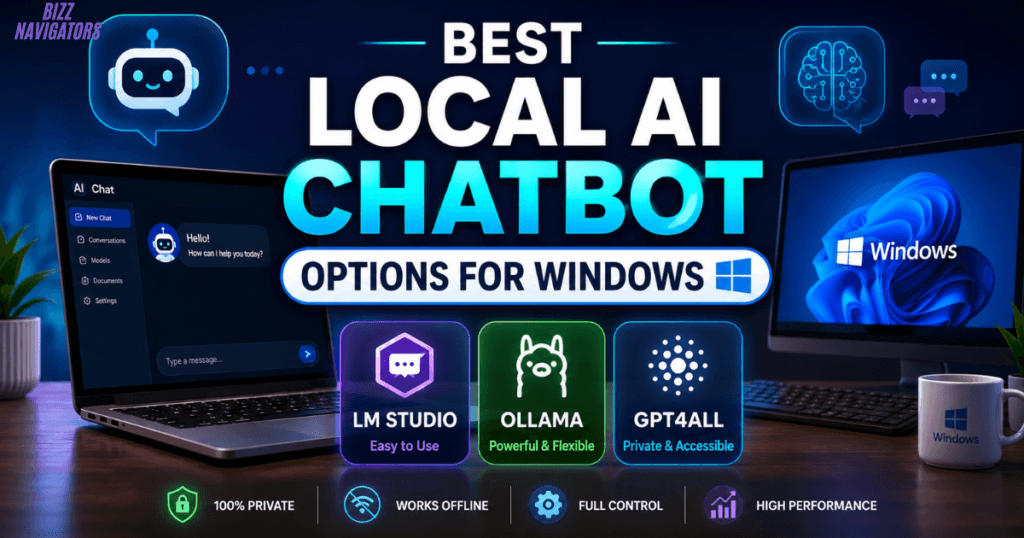
Best Local AI Chatbot Options for Windows
Several applications can turn a Windows computer into an offline AI workstation. The right choice depends on whether you want a simple graphical interface, developer controls, or the easiest possible setup.
LM Studio
LM Studio is one of the simplest choices for people who want a graphical interface. It lets Windows users discover, download, and run local models without relying on a command-line workflow.
It supports models from families such as Qwen, Gemma, DeepSeek, and others. LM Studio also supports document conversations and local server functionality. Its documentation confirms that downloaded models can operate completely offline, with chats and local document processing staying on the device. (LM Studio)
For Windows, LM Studio recommends at least 16 GB of RAM, while a dedicated GPU with 4 GB or more of VRAM is recommended for a smoother experience.
Ollama
Ollama is particularly useful if you want more control over local models or plan to connect AI to other applications.
Its Windows version supports local model execution and GPU acceleration. Ollama also provides an API, allowing developers and compatible applications to communicate with models running on the same computer. (Ollama)
It is a strong option for developers, automation workflows, coding assistants, and users who do not mind working with a terminal.
GPT4All
GPT4All focuses on making private local AI accessible on everyday desktops and laptops. Its Windows application can run language models locally without requiring an API connection or dedicated GPU. It can also work with local documents through its embedding capabilities. (GPT4All)
That makes GPT4All worth considering if your priority is a straightforward private chatbot rather than a development-focused environment.
How to Download an Offline AI Chatbot for Windows
Downloading a local AI chatbot usually involves two separate downloads: the chatbot application and the AI model.
First, download the Windows version of a trusted local AI application. After installation, choose a model that matches your computer’s hardware.
This distinction matters because installing the application alone does not necessarily give you an offline AI assistant. The model itself also needs to be available locally.
For example, LM Studio notes that model searching and downloading require internet access, but once a model is downloaded, chatting with it and processing documents can work offline.
What Should You Check Before Downloading?
Check these specifications before choosing a model:
RAM: More memory allows larger models to run.
GPU VRAM: Dedicated VRAM can significantly improve performance.
CPU: A modern processor helps when running models without a capable GPU.
Storage: AI models can consume several gigabytes or more.
Operating system: Confirm that the application supports your Windows version.
Model size: Smaller models generally require fewer resources.
A common mistake is downloading the largest model available simply because it appears more capable. A smaller model that runs smoothly can be much more useful than a huge model that constantly struggles with memory.
Can You Use a Local AI Chatbot for Windows Offline?
Yes. A local AI chatbot can work without internet access after the application and required model files are already installed.
LM Studio explicitly states that downloaded models can run offline, including local conversations and document-based RAG workflows.
However, offline does not mean every feature works without connectivity. You may still need the internet to:
Download new models
Search model catalogs
Install application updates
Download additional runtimes
Access cloud-based services
Retrieve live web information
This is an important distinction when evaluating an offline AI chatbot for Windows.
Is a Local AI Chatbot Free?
Many local AI chatbot applications are available free of charge, but “free” can mean different things.
The application may be free, while individual models can have different licensing terms. Your computer also consumes electricity and storage while running local AI.
LM Studio currently describes its local AI experience as private and free, while GPT4All provides a downloadable desktop application for running models locally.
Before using a model commercially, check its license rather than assuming every downloadable model has identical usage rights.
Why Use Local AI on Windows?
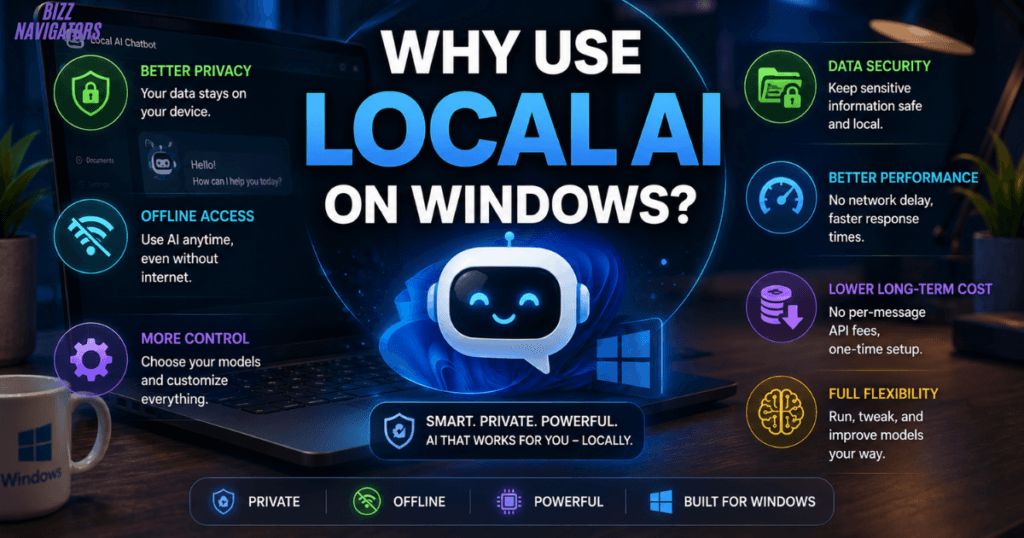
The biggest attraction is control.
Better Privacy
When a model runs locally, prompts and documents can remain on your computer. This can be valuable when working with sensitive notes, private documents, source code, or internal business information.
Microsoft also identifies data privacy, security, resource availability, cost, performance, and connectivity as important factors when choosing between local and cloud AI.
Offline Access
A downloaded model does not need a constant connection to a cloud service. That makes local AI useful when traveling, working in unreliable network conditions, or handling information that you prefer not to upload.
More Model Control
Local AI lets you choose different model families and sizes instead of depending on one provider’s chatbot.
Potentially Lower Long-Term Cost
There is no mandatory per-message cloud API charge for basic local inference. After acquiring the necessary hardware, the software and model may be available at no additional usage cost, depending on licensing and the application.
What Are the Limitations?
Local AI is not automatically better than cloud AI.
Large models can demand substantial RAM, VRAM, processing power, and storage. Response speed can also vary dramatically between computers.
Local models may also lack some cloud features, especially live web research, large-scale infrastructure, advanced proprietary models, or continuously updated information.
Microsoft’s local AI documentation similarly notes that model availability and performance vary depending on device hardware.
For a basic Windows laptop, a compact model may provide a better experience than attempting to run a very large model.
Local AI Chatbot for Windows vs. Offline AI Chatbot
These phrases are closely related but are not always identical.
A local AI chatbot for Windows emphasizes where the AI processing happens: on your Windows computer.
An offline AI chatbot for Windows emphasizes connectivity: the chatbot can continue working without an internet connection.
A local chatbot can sometimes use cloud features, while an offline chatbot requires the necessary models and functionality to be available locally.
Therefore, if privacy is your priority, focus on local processing. If you need AI during an internet outage or while completely disconnected, verify that the specific application and model support offline operation.
Can Windows Run AI Models Natively?
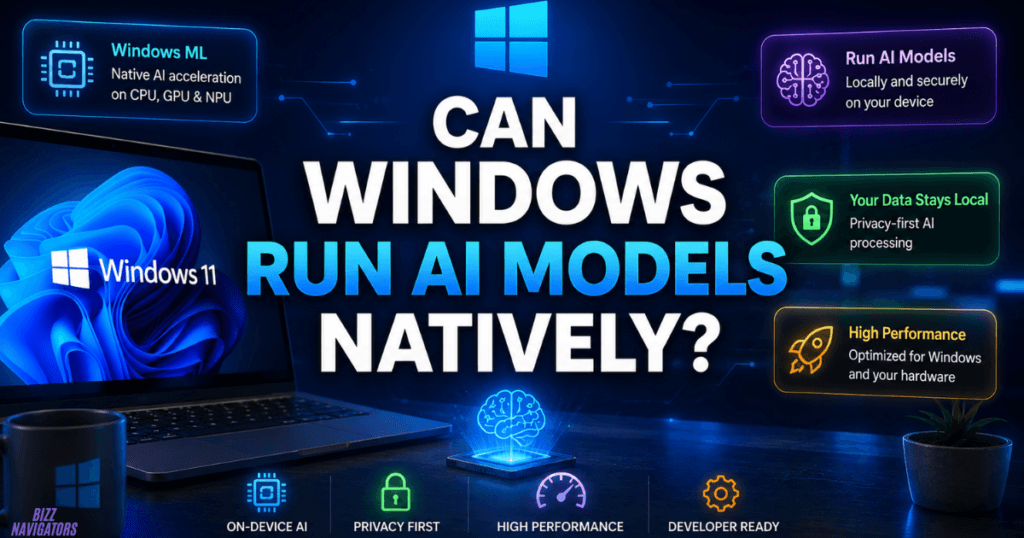
Windows now has an expanding ecosystem for local AI beyond third-party chatbot applications.
Microsoft provides Windows AI technologies for on-device inference, including Windows ML and Foundry Local. Windows ML can use CPUs, GPUs, and supported NPUs for local inference, while Foundry Local provides local execution of supported open-source LLMs. (Microsoft Learn)
Microsoft also documents ready-to-use local LLMs for Windows, including Phi Silica on supported hardware and numerous open-source models.
This means local AI is becoming part of the broader Windows development ecosystem rather than remaining limited to experimental third-party software.
Frequently Asked Questions
Can I run a local AI chatbot on Windows without internet?
Yes. Download the application and model first. Once everything required is stored locally, compatible chatbots can generate responses without an internet connection.
What is the easiest local AI chatbot for Windows?
For users who prefer a graphical interface, LM Studio is a straightforward starting point. Ollama is more attractive for command-line users and developers, while GPT4All focuses on accessible local AI for desktops and laptops.
Does local AI work on a normal Windows laptop?
Yes, although performance depends heavily on hardware. Smaller models are generally more practical on machines with limited RAM or without a dedicated GPU.
Can a local AI chatbot read my files?
Some applications support local document processing and RAG. LM Studio, for example, supports chatting with documents locally after the required model and files are available on the machine.
Is local AI better than ChatGPT?
Not universally. Local AI offers stronger control, privacy, and offline access, while cloud AI can provide access to larger models, online information, and more extensive infrastructure. The better option depends on the task.
Final Takeaway
A local AI chatbot for Windows is a practical way to bring private, flexible AI directly to your PC. Applications such as LM Studio, Ollama, and GPT4All make local models easier to install and use, while Microsoft’s Windows AI technologies are expanding native support for on-device inference.
If your priority is privacy and offline access, start with a model your hardware can comfortably handle rather than chasing the largest model available. For everyday writing, document analysis, coding, and brainstorming, a well-matched local model can turn an ordinary Windows PC into a surprisingly capable AI workstation.

At BizzNavigators, we answer the questions you’re actually searching for, honestly and clearly. We check our facts before we publish anything, and if we’re not sure about something, we tell you instead of guessing. Whatever you’re looking for- a tech fix, a business tip, or a simple how-to- we want to give you an answer you can trust.