
What Are Offline AI Writing Tools?
Offline AI writing tools are applications that run AI models directly on your computer instead of sending every prompt to a cloud server. After the required software and model are downloaded, you can use them offline for tasks such as drafting, rewriting, summarizing, brainstorming, and editing.
This makes offline AI writing tools especially useful for writers, students, researchers, developers, and professionals who want more control over their documents and data.
Unlike web-based AI services, local tools can continue working when Wi-Fi is unavailable. They can also reduce dependence on subscriptions, usage limits, and cloud-based processing.
Why Use Offline AI Writing Tools?
The biggest advantage is privacy. When an AI model runs locally, your prompts and documents can remain on your own machine. For example, LM Studio states that chats and documents processed with downloaded local models stay on the device.
Other benefits include:
No internet required: Write and edit when you are offline.
Better privacy: Sensitive drafts can remain on your computer.
Lower ongoing costs: Many local AI applications are free to download.
No cloud rate limits: Your usage depends mainly on your hardware.
Local document processing: Some tools can work with files stored on your device.
More model choice: You can often choose different open-weight models.
However, offline AI does not mean that every feature works without the internet. You normally need an internet connection initially to download the application, model files, and sometimes updates.
Best Offline AI Writing Tools to Try
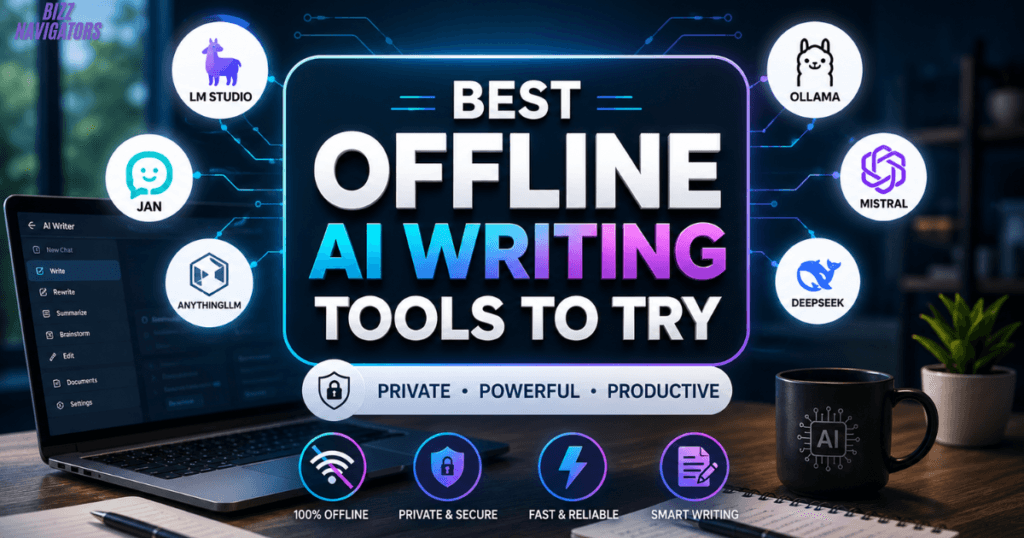
There is no single best tool for everyone. Your choice depends on your computer, preferred interface, writing workload, and how much control you want over local models.
1. LM Studio
LM Studio is one of the easiest choices for people who want a graphical interface for local AI. It supports models such as Llama, Qwen, Mistral, DeepSeek, and other compatible local models across Windows, macOS, and Linux.
Its offline capabilities go beyond basic chat. You can use downloaded models to write content, rewrite paragraphs, summarize material, brainstorm ideas, and chat with documents through local retrieval-augmented generation (RAG).
Best for: Beginners who want a simple desktop interface.
2. Jan
Jan is another strong option for people searching for free AI writing tools like ChatGPT that can work locally. Its local models run on your computer, and the platform supports macOS, Windows, and Linux. (Jan)
Jan can be used for everyday writing, brainstorming, summarizing, and other AI-assisted tasks without requiring a cloud account when using local models.
Best for: Users who want a ChatGPT-style local experience.
3. AnythingLLM
AnythingLLM takes a broader approach to local AI. Its desktop application is designed to keep models, documents, and chats locally on your machine, and it does not require an account for its desktop experience. (AnythingLLM)
It can be particularly useful if your writing workflow involves research documents, notes, PDFs, or a large collection of reference material.
Best for: Writers who want AI writing combined with document knowledge.
4. Ollama
Ollama is especially popular with technically inclined users because it provides a straightforward way to run open models locally. Its free offering supports running models on your own hardware, with CLI, API, and desktop options. (Ollama)
It is less of a traditional word processor and more of a local AI runtime. You can connect it to compatible applications and build a customized writing workflow around local models.
Best for: Advanced users who want flexibility and automation.
Offline AI Writing Tools Free: What Can You Actually Do?
Free local AI software can handle many common writing tasks without a subscription. Once a compatible model is installed, you can use it for:
| Writing task | Offline AI usefulness |
| Blog outlines | Excellent |
| Brainstorming | Excellent |
| Rewriting | Excellent |
| Summarization | Very good |
| Grammar improvement | Good |
| Email drafting | Excellent |
| Product descriptions | Very good |
| SEO content ideas | Very good |
| Document Q&A | Excellent with supported tools |
| Creative writing | Good to very good |
The actual quality depends heavily on the model you install and the hardware running it. A lightweight model may be fast but less capable, while a larger model may produce better results but require significantly more memory and processing power.
Offline AI Writing Tools Download: How to Get Started
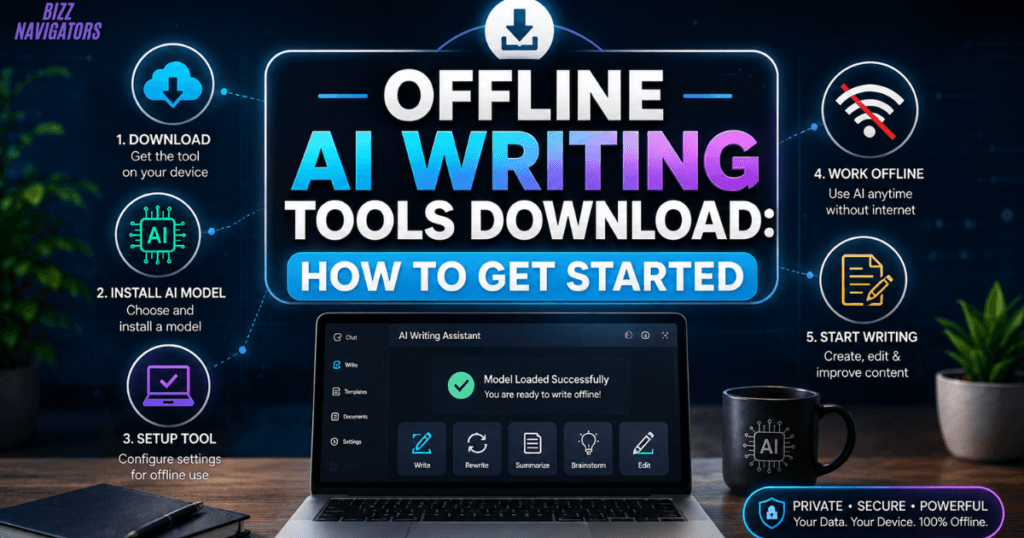
Setting up an offline AI writing tool is usually straightforward, but there are two separate downloads to understand: the application and the AI model.
Step 1: Choose a Local AI Application
Pick an application that matches your technical comfort level.
Beginners will generally find graphical applications such as LM Studio, Jan, or AnythingLLM easier to understand. Advanced users may prefer Ollama because of its command-line and API capabilities.
Step 2: Download a Suitable Model
The application itself is not necessarily the AI model. You normally need to download model weights before you can generate text offline.
For example, LM Studio explains that you must obtain a model first before completely offline use becomes possible. (LM Studio)
Choose a model that your computer can realistically handle rather than automatically selecting the largest available option.
Step 3: Test Your Writing Workflow
Start with simple prompts such as:
Rewrite this paragraph in clear professional English.
Then test more demanding tasks:
Create a detailed outline.
Improve sentence clarity.
Summarize a document.
Rewrite content for a specific audience.
Generate alternative headlines.
Extract important points from research notes.
This gives you a better idea of whether the selected model is suitable for your actual work.
What Hardware Do You Need?
Hardware matters more with offline AI than with cloud-based writing tools because your computer performs the AI inference locally.
A modern computer with sufficient RAM can handle smaller models, while larger models may benefit significantly from a capable GPU and more memory.
As a practical rule, start small rather than downloading the biggest model available. A model that runs smoothly is often more useful than a theoretically stronger model that makes your computer crawl.
Storage also matters because model files can consume substantial disk space.
Offline vs Online AI Writing Tools
| Feature | Offline AI | Online AI |
| Internet required after setup | No for local features | Usually yes |
| Data processing | On your device | Usually cloud-based |
| Privacy control | High | Depends on provider |
| Setup | More technical | Usually easier |
| Model selection | Often extensive | Provider controlled |
| Hardware requirement | Your computer handles AI | Provider handles AI |
| Latest web information | Usually unavailable offline | Often available |
| Subscription dependence | Often lower | Varies |
| Performance | Depends on hardware | Depends on service |
The important point is that offline does not automatically mean better. Local AI gives you control and privacy, while online AI generally offers easier access to larger models and internet-connected features.
Free AI Writing Tools vs Offline AI Tools
These terms are often confused.
A free AI writing tool can still be completely cloud-based. You may not pay anything, but your prompts are processed through an online service.
An offline AI writing tool specifically refers to software capable of running the AI model locally.
Therefore, the best free offline AI writing tool options are applications that provide local model support without requiring a paid cloud subscription for basic local inference.
Can Offline AI Replace ChatGPT?
Not completely.
Local AI can replace many everyday ChatGPT-style writing tasks, particularly drafting, rewriting, summarizing, brainstorming, and document analysis. Jan, for example, explicitly supports local models that run privately and offline.
But cloud AI still has major advantages when you need current information, web search, very large models, or advanced hosted features.
A better approach is to treat local and online AI as complementary tools rather than assuming one must replace the other.
Limitations You Should Know
Offline AI has some important limitations.
Model quality varies. Smaller local models may struggle with complex reasoning, nuanced editing, or highly specialized subjects.
Your hardware matters. Limited RAM or processing power can make larger models slow or unusable.
Knowledge can be outdated. A local model does not automatically know today’s news or current web information.
Initial setup requires internet. You generally need connectivity to download applications and model files. LM Studio, for example, requires internet access for model searching and downloads even though its downloaded models can subsequently operate offline.
Updates are not automatic offline. Software and model updates require connectivity.

How to Choose the Best Offline AI Writing Tool
Choose based on your workflow rather than popularity.
Want an easy interface? Try a desktop application such as LM Studio or Jan.
Work heavily with documents? Consider a local-first platform such as AnythingLLM.
Want APIs and automation? Ollama is worth considering.
Need maximum privacy? Use a downloaded local model and verify which features remain enabled offline.
Have limited hardware? Choose a smaller model designed for your system.
Need current web information? An online AI service may be more suitable.
Key Takeaways
Offline AI writing tools bring AI-assisted writing directly to your computer. They can help with drafting, rewriting, brainstorming, summarization, document analysis, and many everyday writing tasks without requiring a constant internet connection.
LM Studio, Jan, AnythingLLM, and Ollama are among the notable local-AI options, but they serve different types of users. LM Studio and Jan are approachable for desktop users; AnythingLLM is useful for document-focused workflows; while Ollama offers more flexibility for technical users.
The biggest advantage is control: your local model can process prompts and documents on your own hardware. The trade-off is that you must provide the computing resources, storage, and model setup yourself.
FAQs About Offline AI Writing Tools
Are offline AI writing tools free?
Many local AI applications are free to download or offer free local functionality. However, some may also provide optional paid cloud features. Always check whether the specific feature you need runs locally.
Can I use AI writing tools without Wi-Fi?
Yes. Once the application, required runtime, and AI model are installed, supported local features can work without Wi-Fi. LM Studio explicitly supports offline chatting and document processing with downloaded models.
What is the best offline AI writing tool?
There is no universal winner. LM Studio is a strong beginner-friendly choice; Jan provides a ChatGPT-style local experience; AnythingLLM focuses heavily on local documents and productivity, while Ollama is well suited to technical workflows.
Can offline AI tools write blog posts?
Yes. Local models can generate outlines, drafts, introductions, headings, rewrites, summaries, and other content. For high-quality publishing, human editing and fact-checking are still essential.
Are offline AI tools more private?
They can be. When the model and processing remain completely local, prompts and documents do not need to be sent to a cloud AI provider. However, you should verify whether optional web, cloud, telemetry, or update features are enabled. LM Studio and AnythingLLM both document local processing capabilities.

At BizzNavigators, we answer the questions you’re actually searching for, honestly and clearly. We check our facts before we publish anything, and if we’re not sure about something, we tell you instead of guessing. Whatever you’re looking for- a tech fix, a business tip, or a simple how-to- we want to give you an answer you can trust.
1 thought on “Offline AI Writing Tools: Free Options for Content Creation”