
Windows 11 offers far more than what you see after installation. Beneath its clean interface are numerous hidden settings that can enhance system performance, strengthen privacy, improve security, and make everyday tasks more efficient. Many users never explore these options, which means they miss features designed to personalize and optimize their Windows experience.
Whether you use your PC for work, gaming, studying, or creative projects, enabling the right Windows 11 hidden settings can help you unlock capabilities that are disabled or difficult to find by default. This article explains the most useful settings, how they work, and when you should enable them to get the best results from your computer.
What Are Windows 11 Hidden Settings?
Windows 11 hidden settings are advanced or lesser-known options that allow you to customize your computer beyond Microsoft’s default configuration. They help improve performance, privacy, security, battery life, and productivity without requiring third-party software.
Most of these settings are built directly into Windows 11 but remain buried inside the Settings app, Windows Security, Registry Editor, Group Policy Editor, or other advanced system tools. Microsoft keeps some options less visible because casual users rarely need them, while others are designed for users who want greater control over their operating system.
Some popular hidden settings include:
Clipboard History
Storage Sense
Dynamic Refresh Rate
Nearby Sharing
Startup App Management
Advanced Privacy Controls
Virtual Desktops
Developer Mode
These built-in features can significantly improve your daily workflow once they’re enabled correctly.
Why Should You Enable Hidden Windows 11 Settings?
Enabling the right Windows 11 hidden settings helps you customize your PC for better speed, security, privacy, and productivity. Instead of relying on default configurations, these settings let you tailor Windows to match your personal or professional needs.
Some of the biggest benefits include:
Faster boot times
Better gaming performance
Reduced background resource usage
Improved battery life
Stronger privacy protection
Automatic storage management
Enhanced multitasking
Cleaner and more organized desktop experience
For example, disabling unnecessary startup applications can noticeably reduce boot time, while enabling Storage Sense automatically removes temporary files and frees valuable disk space. Likewise, adjusting privacy permissions gives you greater control over which apps can access your camera, microphone, location, and other sensitive data.
The best approach is to enable only the settings that align with how you use your computer.
Best Windows 11 Hidden Settings to Enable
Windows 11 includes several hidden settings that can provide immediate improvements with only a few clicks. These features are built into the operating system and can make your PC faster, more organized, and easier to use.
Enable Clipboard History
Clipboard History lets Windows save multiple copied items instead of only the most recent one. This feature is especially useful for users who frequently copy and paste text, links, images, or code throughout the day.
How to enable it:
1. Open Settings.
2. Select System.
3. Click Clipboard.
4. Turn on Clipboard History.
Press Windows + V anytime to open your clipboard history and access previously copied content.
Best for:
Writers
Students
Office professionals
Developers
Researchers
Turn On Storage Sense
Storage Sense automatically manages your storage by removing temporary files, emptying the Recycle Bin, and cleaning unnecessary system data. It reduces manual maintenance while helping your computer continue running efficiently.
Go to:
Settings → System → Storage → Storage Sense
You can customize:
Automatic cleanup schedule
Temporary file removal
Recycle Bin cleanup
Downloads folder cleanup (optional)
Enabling Storage Sense is one of the easiest ways to maintain healthy system performance over time.
Optimize Startup Apps
Many applications launch automatically when Windows starts, increasing boot time and consuming valuable system resources. Managing startup apps is one of the quickest ways to improve overall responsiveness.
Navigate to:
Settings → Apps → Startup
Disable programs that you don’t need immediately after logging in.
Common examples include:
Spotify
Discord
Microsoft Teams (if unused)
Adobe Updater
Steam
Epic Games Launcher
Reducing startup applications allows Windows to boot faster and leaves more memory available for the programs you actually use.
Enable Dynamic Refresh Rate
Dynamic Refresh Rate automatically adjusts your monitor’s refresh rate based on what you’re doing. It delivers smoother scrolling when needed while conserving battery during less demanding tasks.
Open:
Settings → System → Display → Advanced Display
If your hardware supports it, select Dynamic under the refresh rate options.
This feature is particularly beneficial for laptops because it balances visual smoothness with improved battery efficiency.
Customize Advanced Privacy Permissions
Windows 11 provides detailed privacy controls that allow you to decide which applications can access your personal information. Reviewing these permissions regularly helps improve both security and privacy.
Navigate to:
Settings → Privacy & Security
Check permissions for:
Camera
Microphone
Location
Contacts
Calendar
Notifications
Diagnostics
Background apps
Disable permissions for apps that don’t genuinely require access. This minimizes unnecessary data collection while giving you greater control over your personal information.
Enable Virtual Desktops
Virtual Desktops allow you to separate different tasks into independent workspaces, reducing desktop clutter and improving productivity. Instead of keeping every application on one screen, you can organize your work into dedicated environments.
Press:
Windows + Tab
Then select:
New Desktop
A practical setup might look like this:
Desktop 1: Office work
Desktop 2: Personal browsing
Desktop 3: Programming or development
Desktop 4: Gaming or entertainment
Using Virtual Desktops makes multitasking more efficient and helps you stay focused by keeping related applications together.
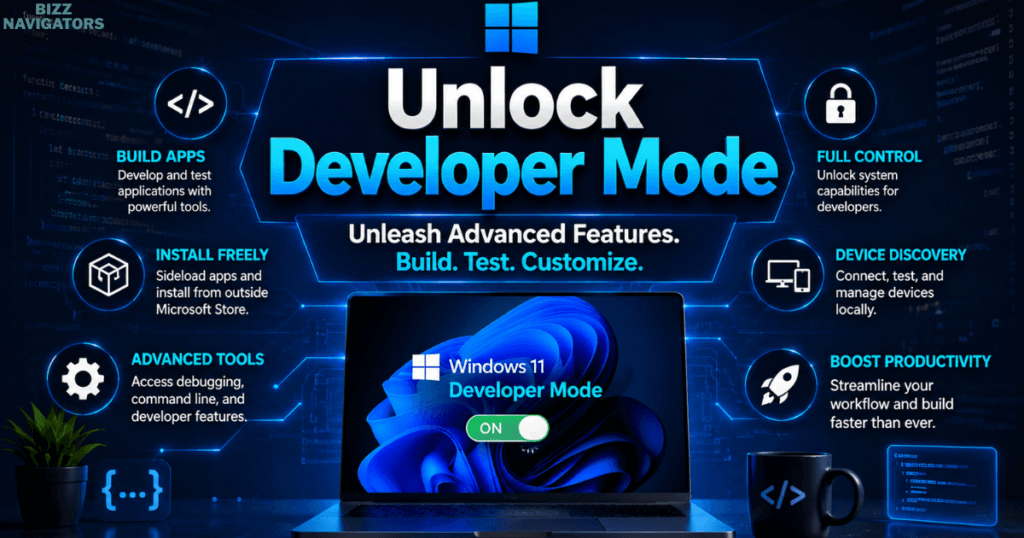
Unlock Developer Mode
Developer Mode gives you access to advanced Windows features intended for software development and power users. Even if you’re not a developer, enabling it allows you to sideload apps, access advanced debugging options, and use additional system tools.
To enable it:
Settings → Privacy & Security → For Developers
Turn on Developer Mode and confirm the prompt.
Benefits include:
Install apps from outside the Microsoft Store
Access advanced development features
Enable Device Portal and Device Discovery
Test applications more easily
Who should enable it?
Developers
IT professionals
Advanced Windows users
If you don’t need these features, it’s perfectly fine to leave Developer Mode disabled.
Use God Mode for Quick Access
God Mode is a hidden Windows feature that places hundreds of administrative tools and settings into a single folder. It doesn’t unlock secret features but makes finding advanced options much faster.
How to enable God Mode
1. Right-click on your desktop.
2. Select New → Folder.
3. Rename the folder to:
GodMode.{ED7BA470-8E54-465E-825C-99712043E01C}
The folder icon will change automatically. Opening it gives you quick access to hundreds of Windows management settings, including backup, networking, power options, user accounts, troubleshooting, and security tools.
This feature is especially useful for IT administrators and users who frequently adjust system settings.
Enable Focus Assist
Focus Assist helps reduce interruptions by silencing notifications while you’re working, gaming, or presenting. It creates a distraction-free environment without permanently disabling alerts.
Navigate to:
Settings → System → Focus
You can configure it to activate automatically when:
Playing games
Using full-screen applications
During specific hours
Duplicating your display for presentations
For professionals and students, Focus Assist can significantly improve concentration and productivity.
Turn On BitLocker Device Encryption
BitLocker encrypts your drive, protecting your files if your laptop is lost or stolen. Even if someone removes your storage drive, they won’t be able to access your data without authorization.
Go to:
Settings → Privacy & Security → Device Encryption
or
Control Panel → BitLocker Drive Encryption
If your hardware supports it, enable encryption and save your recovery key in a secure location.
Benefits
Protects sensitive files
Prevents unauthorized access
Improves business security
Safeguards personal information
Customize Hidden File Explorer Options
File Explorer includes several useful options that many users never change. Adjusting these settings can make file management easier and more efficient.
Open File Explorer, click the three-dot menu, then choose Options.
Consider enabling or disabling the following:
Show file extensions
Display hidden files and folders
Open File Explorer to This PC
Show full folder paths
Disable recently used files if you value privacy
These small adjustments make navigating and managing files much more convenient.

Optimize Gaming Performance
Windows 11 includes built-in gaming features that can improve performance without installing additional software.
Visit:
Settings → Gaming
Review these options:
Game Mode – Prioritizes system resources for games.
Hardware-Accelerated GPU Scheduling – Reduces graphics latency on supported hardware.
Xbox Game Bar – Enable or disable depending on your preference.
Captures – Adjust recording quality and storage location.
Gamers should also ensure graphics drivers and Windows updates are kept current for the best experience.
Windows 11 Hidden Settings Comparison
| Setting | Primary Benefit | Best For |
| Clipboard History | Faster copy and paste | Writers, students, office users |
| Storage Sense | Automatic storage cleanup | Everyone |
| Startup Apps | Faster boot times | All users |
| Dynamic Refresh Rate | Better battery and smoother visuals | Laptop users |
| Privacy Permissions | Improved privacy | Privacy-conscious users |
| Virtual Desktops | Better multitasking | Professionals |
| Developer Mode | Advanced features | Developers |
| God Mode | Centralized system controls | Power users |
| Focus Assist | Fewer distractions | Students and professionals |
| BitLocker | Stronger data protection | Business and personal users |
Best Practices for Using Hidden Settings
The best Windows 11 hidden settings improve your experience when used thoughtfully. Avoid changing every option at once, as some advanced settings may not provide benefits for every user.
Follow these best practices:
Create a System Restore Point before making advanced changes.
Change one setting at a time so you can identify its impact.
Keep Windows 11 updated with the latest security patches.
Only enable Developer Mode if you genuinely need it.
Save your BitLocker recovery key in a secure location.
Review privacy permissions periodically.
Disable startup apps you no longer use.
These habits help maintain a stable, secure, and efficient Windows installation.
Common Mistakes to Avoid
Many users accidentally reduce performance or security by changing settings without understanding their purpose.
Avoid these common mistakes:
Disabling essential Windows services unnecessarily.
Editing the Registry without creating a backup.
Installing unknown optimization tools.
Enabling every hidden feature regardless of need.
Ignoring Windows Security recommendations.
Forgetting to update drivers after changing performance settings.
Making informed changes is always safer than applying random tweaks from unreliable online sources.
Security and Privacy Considerations
Some hidden settings directly affect how Windows handles your personal data. Taking a few minutes to review these options can significantly improve your privacy.
Regularly check:
App permissions
Diagnostic data settings
Advertising ID preferences
Location services
Camera and microphone access
Background app permissions
Windows Security should also remain enabled with features such as Microsoft Defender Firewall and real-time protection for comprehensive system security.
Future of Windows 11 Hidden Settings
Microsoft continues to introduce new features and advanced options through Windows Updates and Insider Preview builds. As Windows 11 evolves, additional hidden settings related to AI, productivity, accessibility, and security are expected to become available.
Keeping your system updated ensures you can benefit from these improvements while maintaining compatibility with the latest features.
Key Takeaways
Windows 11 includes many hidden settings that can noticeably improve your computer’s performance, privacy, security, and overall usability. Features such as Clipboard History, Storage Sense, Virtual Desktops, Focus Assist, BitLocker, and Game Mode are easy to enable and provide practical everyday benefits.
Rather than changing every advanced option, focus on the settings that match your workflow and review them periodically as Microsoft introduces new capabilities.
Frequently Asked Questions
What are Windows 11 hidden settings?
Windows 11 hidden settings are advanced or lesser-known options that allow you to customize performance, privacy, security, and productivity beyond the default configuration.
Are hidden Windows 11 settings safe to enable?
Yes. Most built-in hidden settings are completely safe when enabled through the Windows Settings app. However, advanced tools such as Registry Editor should only be used carefully.
Which hidden setting improves Windows 11 performance the most?
Managing Startup Apps, enabling Storage Sense, and activating Game Mode typically provide the most noticeable performance improvements for everyday users.
Does Windows 11 have a God Mode?
Yes. God Mode is a hidden administrative folder that provides quick access to hundreds of Windows management tools and settings from one location.
Should I enable Developer Mode?
Only if you develop software, test applications, or require advanced Windows features. Most everyday users do not need Developer Mode enabled.
How often should I review Windows 11 settings?
It’s a good idea to review privacy, security, and performance settings every few months or after major Windows feature updates to ensure your system remains optimized and secure.

At BizzNavigators, we answer the questions you’re actually searching for, honestly and clearly. We check our facts before we publish anything, and if we’re not sure about something, we tell you instead of guessing. Whatever you’re looking for- a tech fix, a business tip, or a simple how-to- we want to give you an answer you can trust.