
How Do I Troubleshoot WiFi Issues on Windows?
Windows WiFi troubleshooting starts by identifying the exact problem. Check whether WiFi is missing, connected without internet, slow, or disconnecting repeatedly. Then apply the fix that matches the symptom instead of changing unrelated settings.
Start with these quick checks:
Turn WiFi off and back on.
Make sure Airplane mode is disabled.
Restart your Windows PC.
Restart the modem and router.
Move closer to the router.
Forget the WiFi network and reconnect.
Test the same network on another device.
If other devices also have no internet, the router or internet service may be responsible.
Why Is My PC Connected to WiFi but Nothing Is Working?
Your PC can connect to the router while the internet connection remains unavailable. Windows may show that WiFi is connected even though websites and online apps cannot reach the internet.
First, check another phone or computer on the same WiFi network.
If every device has the same problem, restart the modem and router. If other devices work normally, focus your troubleshooting on the Windows PC.
What Should I Do When Windows WiFi Says “No Internet”?
Start by disconnecting from the current network. Wait a few seconds and connect again using the correct WiFi password.
If that does not help, restart the router and PC.
You can also open Settings > Network & internet and check the connection status. If Windows reports No internet, test another website to rule out a temporary website problem.
If the problem continues only on your PC, continue with the network and adapter checks below.
How Do I Fix Windows Not Detecting WiFi?
If Windows does not show any available WiFi networks, first confirm that WiFi is enabled and Airplane mode is turned off.
On a laptop, check whether a physical wireless switch or keyboard shortcut has disabled WiFi.
Next, open:
Start > Device Manager > Network adapters
Look for an adapter containing terms such as WiFi, Wireless, WLAN, 802.11, Intel, Realtek, MediaTek, or Qualcomm.
If the adapter is disabled, right-click it and select Enable device.
If it has a warning icon, Windows may have detected a driver problem.
Why Is My WiFi Adapter Missing From Device Manager?
A missing WiFi adapter usually means Windows is not detecting the wireless hardware correctly.
Restart the computer first. Then check Device Manager again.
If the adapter remains missing, download the correct wireless driver from your computer manufacturer’s official website.
For a USB WiFi adapter, disconnect it and connect it to another USB port.
If the adapter works on another computer but not yours, the issue may involve Windows, drivers, or the computer’s hardware.
Why Is My PC Struggling With WiFi?
A Windows PC can struggle with WiFi because of weak signal strength, network congestion, outdated drivers, router problems, or wireless adapter issues.
The easiest way to narrow down the cause is to compare the PC with another device.
| Problem | Likely Cause |
| No WiFi networks appear | Adapter, driver, or WiFi disabled |
| Connected but no internet | Router, ISP, IP, or DNS |
| Frequent disconnections | Signal, driver, or router |
| Slow WiFi on one PC | PC, adapter, or driver |
| Slow WiFi everywhere | Router, congestion, or ISP |
| Only one network is missing | Router range or compatibility |
This comparison can save you from performing unnecessary Windows resets.
How Do I Fix Weak WiFi Signal on Windows?
Move your PC closer to the router and test the connection again.
If the connection becomes noticeably better, distance or interference may be causing the problem.
Avoid placing the router behind large objects or near devices that can interfere with wireless signals.
If your router supports both 2.4 GHz and 5 GHz, test both networks.
The 2.4 GHz band generally provides better range, while 5 GHz can provide faster speeds at shorter distances.
What Should I Do If Windows WiFi Keeps Disconnecting?
Repeated WiFi disconnections can come from weak signals, outdated drivers, router problems, or power-management settings.
First, restart the router and Windows PC.
Then check whether another device disconnects from the same WiFi network.
If other devices remain connected, update your wireless adapter driver.
You can also forget the WiFi network and connect again:
Settings > Network & internet > Wi-Fi > Manage known networks
Select your network and choose Forget.
Reconnect afterward and enter the WiFi password again.
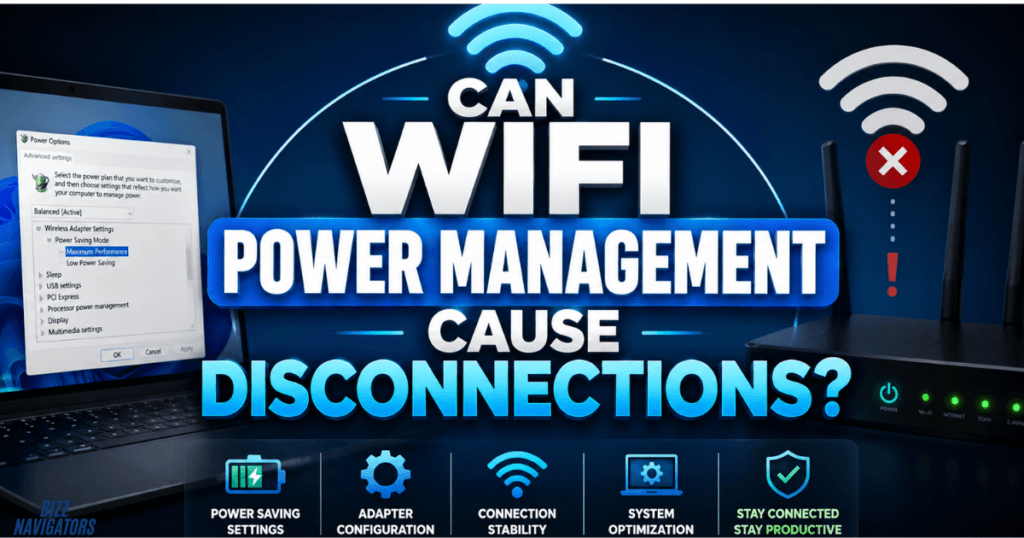
Can WiFi Power Management Cause Disconnections?
Yes. Windows can manage the power used by network adapters, and certain configurations may contribute to connection problems.
Open Device Manager and expand Network adapters.
Right-click your WiFi adapter and select Properties.
If a Power Management tab is available, review the option that allows Windows to turn off the device to save power.
After changing the setting, restart your PC and test the WiFi connection.
How Do I Fix Slow WiFi on Windows?
First, determine whether the slow connection affects only your PC.
Test the same WiFi network on your phone or another computer.
If every device is slow, investigate the router, network congestion, or internet service.
If only Windows is slow, close applications that may be using bandwidth in the background.
Also check for large downloads, cloud synchronization, Windows updates, VPN connections, or streaming activity.
Moving closer to the router can also improve performance.
Should I Use 2.4 GHz or 5 GHz WiFi?
Use 2.4 GHz when you need greater range or your PC is far from the router.
Use 5 GHz when your PC is closer to the router, and you want higher wireless performance.
If one band repeatedly disconnects, test the other.
The better choice depends on your router, wireless adapter, distance, walls, interference, and supported WiFi standards.
How Do I Update a WiFi Driver in Windows?
An outdated or damaged wireless driver can cause missing networks, unstable connections, and performance problems.
Open:
Start > Device Manager > Network adapters
Right-click the wireless adapter and select Update driver.
You can also download the latest compatible driver from the official website of your PC or WiFi adapter manufacturer.
After installing the driver, restart Windows and test the connection again.
What If a Windows Update Broke My WiFi?
If WiFi stopped working immediately after a Windows or driver update, check the wireless adapter in Device Manager.
Open its Properties and look for available driver-management options.
If Windows provides a Roll Back Driver option and the issue clearly started after a driver update, rolling back may restore the previous working driver.
Avoid downloading random drivers from unofficial websites.
Use the computer manufacturer’s website or the wireless adapter manufacturer’s official support page whenever possible.
How Do I Forget and Reconnect to WiFi?
Forgetting a saved network can fix problems caused by incorrect or corrupted connection information.
Open:
Settings > Network & internet > Wi-Fi > Manage known networks
Select your WiFi network and click Forget.
Return to the WiFi settings, select the same network, and enter the password again.
This gives Windows a fresh connection configuration without resetting the entire network stack.
How Do I Fix WiFi Using Windows Network Commands?
Windows includes several commands that can help troubleshoot IP and DNS-related problems.
Open Command Prompt as administrator and run:
ipconfig /release
ipconfig /renew
ipconfig /flushdns
The first two commands refresh the computer’s IP configuration.
The flushdns command clears the local DNS resolver cache.
Restart Windows after completing the commands if the connection still behaves unexpectedly.
What Is the Windows Wireless Network Report?
Windows includes a built-in wireless report that can provide more information about recent WiFi activity.
Open Command Prompt as administrator and run:
netsh wlan show wlanreport
Windows generates an HTML report containing information about wireless connections, adapter details, connection sessions, and recent WiFi events.
This report can be particularly useful when WiFi repeatedly disconnects, but the cause is not obvious.
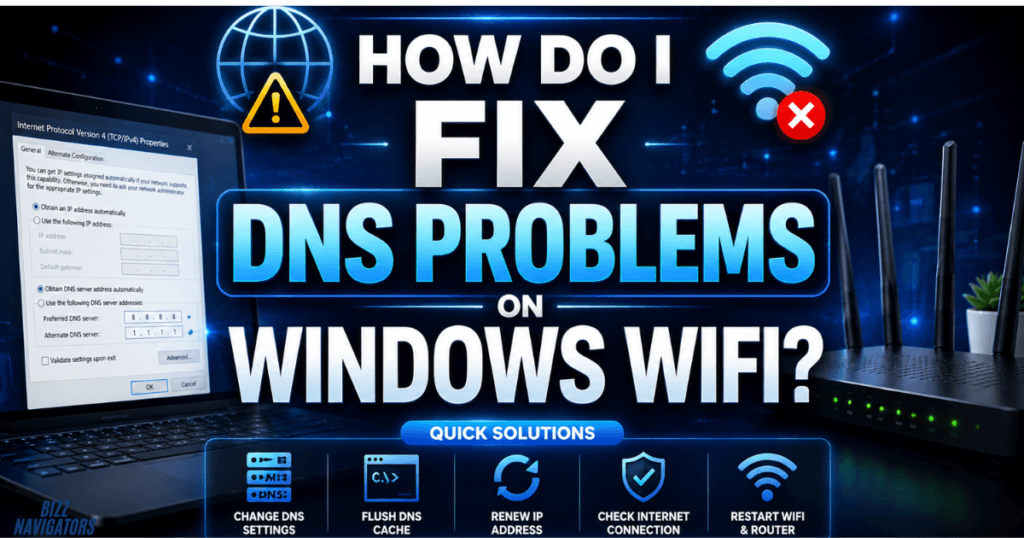
How Do I Fix DNS Problems on Windows WiFi?
DNS problems can prevent websites from loading even when the PC appears connected to WiFi.
First, run:
ipconfig /flushdns
Then try opening several different websites.
If only one website fails, the issue may be with that website rather than your WiFi.
If many websites fail while other internet-connected applications work differently, DNS configuration becomes a stronger possibility.
Why Does Windows Connect to Some WiFi Networks but Not Others?
If your PC connects to one wireless network but cannot connect to another, the problem may involve the router, WiFi band, security settings, signal range, or compatibility.
Move closer to the problematic router and try again.
If possible, test both 2.4 GHz and 5 GHz networks.
Also remove the saved network from Windows and reconnect with the correct password.
What If Ethernet Works but WiFi Does Not?
If an Ethernet cable provides internet access while WiFi does not, your internet service is probably working.
The problem is more likely related to the wireless adapter, driver, WiFi settings, or wireless signal.
Check the adapter in Device Manager and update its driver.
Then verify that WiFi is enabled and that Windows can detect nearby networks.
How Do I Restart the Windows Network Adapter?
Restarting the WiFi adapter can resolve temporary connection problems without restarting the entire computer.
Open:
Settings > Network & internet > Advanced network settings
Find your WiFi adapter and disable it.
Wait several seconds, then enable it again.
Reconnect to your wireless network and check whether the connection has improved.
When Should I Restart the Router?
Restart the router when multiple devices lose internet access, WiFi suddenly becomes unstable, or the network stops responding normally.
Turn off the modem and router.
Wait briefly, then turn them back on.
Allow the networking equipment to reconnect completely before testing Windows again.
If every device continues to experience problems, contact your internet service provider.
How Do I Use Windows Network Troubleshooter?
Windows includes built-in troubleshooting options that can identify certain network configuration problems.
Open:
Settings > System > Troubleshoot > Other troubleshooters
Depending on your Windows version, available network troubleshooting options may differ.
Run the relevant troubleshooter and follow the recommended actions.
Treat the results as diagnostic guidance rather than a guarantee that Windows will automatically fix the problem.
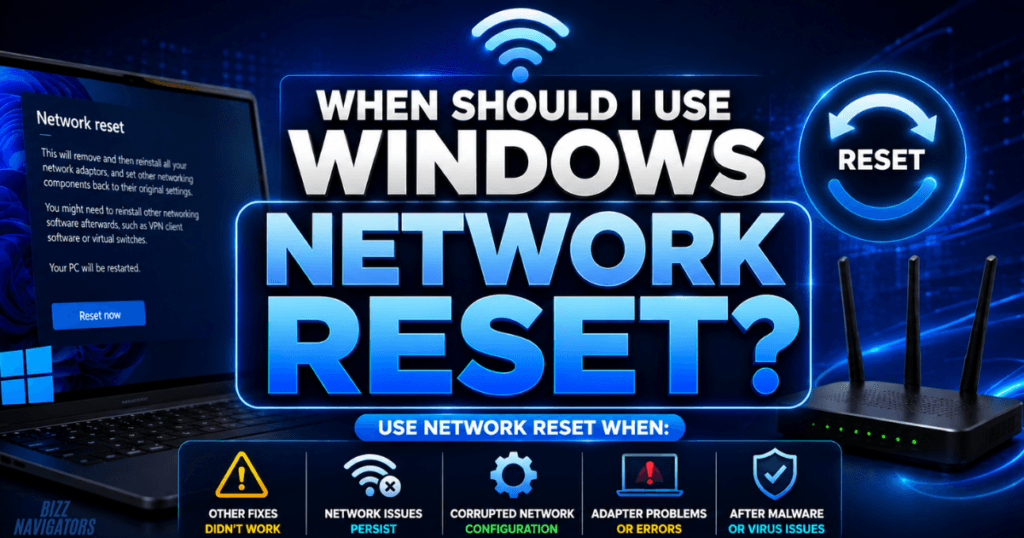
When Should I Use Windows Network Reset?
Use Network reset when normal troubleshooting has failed, and Windows networking still behaves incorrectly.
In Windows 11, open:
Settings > Network & internet > Advanced network settings > Network reset
Select Reset now.
Windows removes installed network adapters and resets their network settings.
After restarting, you may need to reconnect to WiFi and configure networking software again.
Because network reset changes several network settings at once, use it after simpler solutions have failed.
What Is the Fastest Windows WiFi Troubleshooting Order?
Use this sequence when you need a quick diagnostic path:
Check WiFi → Disable Airplane mode → Reconnect → Restart PC → Restart router → Test another device → Check adapter → Update driver → Refresh IP/DNS → Reset network
Start with the step that matches your exact symptom.
There is no need to perform a full network reset when simply reconnecting to WiFi solves the problem.
Windows WiFi Troubleshooting FAQs
Why is my Windows PC connected to WiFi but has no internet?
The PC may be connected to the router but not receiving working internet access. Test another device, restart the router, reconnect Windows to WiFi, and check the network configuration.
Why can’t Windows detect my WiFi?
Check that WiFi is enabled and Airplane mode is off. Then inspect the wireless adapter in Device Manager and update its driver if necessary.
Why does my WiFi keep disconnecting on Windows?
Weak signal, router problems, outdated drivers, interference, and adapter settings can cause repeated disconnections. Test another device and move closer to the router to narrow down the cause.
Does restarting the router fix Windows WiFi problems?
It can. Restarting the router refreshes the network connection and can resolve temporary router or connectivity problems affecting multiple devices.
Can an outdated WiFi driver cause problems?
Yes. A faulty or outdated driver can cause missing networks, random disconnections, unstable connections, and poor wireless performance.
How do I refresh my WiFi connection in Windows?
Disconnect from the WiFi network, forget the saved network if necessary, reconnect, and restart the PC if the connection remains unstable.
What command checks Windows WiFi problems?
netsh wlan show wlanreport creates a wireless network report containing recent WiFi activity and connection information.
Should I reset Windows network settings?
Use Network reset only after basic troubleshooting, adapter checks, driver updates, and router checks have failed. It restores network components to their default configuration.

At BizzNavigators, we answer the questions you’re actually searching for, honestly and clearly. We check our facts before we publish anything, and if we’re not sure about something, we tell you instead of guessing. Whatever you’re looking for- a tech fix, a business tip, or a simple how-to- we want to give you an answer you can trust.
1 thought on “Windows WiFi Troubleshooting: Frustrating Fix Solved”