
What Are Windows Restore Points?
Windows restore points let you undo certain system changes and return Windows to an earlier working state. They can help when a new driver, application, update, or system setting causes problems. Restore points mainly protect Windows system configuration rather than your personal files.
If Windows starts working incorrectly after a recent change, System Restore can use an available restore point to reverse that change without requiring a complete Windows installation.
What Does a Windows Restore Point Save?
A restore point records important system information that Windows can use during System Restore. This can include system settings, registry information, drivers, and certain installed program changes.
It does not work like a normal backup. Your personal documents, photos, videos, and other files are generally not restored from a restore point.
That difference is important because System Restore is designed to repair Windows, not recover deleted personal data.
When Should You Create a Restore Point?
Create a restore point before making a significant system change that could affect Windows. This gives you a recovery option if the change causes instability.
Good times to create one include before installing an unfamiliar driver, testing system software, changing advanced Windows settings, or making other changes that could affect system stability.
A useful name makes the restore point easier to recognize later. For example, use Before GPU Driver Update instead of simply naming it Test.
How Do You Create a Restore Point in Windows 11?
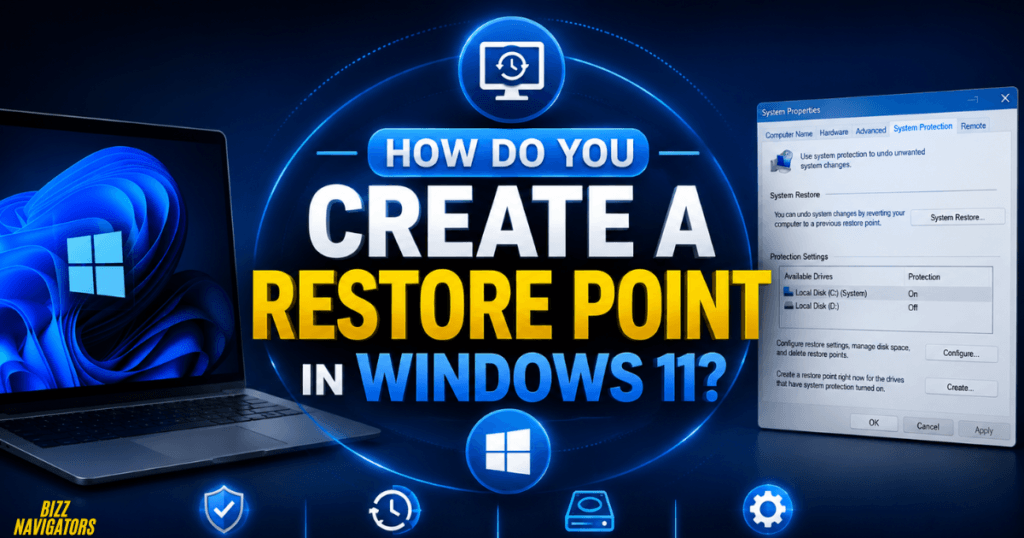
To create a restore point in Windows 11, search for Create a restore point, open the System Properties window, select your system drive, choose Create, enter a description, and confirm it. System Protection must be enabled before Windows can create restore points.
Follow these steps:
1. Press Windows + S.
2. Search for Create a restore point.
3. Open the result.
4. Stay on the System Protection tab.
5. Select your Windows system drive, usually C:.
6. Click Create.
7. Enter a descriptive name.
8. Click Create again.
9. Wait for Windows to confirm that the restore point was created.
The process normally takes only a short time. Once Windows confirms successful creation, the restore point is available for System Restore.
What If the Create Button Is Disabled?
If the Create option is unavailable, System Protection may not be enabled for the selected drive.
Select the Windows drive and click Configure. Choose Turn on system protection, allocate some disk space, and select Apply.
After enabling protection, return to the System Protection window and create the restore point.
How Do You Use a Windows Restore Point?
You can use a restore point through System Restore when Windows is experiencing problems caused by a recent system change. Windows shows available restore points and lets you choose the one you want to use.
Search for Recovery in Windows Search and open the recovery options. Select Open System Restore, then choose an available restore point.
Windows may show which programs and drivers could be affected. Review this information before confirming the restoration.
After you start System Restore, Windows restarts and applies the selected system state. Do not interrupt the process while Windows is performing the restoration.
Can You Use System Restore When Windows Will Not Start?
Yes. If Windows cannot start normally, you can access System Restore through the Windows Recovery Environment.
From the recovery screen, select:
Troubleshoot → Advanced options → System Restore
Choose your Windows account if requested and select an available restore point.
This option is especially useful when a recently installed driver or system change prevents Windows from starting correctly.
Does System Restore Delete Personal Files?
No, System Restore normally does not delete personal files such as documents, pictures, videos, or music. Instead, it reverses certain system-level changes made after the selected restore point.
However, applications, drivers, updates, and system settings installed after that point may be removed or rolled back.
For example, if you install a graphics driver and then restore Windows to a point created before that installation, the driver change may be reversed.
If you accidentally delete a personal file, do not rely on System Restore to recover it. Use a backup or another appropriate file-recovery method instead.
How Is a Restore Point Different From a Backup?
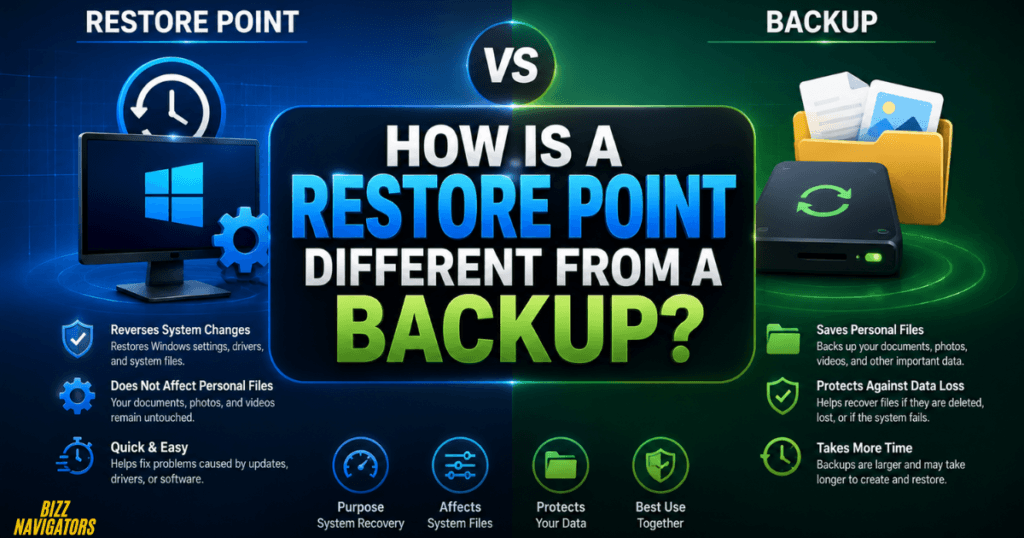
A restore point helps repair Windows system changes, while a backup protects your personal data and allows you to recover files.
| Feature | Windows Restore Point | File Backup |
| System settings | Yes | Depends on backup |
| Drivers | Yes | Depends on backup |
| Registry changes | Yes | Depends on backup |
| Personal documents | Normally no | Yes |
| Photos and videos | Normally no | Yes |
| Recover deleted files | No | Yes, if backed up |
| Undo recent system changes | Yes | Not its primary purpose |
For reliable protection, use restore points alongside regular backups rather than treating System Restore as a complete backup solution.
How Do You Check Available Restore Points?
Open Create a restore point, select the Windows system drive, and choose System Restore. Windows will display the restore points currently available on the computer.
You can review their dates and descriptions before deciding whether one is suitable.
If no restore points appear, check whether System Protection is enabled and whether Windows has enough allocated storage to maintain restore points.
Why Are Windows Restore Points Missing?
Restore points can disappear when Windows needs to reclaim the storage allocated to System Protection. Older restore points are typically removed as newer ones require available space.
They can also be unavailable if System Protection was disabled or if the restore-point storage allocation is too small.
If restore points repeatedly disappear, open the System Protection settings and review the amount of disk space assigned to the feature.
How Much Space Should You Allocate to System Restore?
Windows does not require one fixed amount of storage for every computer. The appropriate allocation depends on the size of your drive and how frequently your system changes.
Giving System Protection more available space generally allows Windows to keep more restore points. Giving it very little space can result in older points being removed sooner.
You do not need to dedicate a large portion of your drive simply to System Restore. The goal is to provide enough space for useful recovery points while keeping normal storage available.
Can You Delete Windows Restore Points?
Yes, Windows allows you to manage System Protection storage, but deleting restore points removes recovery options.
If your computer is currently stable and you need to reclaim storage, you can review the System Protection configuration. However, avoid deleting restore points immediately after making a major system change if you may need to reverse that change.
Windows generally manages older restore points automatically as available storage changes.
Windows File Explorer Tips for System Troubleshooting
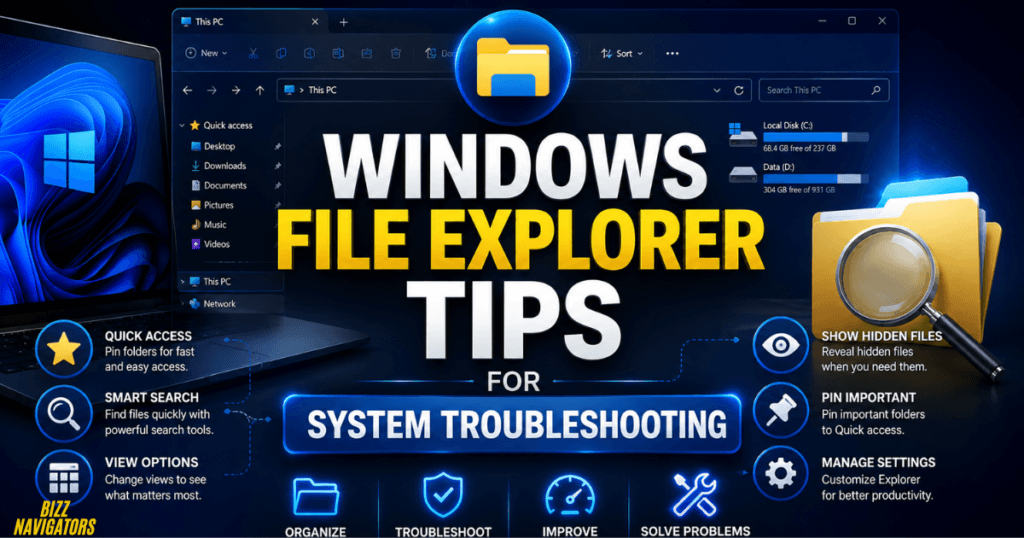
Windows File Explorer is not part of System Restore, but it can make Windows troubleshooting easier by helping you quickly locate files and folders.
Press Windows + E to open File Explorer. You can then browse folders, search for files, open drives, and manage frequently accessed locations.
For troubleshooting, you may need to locate logs, configuration files, downloads, or other Windows 11 files. File Explorer provides a simple way to find these items without manually navigating through folders.
How Do You Show Hidden Files in Windows 11?
To show hidden files in Windows 11, open File Explorer, select View, choose Show, and turn on Hidden items.
Hidden files can contain important Windows configuration data, so do not delete or modify them unless you know what they are used for.
This setting is useful when troubleshooting requires access to a folder that Windows normally keeps hidden.
How Do You Manage Quick Access in Windows 11?
You can manage Quick Access by pinning frequently used folders and removing locations you no longer need.
To pin a folder, right-click it in File Explorer and select Pin to Quick Access. The folder will then remain easier to reach from the navigation pane.
This is particularly useful for folders you repeatedly access while troubleshooting Windows.
How Do You Search Windows 11 Files Faster?
Open File Explorer and search from the folder or drive where you expect the file to exist. Searching within the correct location can reduce irrelevant results and make it easier to find what you need.
You can search by filename, file extension, or a relevant word.
For example, if you need to locate log files, searching for .log within the appropriate folder can be more effective than searching the entire computer.
What Should You Do Before Relying on a Restore Point?
Before making a major Windows change, create a restore point and make sure your important personal files are backed up separately.
A restore point lets you reverse certain system changes, while a backup protects your actual data.
That combination provides much better protection than relying on System Restore alone.
Windows Restore Points: The Quick Answer
Windows restore points are useful for reversing problematic system changes, especially after installing drivers, software, updates, or changing important Windows settings. They do not replace backups because they are not designed to protect personal files.
For the best results, keep System Protection enabled, create a restore point before major system changes, give restore points clear names, and maintain a separate backup of important files.
Frequently Asked Questions
Do Windows restore points restore deleted files?
No. Restore points are designed primarily for system recovery. They normally do not restore personal documents, photos, videos, or other files you deleted.
Can I create a restore point before installing a driver?
Yes. Creating one before installing a driver is a practical way to give yourself a recovery option if the driver causes Windows problems.
How long does System Restore take?
The time varies depending on the system and the changes being reversed. Let Windows complete the process without shutting down the computer during restoration.
Can I have multiple restore points?
Yes. Windows can maintain multiple restore points when enough System Protection storage is available. Older points may be removed when the allocated space becomes full.
Is System Restore available on Windows 11?
Yes. Windows 11 includes System Restore and System Protection, although System Protection may need to be enabled before restore points can be created.
Are restore points automatically created?
Windows can automatically create restore points around certain system changes, but you should not assume that one will always exist when you need it. Creating one manually before an important change is safer.
What is the safest way to use Windows restore points?
Create a restore point before significant system changes, use descriptive names, keep enough System Protection storage available, and maintain separate backups for personal files.
Windows restore points are best treated as a quick system-recovery layer, not a complete backup strategy.

At BizzNavigators, we answer the questions you’re actually searching for, honestly and clearly. We check our facts before we publish anything, and if we’re not sure about something, we tell you instead of guessing. Whatever you’re looking for- a tech fix, a business tip, or a simple how-to- we want to give you an answer you can trust.