
What Is Windows Sandbox?
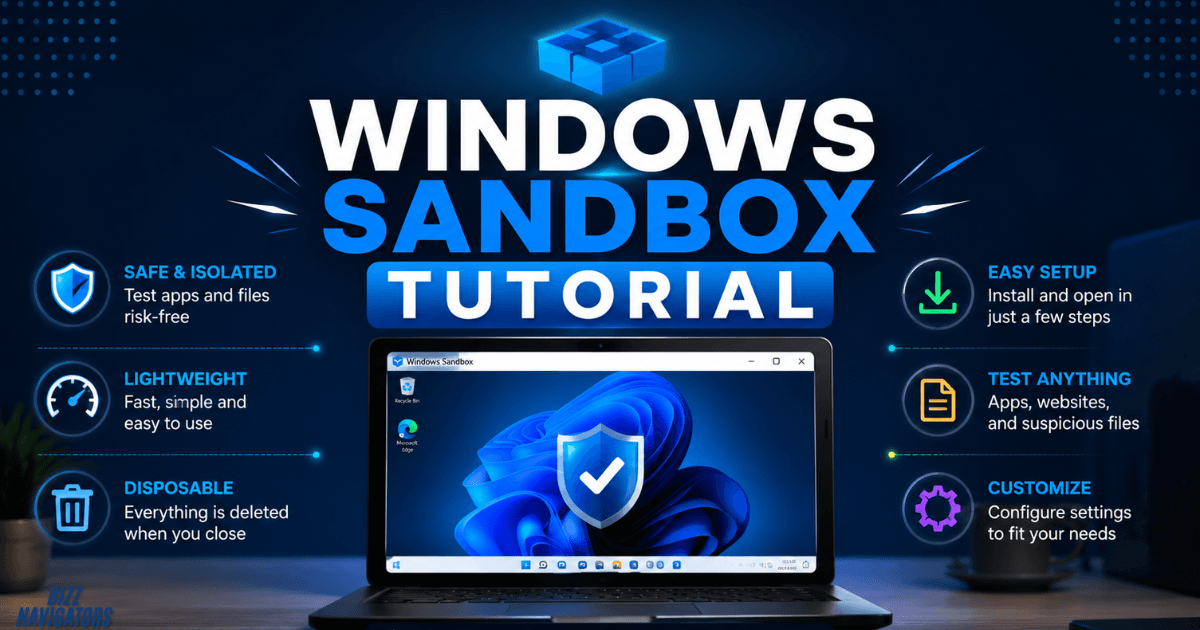
Windows Sandbox Tutorial gives you a safe, temporary Windows environment to test apps, open suspicious files, and browse risky websites without affecting your main PC. It runs in an isolated desktop and wipes everything when you close it, making testing far safer and easier.
Unlike a traditional virtual machine, Windows Sandbox needs no separate Windows installation or long setup. This Windows Sandbox tutorial shows you how to check requirements, install and open Sandbox, test files safely, configure networking, and fix common Windows 10 and Windows 11 issues.
Windows Sandbox Requirements for Windows 10 and 11
Windows Sandbox requires a supported Windows edition, compatible hardware, firmware-enabled virtualization, and sufficient system resources. Microsoft currently supports Windows Sandbox on Windows 10 version 1903 or later and Windows 11, with at least 4 GB of RAM, 1 GB of free storage, and two CPU cores. Microsoft recommends 8 GB of RAM and an SSD for a better experience.
Before installing Windows Sandbox, check these requirements:
| Requirement | Minimum / Supported |
| Operating system | Windows 10 version 1903+ or Windows 11 |
| Windows edition | Pro, Enterprise, Education and supported Pro Education/SE editions |
| Windows Home | Not supported |
| Processor | AMD64 or supported Arm64 hardware |
| RAM | 4 GB minimum; 8 GB recommended |
| Storage | 1 GB free space; SSD recommended |
| CPU | At least 2 cores |
| Virtualization | Enabled in BIOS/UEFI |
Windows Sandbox is not currently supported on Windows Home. Microsoft lists Windows Pro, Enterprise, Pro Education/SE, and Education as supported editions.
If you’re unsure which edition you have, open Settings > System > About and check the Windows edition listed under Windows specifications.
Check Virtualization Before Installation
Hardware virtualization must be enabled. Depending on your processor and motherboard, the firmware option may appear under names such as Intel VT-x, Intel Virtualization Technology, AMD-V, or SVM Mode.
You can also check virtualization status through Task Manager > Performance > CPU. Look for the Virtualization field.
If it says Disabled, restart your computer, enter BIOS or UEFI settings, enable the virtualization feature, save the changes, and boot back into Windows.
How to Install Windows Sandbox
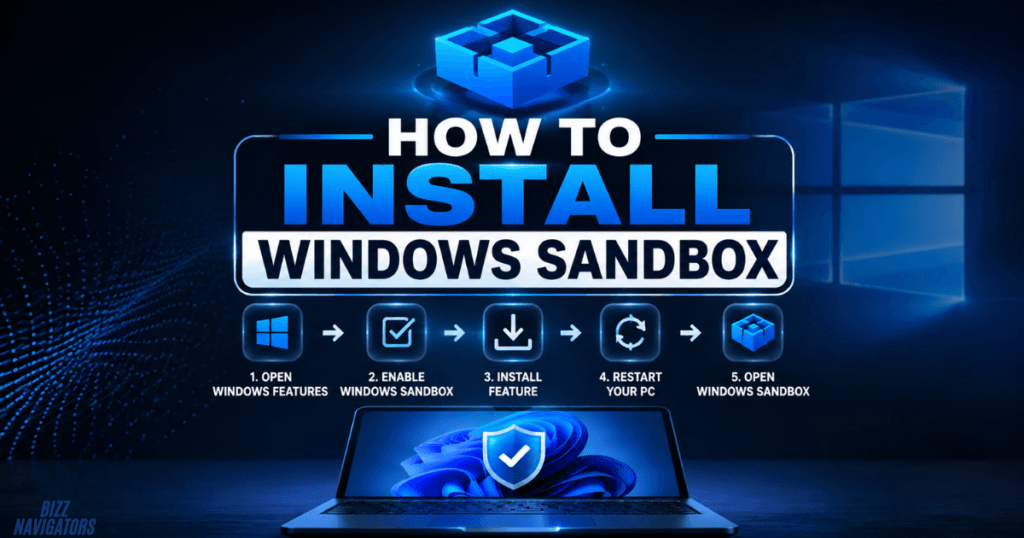
The easiest way to install Windows Sandbox is through the Windows Optional Features panel. Search for Turn Windows features on or off, open it, select Windows Sandbox, click OK, and restart your PC if Windows requests it. Microsoft also provides a PowerShell method for enabling the feature.
Install Windows Sandbox Through Windows Features
Follow these steps:
1. Press Windows + S.
2. Search for Turn Windows features on or off.
3. Open the Windows Features window.
4. Find Windows Sandbox.
5. Check the box beside it.
6. Click OK.
7. Allow Windows to install the required components.
8. Restart the computer if prompted.
After restarting, Windows Sandbox should appear in the Start menu.
If Windows Sandbox is missing from the Windows Features list, check your Windows edition, operating system version, virtualization settings, and hardware requirements.
How to Install Windows Sandbox With PowerShell
You can also enable Windows Sandbox from an elevated PowerShell window. Open PowerShell as Administrator and run:
Enable-WindowsOptionalFeature -FeatureName “Containers-DisposableClientVM” -All -Online
Restart Windows after the command completes if required. Microsoft documents this command as an alternative installation method.
How to Open Windows Sandbox
Once Windows Sandbox is installed, opening it is straightforward. Press the Windows key, type Windows Sandbox, and select the application from the search results. Windows then creates a fresh isolated desktop environment for your session.
You can use the sandbox like a temporary Windows computer. Open File Explorer, launch applications, visit websites, download test files, or perform other experiments without installing those items directly on your host environment.
Remember that the sandbox is disposable. When you close it, Windows removes the software, files, and state created during that session.
How to Use Windows Sandbox Safely
Windows Sandbox provides isolation, but it should not be treated as a guarantee against every possible security threat. Its default configuration also enables networking and clipboard sharing, so security-conscious users should understand what crosses between the host and sandbox.
For example, Microsoft’s default configuration enables networking and clipboard redirection. Networking can expose an untrusted application to the internal network, while clipboard sharing allows information to move between the host and sandbox.
For suspicious files, consider disabling networking and using a read-only mapped folder when appropriate. Avoid mapping sensitive folders with write access because changes made to mapped host folders can persist after the sandbox session ends.
Test an Unknown Application
A practical workflow is:
1. Open Windows Sandbox.
2. Transfer the installer or test file.
3. Install or launch the application.
4. Observe its behavior.
5. Perform your testing.
6. Close Windows Sandbox when finished.
Closing the sandbox deletes its temporary contents.
Do not copy passwords, private documents, cryptocurrency wallets, authentication tokens, or other sensitive information into an environment where untrusted software is running.
How to Share Files With Windows Sandbox
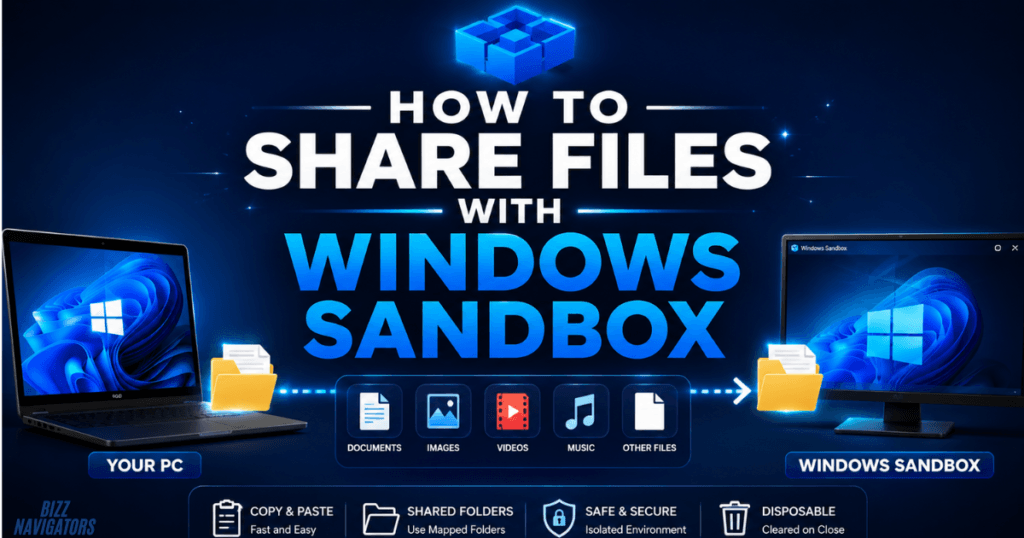
Windows Sandbox supports several ways to move information between the host and isolated environment. Clipboard redirection is enabled by default, allowing supported files and text to be copied between Windows and the sandbox.
For more controlled file sharing, you can create a .wsb configuration file and map a specific host folder into the sandbox.
For example:
<Configuration>
<MappedFolders>
<MappedFolder>
<HostFolder>C:\SandboxFiles</HostFolder>
<SandboxFolder>C:\Users\WDAGUtilityAccount\Desktop\SandboxFiles</SandboxFolder>
<ReadOnly>true</ReadOnly>
</MappedFolder>
</MappedFolders>
</Configuration>
Save the file with a .wsb extension and double-click it to launch Windows Sandbox with the specified configuration. Microsoft supports settings for mapped folders, networking, clipboard redirection, memory, virtual GPU, audio, video, and startup commands.
Using ReadOnly=true is especially useful when you want to expose test files without allowing applications inside the sandbox to modify the original host files.
Can You Download Windows Sandbox?
Windows Sandbox normally does not require a separate third-party download. It is a Windows feature included with supported editions of Windows 10 and Windows 11, so you enable the component rather than downloading a standalone installer.
On newer Windows 11 releases, Microsoft has also introduced an updated Windows Sandbox experience distributed through the Microsoft Store. Starting with Windows 11 version 24H2, the newer Sandbox app can receive updates through the Store and includes an updated interface and additional runtime controls.
This means users searching for a Windows Sandbox download should avoid unofficial installers. Start with the built-in Windows feature and use Microsoft’s official distribution channels for supported updates.
Is Windows Sandbox Free?
Yes. Windows Sandbox does not require a separate paid application or standalone subscription. However, it is tied to supported Windows editions and licensing. Microsoft lists Windows Pro, Enterprise, Education, and supported Pro Education/SE editions, while Windows Home is not supported.
In other words, Windows Sandbox is best understood as a built-in Windows feature rather than a separate free program that you download and install on any edition.
Can You Use Windows Sandbox Online?
Windows Sandbox can access the internet because networking is enabled by default. It can therefore be used for temporary web browsing, software downloads, testing online services, and examining websites in an isolated Windows environment.
However, Windows Sandbox online does not mean the sandbox is an anonymous or completely disconnected browsing service. Its network connection can expose activity to the same networks and security controls that affect the host system.
For testing suspicious content, disabling networking may reduce the attack surface. You can control networking through a .wsb configuration file.
Windows Sandbox vs a Traditional Virtual Machine
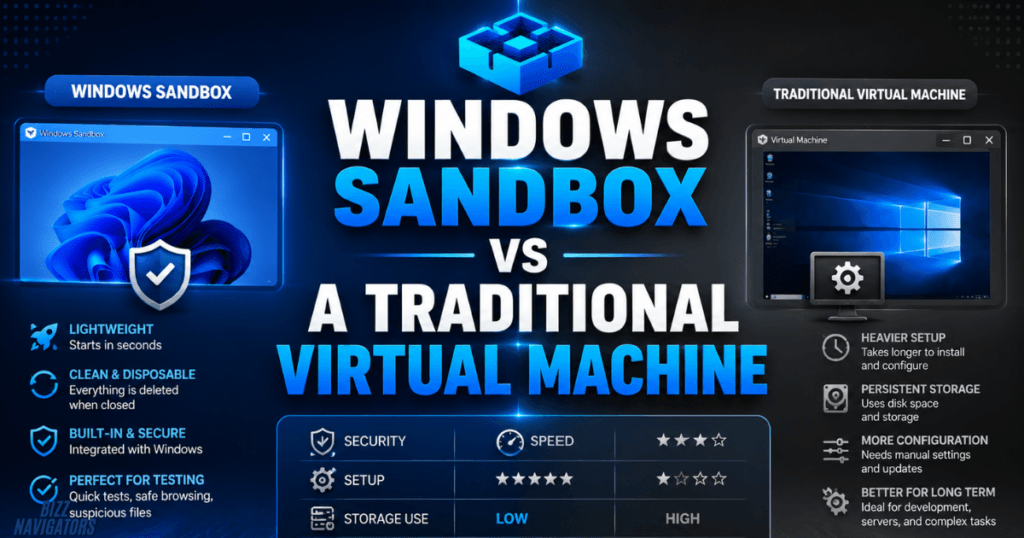
Windows Sandbox and traditional virtual machines solve different problems. Sandbox prioritizes speed, convenience, and disposable testing, while a full virtual machine is better when you need persistent storage, custom operating systems, or a long-term development environment.
| Feature | Windows Sandbox | Traditional VM |
| Setup | Built into supported Windows editions | Requires VM software and OS setup |
| Persistence | Temporary | Persistent |
| Separate OS installation | No separate installation required | Usually required |
| Best for | Quick testing and isolation | Long-term environments |
| Software persistence | Deleted after session | Usually retained |
| Customization | Limited but configurable | Extensive |
| Multiple instances | One at a time | Depends on software/resources |
Microsoft describes Windows Sandbox as a lightweight, disposable environment designed for testing, debugging, browsing, and running untrusted applications.
Windows Sandbox Alternatives
If your Windows edition does not support Sandbox or you need a persistent virtual machine, a conventional virtualization platform can be a better option.
A full VM gives you more control over virtual hardware, storage, snapshots, operating-system versions, and long-term configurations. The trade-off is additional setup and resource usage.
For simple temporary testing on supported Windows Pro, Enterprise, or Education systems, however, Windows Sandbox is often more convenient because it is already integrated into Windows.
Common Windows Sandbox Problems and Fixes
If Windows Sandbox refuses to start, begin with the basics. Confirm that virtualization is enabled, your Windows edition is supported, and the Sandbox feature is installed correctly.
A “No hypervisor was found” error can indicate that hypervisor support is unavailable or disabled. Microsoft notes that Windows Sandbox relies on the Hyper-V hypervisor and does not support third-party hypervisors for its operation.
If the newer Sandbox version cannot update, verify that Windows has access to the internet, Windows Update, and the Microsoft Store. Microsoft says that Windows 11 version 24H2 may attempt to update the Sandbox app through the Store.
For .wsb errors, check the XML structure and make sure mapped host folders actually exist. An invalid configuration file can prevent the sandbox from launching.
Windows Sandbox Tutorial: Key Takeaways
Windows Sandbox Tutorial gives you a clean, disposable environment to test apps, suspicious files, and websites without cluttering your main PC. It requires a supported Windows edition, enabled virtualization, and at least 4 GB of RAM, while 8 GB delivers a smoother experience.
For safer testing, disable networking when unnecessary and avoid sharing sensitive files with the sandbox. Once you close it, everything inside is removed, making Windows Sandbox a practical choice for quick and isolated testing on Windows 10 and Windows 11.
Windows Sandbox FAQs
Is Windows Sandbox available on Windows 11 Home?
No. Microsoft currently lists Windows Pro, Enterprise, Education, and supported Pro Education/SE editions as compatible. Windows Home is not supported.
Does Windows Sandbox work on Windows 10?
Yes. Microsoft supports Windows Sandbox on Windows 10 version 1903 and later, provided the hardware, virtualization, and Windows edition requirements are satisfied.
Does Windows Sandbox delete files when closed?
Yes. Windows Sandbox is disposable, and closing it removes the software, files, and state created inside the session.
Can I install programs inside Windows Sandbox?
Yes. You can install and test applications inside the sandbox. Those installations normally disappear when you close the sandbox.
Does Windows Sandbox need internet access?
Not always. Networking is enabled by default, but you can disable it through a Windows Sandbox configuration file when you want a more restricted environment.
Can Windows Sandbox replace a virtual machine?
For quick, disposable testing, it can. For persistent operating systems, snapshots, extensive customization, or long-term development environments, a traditional virtual machine is usually more suitable.

At BizzNavigators, we answer the questions you’re actually searching for, honestly and clearly. We check our facts before we publish anything, and if we’re not sure about something, we tell you instead of guessing. Whatever you’re looking for- a tech fix, a business tip, or a simple how-to- we want to give you an answer you can trust.