
How Does Windows Clipboard History Work?
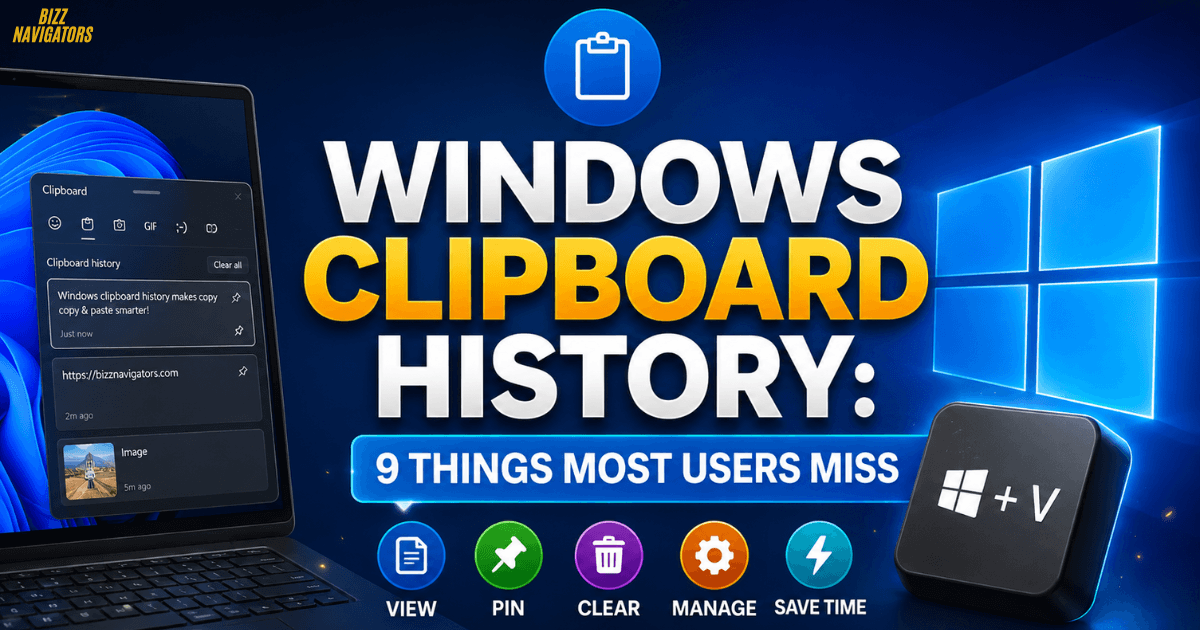
Windows clipboard history lets you view and reuse text, links, images, and other recently copied items, so you don’t lose the previous item when you copy something new. On supported Windows versions, press Windows + V to open the clipboard panel, enable the feature if prompted, and select an item to paste it again.
This built-in feature is especially useful when you work with multiple pieces of text, URLs, screenshots, or repeated information. Rather than switching between applications to copy the same content again, you can retrieve previously copied items directly from Windows.
The feature is available on Windows 10 and Windows 11, although some options and interface details can vary between versions.
Windows Clipboard History Shortcut
The quickest Windows clipboard history shortcut is:
Windows key + V
Pressing these keys together opens the clipboard history panel. If clipboard history is disabled, Windows displays an option to turn it on.
Once enabled, you can press Windows + V whenever you need to access recently copied content.
This shortcut differs from the traditional Ctrl+V command. Ctrl + V pastes the latest clipboard item, while Windows + V opens your saved clipboard history.
What Can You Do From the Clipboard Panel?
The clipboard panel allows you to:
Select an earlier copied item and paste it.
Pin important clipboard items.
Delete individual entries.
Clear clipboard history.
Access copied text and supported images.
Quickly reuse frequently copied information.
The feature can save considerable time when researching, writing, coding, or moving information between applications.
How to Enable Windows Clipboard History
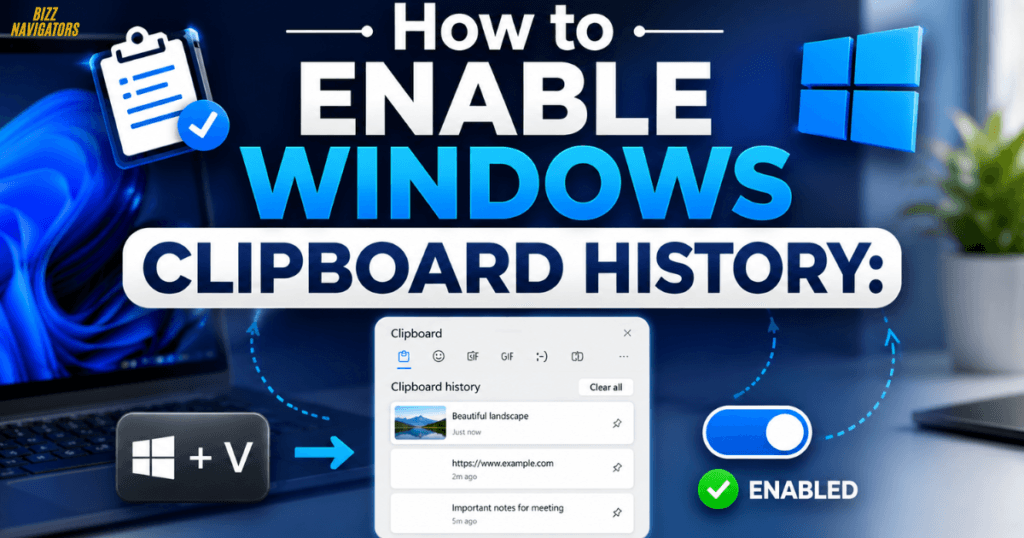
If Windows clipboard history does not open when you press Windows + V, you probably need to enable it first.
On Windows 11:
1. Open Settings.
2. Select System.
3. Choose Clipboard.
4. Find Clipboard history.
5. Turn it on.
6. Press Windows + V again.
Windows 10 follows a very similar process:
1. Open Settings.
2. Go to System.
3. Select Clipboard.
4. Turn on Clipboard history.
5. Press Windows + V to test it.
After activation, Windows begins maintaining your recent clipboard entries.
How to Open Windows Clipboard History
The easiest way to open Windows clipboard history is simply to press:
Win + V
You do not need to open Settings every time. Once the feature is enabled, the keyboard shortcut provides direct access.
If nothing happens, check the Clipboard settings and make sure the feature is enabled.
Windows 10 vs. Windows 11 Clipboard History
Although clipboard history works similarly in both versions, the surrounding interface differs slightly.
| Feature | Windows 10 | Windows 11 |
| Clipboard history | Yes | Yes |
| Keyboard shortcut | Windows + V | Windows + V |
| Clipboard settings | Yes | Yes |
| Pin clipboard items | Yes | Yes |
| Clear history | Yes | Yes |
| Sync across devices | Supported | Supported |
| Clipboard history toggle | Yes | Yes |
The important point is that the core Windows clipboard history shortcut remains Windows + V.
How to Use Windows Clipboard History
Once enabled, using the feature is straightforward.
Copy several pieces of information with Ctrl + C. Then press Windows + V.
Windows displays your recent clipboard items. Select the item you want, and Windows inserts it into the active application.
For example, imagine you are writing an article and copy:
A keyword
A URL
A paragraph
A statistic
A title
Instead of copying each item again, open clipboard history and select the required entry.
This makes the feature particularly useful for writers, researchers, students, developers, and office workers.
Windows Clipboard History Pin to Top
If you frequently reuse an item, you can pin it inside clipboard history.
Pinned entries are designed to remain available instead of behaving like ordinary temporary clipboard items.
This is useful for information such as:
Frequently used URLs
Email templates
Short commands
Repeated phrases
Business information
Frequently used snippets
Open Windows + V, locate the item, and use the available pin option.
What Is the Windows Clipboard History Limit?
One important question is the Windows clipboard history limit.
Windows clipboard history does not function as an unlimited permanent archive. It keeps a limited collection of recent clipboard entries, while pinned items can remain available separately.
The exact behavior can depend on the Windows version and the type of content being copied.
For everyday work, the feature is intended as a convenient short-term clipboard manager rather than a complete document-storage system.
If an item is important, pin it instead of relying on its position among recent entries.
Does Clipboard History Survive a Restart?
Users often ask about Windows clipboard history after a restart.
Ordinary clipboard history should not be treated as permanent storage. Some entries may disappear depending on the system state and Windows behavior.
Pinned items are the better choice when you need frequently used information to remain available.
For critical information, however, save it in a document, notes application, password manager, or another appropriate location rather than relying on clipboard history.
How to Clear Windows Clipboard History
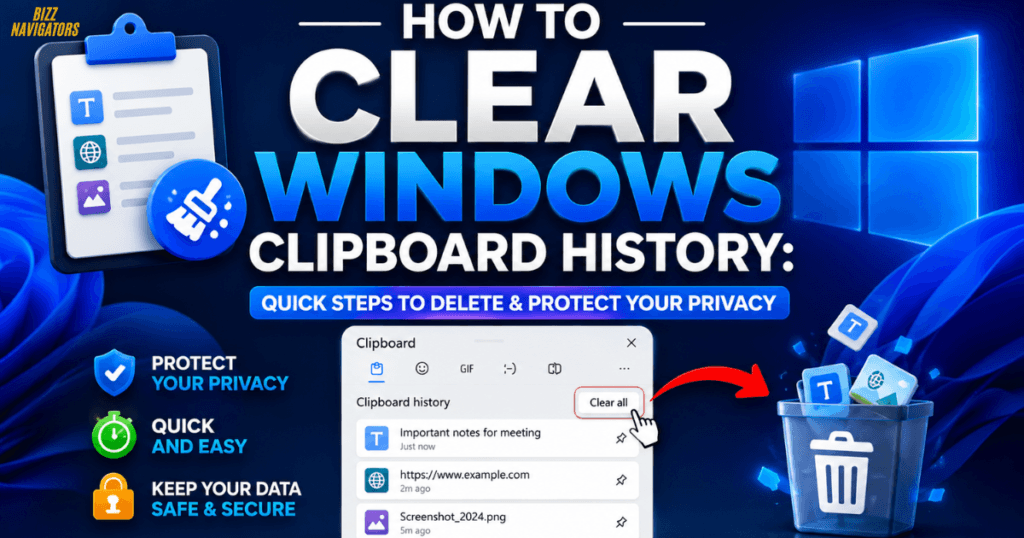
You can clear Windows clipboard history when you no longer need the stored entries.
Open:
Settings → System → Clipboard
Then select the option to clear clipboard data.
You can also manage individual entries from the Windows + V panel.
Why Should You Clear Clipboard Data?
Clipboard history can contain information you copied earlier, including potentially sensitive material.
If you copied:
Passwords
Private messages
Personal information
Financial details
Confidential work content
it is sensible to remove unnecessary clipboard entries.
Also remember that clipboard history is not designed to replace a secure password manager.
Windows Clipboard History Not Working? Try These Fixes
If Windows clipboard history is not working, start with the simplest checks.
1. Confirm Clipboard History Is Enabled
Go to:
Settings → System → Clipboard
Make sure Clipboard history is switched on.
2. Test the Correct Shortcut
Press:
Windows + V
Do not confuse this with Ctrl + V, which only pastes the current clipboard item.
3. Restart Windows Explorer
A temporary Windows interface problem can sometimes affect clipboard functionality. Restarting Windows Explorer through Task Manager can refresh the Windows interface.
4. Restart Your Computer
If clipboard services are temporarily stuck, a normal Windows restart can resolve the issue.
5. Check for Windows Updates
An outdated Windows installation may contain bugs that have already been addressed in later updates. Check Windows Update and install appropriate available updates.
Windows 11 Clipboard History Not Working
For Windows 11 clipboard history not working, first verify the Clipboard settings.
Go to:
Settings → System → Clipboard
Make sure Clipboard history is enabled.
Then test Windows + V. If the panel still fails to appear, restart the computer and check Windows Update.
Windows Clipboard History Settings You Should Know
The Windows clipboard history settings provide more control than simply turning the feature on or off.
Depending on your Windows version and configuration, you may encounter options related to:
Clipboard history
Clipboard synchronization
Clearing clipboard data
Clipboard-related suggestions
Clipboard synchronization deserves particular attention because it can allow clipboard content to be available across supported Windows devices when configured appropriately.
Before enabling synchronization, consider whether the information you copy is suitable for syncing between devices.
Is Windows Clipboard History Available on Windows 7?
If you are searching for Windows 7 clipboard history, there is an important distinction.
Windows 7 does not provide the same built-in clipboard history experience introduced in later Windows versions. The familiar Windows + V clipboard-history workflow is associated with newer supported Windows releases.
Therefore, if you use Windows 7 and need clipboard history, you would generally need a third-party clipboard manager rather than relying on the modern built-in Windows feature.
For security and compatibility reasons, upgrading to a supported Windows version is generally preferable when possible.
Can You View Clipboard History on Android?
View clipboard history Android searches can sometimes appear alongside Windows clipboard searches, but Android and Windows handle clipboard functionality differently.
Many Android keyboards provide their own clipboard feature. For example, a keyboard application may display previously copied text through its clipboard interface.
That does not mean Android clipboard history is identical to Windows clipboard history.
If your goal is specifically to retrieve copied items on a Windows PC, use Windows + V.
Windows Clipboard History vs. Traditional Clipboard
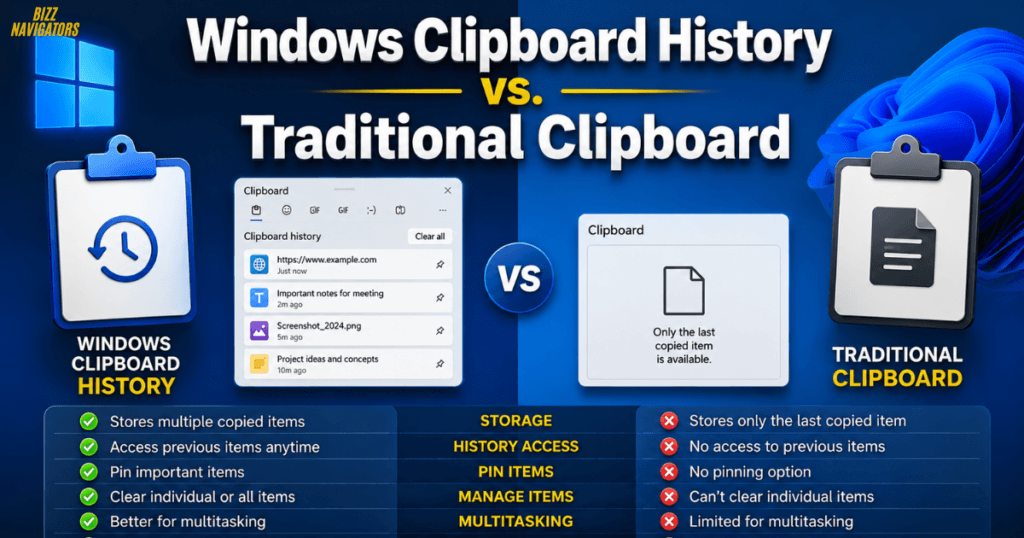
The traditional clipboard stores the most recent copied item for immediate pasting.
Clipboard history expands that functionality by keeping multiple recent entries available.
| Capability | Traditional Clipboard | Clipboard History |
| Copy content | Yes | Yes |
| Paste latest item | Yes | Yes |
| Access previous items | No | Yes |
| Windows + V | No | Yes |
| Pin entries | No | Yes |
| Manage multiple entries | Limited | Yes |
This is why clipboard history is considerably more useful for multitasking.
Best Practices for Using Windows Clipboard History
A few habits can make the feature more useful and safer.
Pin frequently reused content.
Do not repeatedly search through recent entries for information you use every day.
Clear sensitive information.
Remove private data after completing tasks that require it.
Use documents for permanent storage.
Clipboard history is a productivity feature, not a file-storage system.
Learn Windows + V.
The shortcut is the fastest way to access your clipboard history.
Check synchronization settings.
Only sync clipboard information when doing so makes sense for your workflow.
Frequently Asked Questions
How do I see Windows clipboard history?
Press Windows + V. If clipboard history is disabled, Windows will provide an option to enable it.
What is the shortcut key for clipboard in Windows 11?
The Windows + V shortcut opens clipboard history in Windows 11. Ctrl + V pastes the current clipboard item.
How do I open clipboard history in Windows 10?
Enable Clipboard history under Settings → System → Clipboard, then press Windows + V.
Can you see Windows clipboard history?
Yes. On supported Windows versions, press Windows + V to view recent clipboard entries.
How do I turn off Windows clipboard history?
Open Settings → System → Clipboard and switch Clipboard history off.
Where is Windows clipboard history stored?
Clipboard history is managed by Windows rather than being presented as a normal folder containing individual copied files. You should not rely on it as permanent storage.
Why is Windows 11 clipboard history not working?
Check whether Clipboard history is enabled, verify the Windows + V shortcut, restart Windows, and install available Windows updates.
Final Takeaway
Windows clipboard history turns the basic Windows clipboard into a much more practical productivity tool. With Windows + V, you can quickly retrieve previously copied content, pin frequently used items, clear unnecessary entries, and manage your clipboard more efficiently.
For Windows 10 and Windows 11 users, the most important things to remember are simple: enable Clipboard history, use Windows + V, pin important entries, and clear sensitive information when necessary. If the feature stops working, checking Clipboard settings and restarting Windows are good first troubleshooting steps.

At BizzNavigators, we answer the questions you’re actually searching for, honestly and clearly. We check our facts before we publish anything, and if we’re not sure about something, we tell you instead of guessing. Whatever you’re looking for- a tech fix, a business tip, or a simple how-to- we want to give you an answer you can trust.