
Why Windows 11 Storage Cleanup Matters
Windows 11 storage cleanup is the fastest way to recover disk space, remove unnecessary files, and improve your PC’s performance without deleting important data. If your computer is running slowly or showing Low Disk Space warnings, Windows 11 storage cleanup can help optimize storage, speed up updates, and keep your SSD or HDD running efficiently.
In this article, you’ll discover the best built-in methods, including Storage Sense, Disk Cleanup, Command Prompt commands, and expert tips to free up space safely and maintain long-term performance.
Understanding What Consumes Storage in Windows 11
Before deleting files, it’s important to know what occupies your storage. Windows 11 categorizes disk usage, making it easier to identify where your space is going and which items are safe to remove.
Windows 11 stores data in several categories, including:
Temporary files
Windows Update cache
Installed applications
Documents
Pictures and videos
Downloads
Recycle Bin
System restore points
OneDrive offline files
Delivery Optimization files
Microsoft Store cache
To view storage usage:
1. Open Settings.
2. Select System.
3. Click Storage.
4. Wait for Windows to analyze your drive.
You’ll see a breakdown showing which categories consume the most space. This overview helps you focus on the largest storage users instead of deleting files randomly.
How to Clean Up Windows 11 Using Storage Settings
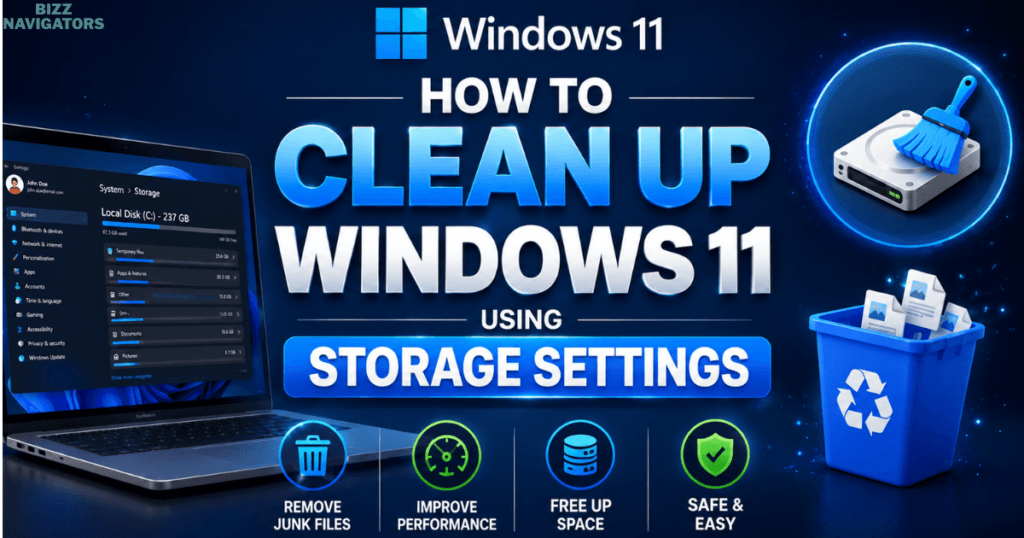
The Storage section in Windows Settings offers the safest and simplest way to remove unnecessary files. It identifies temporary data and recommends cleanup options based on your system’s current storage usage.
Follow these steps:
1. Press Windows + I.
2. Navigate to System > Storage.
3. Open Temporary Files.
4. Allow Windows to scan the drive.
5. Review the file categories.
6. Select the items you want to remove.
7. Click Remove Files.
Common removable items include:
Temporary internet files
Delivery Optimization files
DirectX Shader Cache
Windows upgrade logs
Temporary Windows installation files
Microsoft Defender cache
Thumbnail cache
Recycle Bin contents
Tip: Double-check the Downloads folder before selecting it, as Windows may permanently remove files stored there.
Storage Sense Windows 11: Automate Disk Cleanup
Storage Sense is Windows 11’s built-in automation tool that removes temporary files, empties the Recycle Bin, and manages cloud-based files automatically. It’s one of the easiest ways to keep your PC clean without regular manual maintenance.
To enable Storage Sense Windows 11:
1. Open Settings.
2. Go to System > Storage.
3. Turn on Storage Sense.
4. Click Storage Sense to customize its behavior.
Recommended settings include:
Run automatically when disk space is low.
Delete temporary files not used by applications.
Empty the Recycle Bin every 30 days.
Clean the Downloads folder only if you’re comfortable with automatic deletion.
Make OneDrive files online-only after a period of inactivity.
Benefits of Storage Sense
Runs automatically.
Reduces storage maintenance.
Prevents unnecessary file accumulation.
Improves long-term system performance.
Helps avoid low-storage warnings.
For most users, enabling Storage Sense is one of the best long-term storage management solutions available in Windows 11.
Disk Cleanup Windows 11: The Classic Tool Still Works
Although Windows 11 promotes Storage Settings, the traditional Disk Cleanup utility remains available. It provides deeper cleanup options, especially for Windows Update files and system-generated temporary data.
To launch Disk Cleanup:
1. Press Windows + R.
2. Type:
cleanmgr
1. Press Enter.
2. Select your system drive (usually C:).
3. Wait while Windows scans the drive.
4. Choose the file categories to remove.
5. Click OK.
For a more comprehensive cleanup:
Click Clean up system files.
Allow Windows to perform another scan.
Additional removable items include:
Previous Windows Update files
Windows Error Reporting logs
Device driver packages
Temporary installation files
Windows Defender logs
Language resource files
This method can often recover several gigabytes after major Windows updates.
Windows 11 Storage Cleanup Command Line Methods
Advanced users can clean storage using Command Prompt. These built-in commands help automate cleanup tasks, making them useful for scripting or remote system maintenance.
Windows 11 Clean Up Disk Space CMD
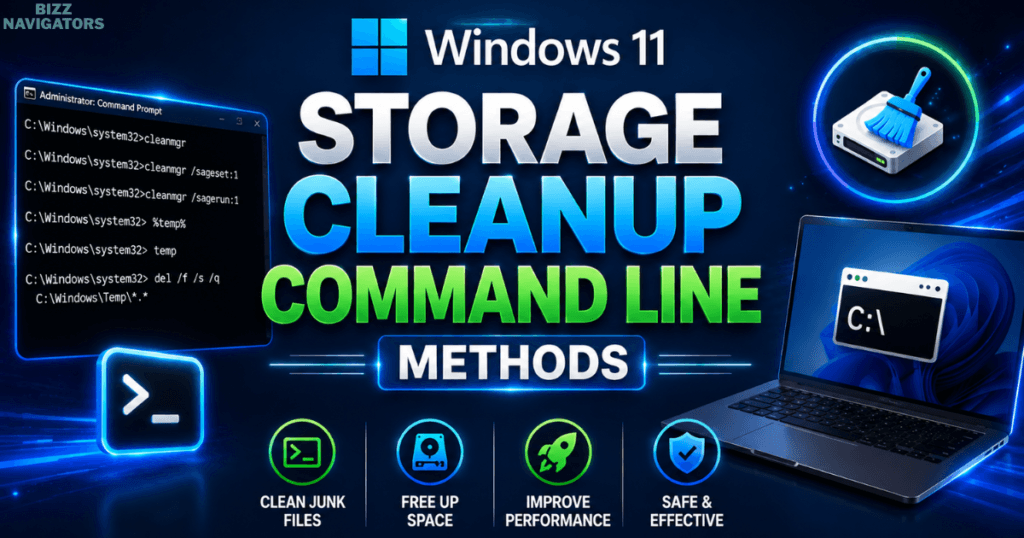
Open Command Prompt as Administrator, then run:
cleanmgr
This launches the Disk Cleanup utility directly from the command line.
To configure cleanup options:
cleanmgr /sageset:1
After choosing the cleanup categories, execute:
cleanmgr /sagerun:1
This runs your saved cleanup configuration automatically.
Remove Temporary Files via Command Line
Open the Run dialog:
%temp%
Delete the visible files.
Then repeat with:
temp
Finally, clear:
C:\Windows\Temp
Administrator permission may be required for some files.
These methods help remove temporary system files that accumulate during software installations, updates, and daily Windows operations.
How to Free Up Space on Windows 11 Without Deleting Anything
You don’t always need to delete personal files to recover storage. Windows 11 includes optimization features that reclaim disk space while keeping your documents, photos, and projects intact.
Here are several effective methods:
Enable OneDrive Files On-Demand
Store files in the cloud while keeping only small placeholders on your PC. Files download automatically when opened.
Compress Windows Files
NTFS compression reduces file size without noticeable performance loss on modern SSDs.
Remove Optional Features
Go to:
Settings > Apps > Optional Features
Uninstall components you never use, such as language packs or legacy tools.
Uninstall Unused Applications
Many programs consume several gigabytes over time.
Check:
Settings > Apps > Installed Apps
Sort by size and remove software you no longer need.
Delete Old Restore Points
System Restore protects your PC but can consume significant storage.
Search:
Create a Restore Point
Then adjust disk usage or remove older restore points while keeping the latest one.
Optimize Reserved Storage
Windows reserves space for updates. While Reserved Storage shouldn’t usually be disabled, understanding how it works helps explain why some storage appears unavailable.
Do You Need a Windows 11 Storage Cleanup Download?
Most users do not need to download a separate Windows 11 storage cleanup tool. Microsoft already includes powerful built-in utilities like Storage Sense and Disk Cleanup that safely remove unnecessary files without installing third-party software.
If you search for Windows 11 storage cleanup download or Disk Cleanup Windows 11 download, you’ll notice many websites offering cleanup utilities. In most cases, these downloads are unnecessary and sometimes risky.
Choose Windows’ built-in tools because they:
Are free and already installed.
Receive updates through Windows Update.
Remove temporary files safely.
Don’t display ads or bundle unwanted software.
Reduce the risk of deleting important system files.
Third-party cleaners may offer additional features such as duplicate file detection or registry scanning, but they rarely provide significant performance improvements for modern Windows 11 systems.
Best Free Ways to Perform Windows 11 Storage Cleanup
You can free up a surprising amount of disk space without spending money. Combining Windows’ native features with a few smart habits keeps your PC running efficiently over the long term.
Here are some of the best free methods:
| Cleanup Method | Difficulty | Space Recovered | Recommended |
| Storage Sense | Easy | Medium | ⭐⭐⭐⭐⭐ |
| Temporary Files Cleanup | Easy | Medium | ⭐⭐⭐⭐⭐ |
| Disk Cleanup | Easy | High | ⭐⭐⭐⭐⭐ |
| Empty Recycle Bin | Easy | Low–Medium | ⭐⭐⭐⭐ |
| Remove Unused Apps | Easy | High | ⭐⭐⭐⭐⭐ |
| Delete Windows Update Cache | Medium | High | ⭐⭐⭐⭐ |
| Cloud Storage Optimization | Easy | Medium | ⭐⭐⭐⭐⭐ |
Using several of these methods together often recovers anywhere from a few gigabytes to tens of gigabytes, depending on how long the system has gone without maintenance.
Advanced Tips to Keep Windows 11 Storage Optimized
Once you’ve cleaned your drive, adopting a few maintenance habits helps prevent storage from filling up again. These practices reduce clutter, improve organization, and minimize future cleanup work.
Keep Downloads Organized
The Downloads folder often becomes the largest source of unnecessary files. Review it regularly and move important files to dedicated folders.
Move Large Media Files
Store videos, raw photos, and backups on:
External SSDs
External HDDs
Network Attached Storage (NAS)
Trusted cloud storage services
This keeps your primary drive available for Windows and applications.
Monitor Storage Monthly
Visit:
Settings > System > Storage
A monthly review helps identify growing folders before they become a problem.
Keep Applications Updated
Updated software often includes storage optimizations, removes obsolete files during installation, and improves cache management.
Maintain Free Space on SSDs
For the best performance, try to keep 15–20% of your SSD free. A nearly full SSD can experience slower write performance and reduced efficiency over time.
What You Should Never Delete During Storage Cleanup
Not every large folder is safe to remove. Deleting critical system files can cause software issues, failed updates, or even prevent Windows from booting correctly.
Avoid deleting:
Windows system folders
Program Files
Program Files (x86)
Windows registry files
System32
Driver folders
Recovery partitions
EFI system partitions
Also, be cautious when deleting:
Downloads (review first)
Desktop files
Documents
Pictures
Videos
Virtual machine files
Game save folders
When in doubt, use Windows’ built-in cleanup tools instead of manually deleting unknown folders.
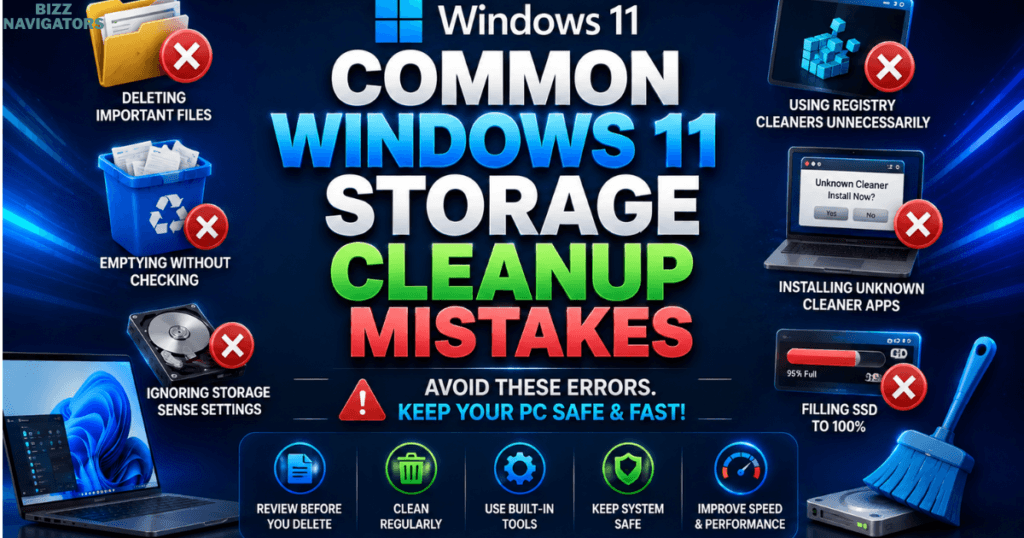
Common Windows 11 Storage Cleanup Mistakes
Many users accidentally remove important files or expect cleanup tools to dramatically increase system speed. Understanding common mistakes helps you clean safely and set realistic expectations.
Avoid these mistakes:
Deleting files without checking what they contain.
Emptying the Downloads folder without reviewing it.
Using multiple registry cleaners unnecessarily.
Installing unknown “PC booster” applications.
Ignoring Storage Sense automation.
Filling an SSD to nearly 100% capacity.
Forgetting to empty the Recycle Bin.
Never uninstalling unused applications.
Safe, regular maintenance is far more effective than aggressive one-time cleaning.
Storage Sense vs Disk Cleanup
Both tools help recover storage, but they serve different purposes. Storage Sense is ideal for automated maintenance, while Disk Cleanup provides greater manual control over removable system files.
| Feature | Storage Sense | Disk Cleanup |
| Built into Windows 11 | ✅ | ✅ |
| Automatic Cleanup | ✅ | ❌ |
| Manual Cleanup | Limited | Excellent |
| Removes Temporary Files | ✅ | ✅ |
| Cleans Windows Update Files | Limited | ✅ |
| Scheduled Maintenance | ✅ | ❌ |
| Beginner Friendly | ⭐⭐⭐⭐⭐ | ⭐⭐⭐⭐ |
| Best For | Ongoing maintenance | Deep cleanup sessions |
For most users, enabling Storage Sense and running Disk Cleanup occasionally offers the best balance of convenience and effectiveness.
Expert Checklist for Windows 11 Storage Cleanup
Use this checklist every month:
✅ Run Storage Sense.
✅ Remove temporary files.
✅ Empty the Recycle Bin.
✅ Review the Downloads folder.
✅ Uninstall unused applications.
✅ Delete unnecessary Windows Update files.
✅ Move large media to external or cloud storage.
✅ Check available SSD space.
✅ Restart your PC after major cleanup.
✅ Install pending Windows updates.
Following this routine helps maintain consistent performance without requiring extensive maintenance.
Conclusion
Windows 11 storage cleanup is one of the easiest and safest ways to free up disk space, improve performance, and keep your PC running smoothly. By using built-in tools like Storage Sense and Disk Cleanup, removing temporary files, and regularly managing your storage.
Windows 11 storage cleanup helps maintain faster performance without relying on third-party software. Make storage cleanup part of your routine to keep your Windows 11 device optimized, organized, and ready for future updates.
Frequently Asked Questions
Is Windows 11 storage cleanup safe?
Yes. Using Storage Sense and Disk Cleanup is safe because both are official Microsoft tools designed to remove unnecessary files without affecting your personal data. Always review selected items before confirming deletion.
How often should I clean up Windows 11 storage?
For most users, performing a storage cleanup once a month is sufficient. If you frequently install software, edit videos, or download large files, consider checking storage every one to two weeks.
Can Storage Sense delete personal files?
Storage Sense can remove files from the Recycle Bin and Downloads folder if those options are enabled. Review its settings carefully before turning on automatic cleanup.
Does Disk Cleanup improve PC performance?
Disk Cleanup mainly improves storage availability. While freeing disk space can make Windows updates and general system operations smoother, it does not replace hardware upgrades or solve every performance issue.
How can I free up space on Windows 11 without deleting personal files?
Use OneDrive Files On-Demand, uninstall unused applications, remove temporary files, clear update caches, and enable Storage Sense. These methods reclaim storage while preserving your important documents and media.
Do I need a third-party storage cleanup program?
Usually not. Windows 11 includes reliable built-in cleanup tools that meet the needs of most users. Third-party utilities should only be considered if you need specialized features like duplicate file management.

At BizzNavigators, we answer the questions you’re actually searching for, honestly and clearly. We check our facts before we publish anything, and if we’re not sure about something, we tell you instead of guessing. Whatever you’re looking for- a tech fix, a business tip, or a simple how-to- we want to give you an answer you can trust.