
Quick Answer
Windows 11 battery optimization is the process of adjusting power settings, background activity, display options, startup apps, and battery features to reduce power consumption without sacrificing everyday performance. By using the right Windows 11 settings, most users can significantly extend laptop battery life while maintaining a smooth experience for work, study, and entertainment.
Why Windows 11 Battery Optimization Matters
Battery life directly affects productivity and convenience. Whether you work remotely, attend online classes, or travel frequently, a longer-lasting battery reduces the need to carry a charger everywhere.
Windows 11 includes several built-in battery management features, but many users never configure them properly. As a result, unnecessary background processes, excessive display brightness, and incorrect power modes drain the battery much faster than necessary.
Proper optimization helps you:
Extend battery runtime
Reduce unnecessary CPU usage
Improve battery health over time
Keep the laptop cooler
Balance performance with efficiency
Understanding How Windows 11 Uses Battery Power
Windows 11 distributes power among multiple hardware components and software processes.
The biggest battery consumers include:
Display brightness
Processor workload
Graphics processing
Background applications
Wi-Fi and Bluetooth
Windows updates
Startup applications
Connected USB devices
Optimizing each of these areas creates noticeable improvements instead of relying on just one setting.
Best Windows 11 Battery Optimization Settings
Enable Battery Saver
Battery Saver is one of the easiest ways to increase battery life.
When enabled, it:
Limits background activity
Reduces unnecessary notifications
Lowers system power consumption
Optimizes synchronization
To enable it:
1. Open Settings
2. Select System
3. Click Power & Battery
4. Turn on Battery Saver
You can also configure Windows to activate Battery Saver automatically when the battery reaches a specific percentage.
Choose the Right Power Mode
Windows 11 offers different power modes for different workloads.
| Power Mode | Best For | Battery Usage | Performance |
| Best Power Efficiency | Long battery life | Lowest | Moderate |
| Balanced | Everyday use | Medium | Balanced |
| Best Performance | Gaming and heavy workloads | Highest | Maximum |
For most users, Balanced provides the ideal balance between battery life and responsiveness.
Reduce Screen Brightness
The display is usually the largest battery consumer.
Lowering brightness by even 20–30% can noticeably increase battery life.
Additional tips include:
Enable adaptive brightness
Reduce HDR usage when unnecessary
Turn off keyboard backlighting if available
Use Dark Mode on OLED displays
Optimize Background Apps
Many applications continue running after you close them.
Background apps consume:
CPU resources
RAM
Network bandwidth
Battery power
To reduce background activity:
1. Open Settings
2. Go to Apps
3. Select Installed Apps
4. Open an app’s Advanced Options
5. Change Background App Permissions
Disable background permissions for apps you rarely use.
Disable Unnecessary Startup Programs
Some applications launch automatically whenever Windows starts.
Too many startup apps:
Slow boot time
Increase memory usage
Drain battery throughout the day
To manage startup programs:
1. Press Ctrl + Shift + Esc
2. Open Task Manager
3. Select Startup Apps
4. Disable unnecessary entries
Keep only security software and essential productivity tools enabled.
Adjust Sleep and Screen Timeout Settings
Incorrect sleep settings waste battery even when the laptop is idle.
Recommended settings:
| Scenario | Screen Off | Sleep |
| Battery Power | 5 minutes | 10–15 minutes |
| Plugged In | 10 minutes | 20–30 minutes |
To change sleep time:
Open Settings
Navigate to System
Select Power & Battery
Open Screen and Sleep
These settings help answer the common question: How to change sleep time on Windows 11 desktop?
Turn Off Unused Wireless Connections
Wireless radios continuously consume power.
Disable when not needed:
Bluetooth
Wi-Fi (offline work)
Mobile hotspot
Nearby Sharing
Airplane Mode is especially useful during flights or when working offline.
Keep Windows Updated
Microsoft frequently improves battery efficiency through Windows updates.
Updates may include:
Driver optimizations
CPU scheduling improvements
Power management fixes
Battery performance enhancements
Always install updates from Windows Update instead of delaying them for long periods.
Manage Browser Battery Consumption
Modern browsers are among the biggest battery users.
To reduce browser power usage:
Close unused tabs
Remove unnecessary extensions
Enable browser Memory Saver
Enable Energy Saver mode
Avoid dozens of active background tabs
Microsoft Edge includes built-in efficiency features specifically designed for Windows 11 laptops.
Optimize Graphics Settings
Applications using dedicated graphics consume significantly more battery.
For maximum efficiency:
1. Open Settings
2. Go to System
3. Select Display
4. Open Graphics
5. Assign less demanding applications to Power Saving GPU
This is especially beneficial on gaming laptops.
Should You Use High Performance Power Plan?
Many users search for:
Windows 11 High Performance power plan missing
Windows Power Options High Performance
The High Performance plan prioritizes speed over efficiency.
Advantages
Faster processing
Better gaming performance
Improved rendering speeds
Disadvantages
Higher battery consumption
Increased heat generation
Shorter battery runtime
Unless your laptop is plugged into power, the Balanced or Best Power Efficiency mode is usually the better choice.
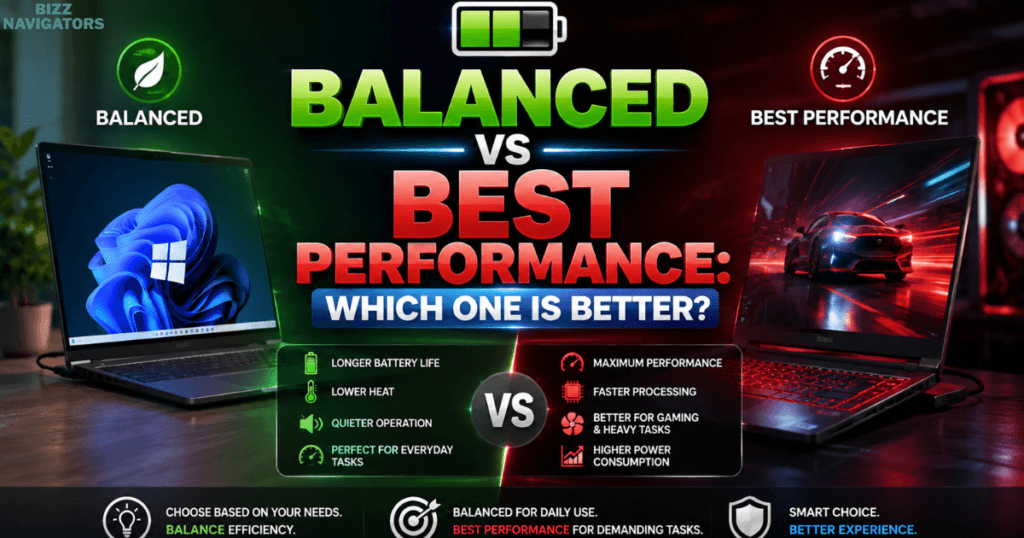
Balanced vs Best Performance: Which One Is Better?
Choosing between Balanced and Best Performance depends on your workload.
| Feature | Balanced | Best Performance |
| Battery Life | Excellent | Lower |
| Heat | Lower | Higher |
| Fan Noise | Quiet | Louder |
| Gaming | Good | Best |
| Office Work | Excellent | Excellent |
| Video Editing | Good | Better |
Most users should leave Windows in Balanced mode for daily use.
Battery Health Tips Beyond Windows Settings
Software optimization is only part of the equation.
To preserve battery health:
Avoid constant 100% charging
Prevent deep battery discharge
Keep ventilation clean
Avoid excessive heat
Use the original charger
Restart your laptop regularly
Long-term battery health is just as important as daily battery life.
Common Battery Optimization Mistakes
Many users unknowingly reduce battery life.
Avoid these mistakes:
Running maximum brightness all day
Leaving dozens of browser tabs open
Using High Performance mode continuously
Never updating drivers
Allowing every application to run in the background
Keeping Bluetooth enabled unnecessarily
Fixing these habits often provides immediate improvements.
Can You Download Windows 11 Battery Optimization Software?
Many users search for Windows 11 battery optimization download or Windows 11 battery optimization free.
In most cases, third-party battery optimization software is unnecessary.
Windows 11 already includes powerful tools such as:
Battery Saver
Power Mode
Battery Usage reports
Sleep configuration
Startup management
Background app controls
Installing unknown optimization software may consume additional resources or introduce unwanted applications. Built-in Windows features are generally the safest and most reliable choice.
Frequently Asked Questions
How can I increase battery life on a Windows 11 laptop?
Enable Battery Saver, lower display brightness, use Balanced or Best Power Efficiency mode, disable unnecessary startup programs, reduce background apps, and configure shorter screen timeout settings.
Is Battery Saver safe to use all the time?
Yes. Battery Saver mainly limits background activity and reduces unnecessary power usage. It does not harm your laptop.
Why is my Windows 11 battery draining so fast?
Common causes include high brightness, outdated drivers, background applications, excessive browser tabs, gaming, poor battery health, and High Performance mode.
Does Dark Mode save battery?
Yes, particularly on OLED displays where darker pixels consume less power. On standard LCD screens, the savings are smaller but can still improve comfort.
Is High Performance mode worth using?
Only for demanding workloads such as gaming, video editing, or rendering. For everyday use, Balanced mode offers much better battery efficiency.
Conclusion
Windows 11 battery optimization is not about changing a single setting. The biggest improvements come from combining Battery Saver, appropriate power modes, optimized startup applications, controlled background activity, sensible display settings, and healthy charging habits.
Instead of relying on third-party optimization tools, use Windows 11’s built-in power management features to maximize battery life while maintaining excellent performance. With just a few minutes of configuration, you can enjoy longer unplugged sessions, better battery health, and a smoother computing experience.

At BizzNavigators, we answer the questions you’re actually searching for, honestly and clearly. We check our facts before we publish anything, and if we’re not sure about something, we tell you instead of guessing. Whatever you’re looking for- a tech fix, a business tip, or a simple how-to- we want to give you an answer you can trust.