
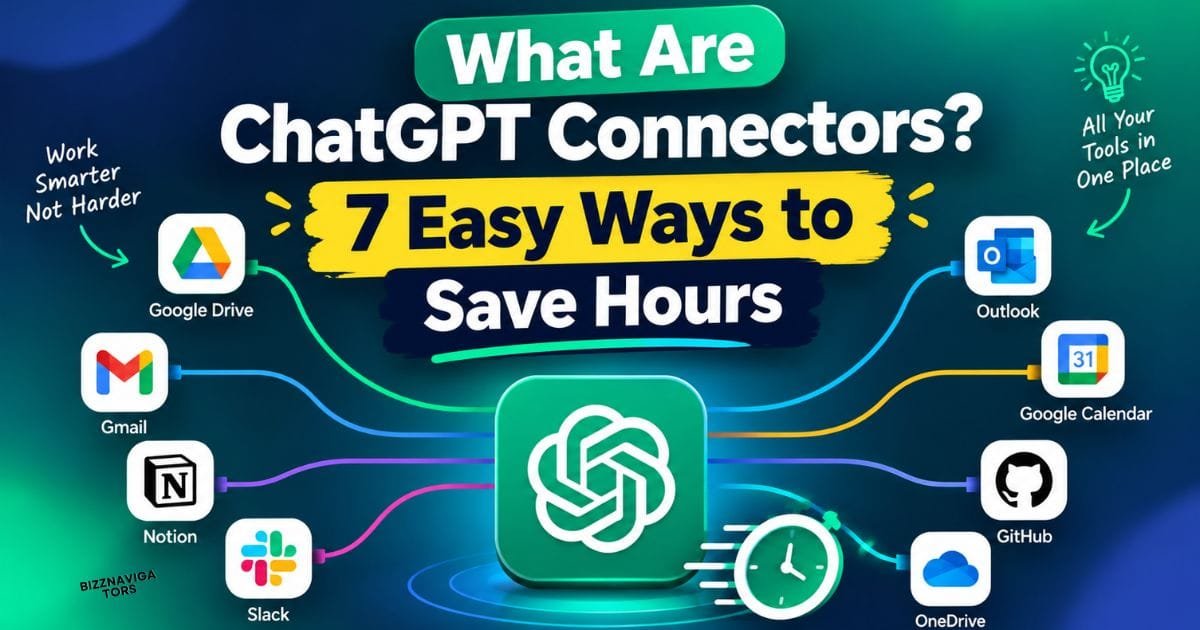
If you have ever copied a paragraph out of Google Docs, pasted it into ChatGPT, and then jumped back to your inbox to grab one more detail, you know how clunky that workflow can feel. ChatGPT connectors were built to fix exactly that. In this guide, you will learn what they are, how they work, what you can do with them, and how they differ from the APIs you may have heard about.
What Are ChatGPT Connectors?
ChatGPT connectors are native integrations that link ChatGPT directly to the external tools and data sources you already use. Think Google Drive, Gmail, Slack, Notion, and GitHub. Once you connect them, you can search, read, and analyze information from those apps without ever leaving the chat window.
Instead of hunting through folders or switching between tabs, you simply ask in plain language. Something like, “Find the Q3 budget spreadsheet” or “What did the team say in Slack about the launch date?” ChatGPT goes to your connected app, looks for the answer, and brings it back to you.
A quick note on naming: OpenAI first called these features connectors, later rebranded them as apps, and now often packages them inside a Plugin or connected apps directory. So if you see slightly different labels in your account, do not worry. You are looking at the same idea under a newer name.
What Are Connectors in AI?
Before going deeper into ChatGPT specifically, it helps to zoom out. In the world of AI, a connector is a bridge between an AI model and a source of information or a tool that sits outside the model.
An AI model on its own only knows what it learned during training plus whatever you type into the conversation. That is a real limit when you need answers about your own files, your own messages, or your own projects. A connector removes that limit by giving the model a safe, controlled way to reach the information you already have.
What Are Connectors in ChatGPT?
In ChatGPT, connectors play that same bridging role, but they are packaged in a way that feels simple. You pick the app, sign in, approve the permissions, and ChatGPT can then work with that app’s content when you ask it to. There is no coding, no custom setup, and no need to export files by hand.
What Is a Connector and Examples?
Put simply, a connector is a ready-made link between ChatGPT and another service. A few quick examples make this easier to picture:
- A Google Drive connector lets ChatGPT find and read your documents and spreadsheets.
- A Gmail connector lets it look through your emails and draft replies.
- A Slack connector lets it search team conversations.
- A GitHub connector lets it look at code and project activity.
Each one does the same basic job: it connects ChatGPT to the place where your information lives.
What Is an Example of a Connector?
Let’s walk through one real-life scenario so you can see the value.
Imagine you are preparing for a client meeting. Your notes are in Notion, the latest proposal is in Google Drive, and the final email thread is in Gmail. Without connectors, you would open three tabs, skim three sources, and stitch everything together yourself.
With connectors, you can ask ChatGPT to pull the proposal from Drive, check your email for the client’s latest requests, and summarize your Notion notes into a short briefing. All of it happens in one conversation. That is the everyday magic of a connector: it saves you the tab-hopping and the copy-pasting.
What Does a Connector Look Like?
You might wonder what you will actually see on screen. Inside ChatGPT, a connector usually shows up as a simple card or entry in your settings, with the app’s name and logo and a button to connect or install it. Once it is active, you can use it by asking for something in a normal message, and ChatGPT will let you know when it is reaching into that app.
The exact look can change depending on your plan and interface, so your menus might not match someone else’s perfectly. The idea stays the same, though: find the app, connect it, and start asking.
What Apps Can ChatGPT Connect With?
The list keeps growing, but here are the popular groups you can expect to find.
Google Workspace
Google Drive, Gmail, and Google Calendar. These are great if your documents, emails, and schedule all live in Google’s ecosystem.
Microsoft Tools
SharePoint, Outlook, and Microsoft Teams. If your workplace runs on Microsoft 365, these will likely be your starting point.
Productivity and CRM Apps
Notion, Slack, HubSpot, Jira, and Figma. These cover notes, team chat, customer records, project tracking, and design work.
Code and File Storage
GitHub, Dropbox, and Box. Handy for developers and for anyone who keeps large piles of files in cloud storage.
Three Types of Connectors, Explained Simply
If you like to sort things into buckets, here is an easy way to think about the three main types of connectors you will use:
- File and storage connectors such as Google Drive, SharePoint, Dropbox, and Box, which help you find and read documents.
- Communication connectors such as Gmail, Outlook, Slack, and Microsoft Teams, which help you search messages and threads.
- Work and project connectors such as Notion, Jira, HubSpot, Figma, and GitHub, which help you track tasks, records, designs, and code.
This is just a practical way of grouping them, not an official OpenAI classification, but it makes it much easier to decide which connectors you need first.
How Do ChatGPT Connectors Work?
The process behind the scenes is simpler than it sounds. Here are the key pieces.
Direct Access Through Natural Language
You do not need to learn special commands. You write your request the way you would to a coworker, and ChatGPT finds the files or messages in your connected apps for you.
Authentication and Permissions
When you connect an app, you log in and approve permissions through a standard single sign-on (SSO) or OAuth flow. This is the same type of sign-in you have probably used when logging in to a website with your Google account.
Here is the reassuring part: ChatGPT respects the permission levels you already have in those tools. If you cannot open a file in Drive, ChatGPT will not magically be able to open it for you either.
What Are the Capabilities of ChatGPT With Connectors?
On its own, ChatGPT is already great at writing, explaining, brainstorming, and analyzing. Connectors stretch those abilities by feeding it your real, current information. Here is what that unlocks.
File Search
You can quickly locate a specific PDF, spreadsheet, or document in platforms like Google Drive, SharePoint, or Dropbox. No more scrolling through endless folders and trying to remember what you named the file.
Deep Research
This is where connectors really shine. ChatGPT can cross-reference and synthesize information across several connected tools at once. For example, it can combine Slack chats, emails, and Notion docs into one cited report, so you can see where each piece of information came from.
Knowledge Sync
For big documentation libraries, some connectors can pre-index the content. That means ChatGPT can answer your questions faster, because it does not have to pull files on demand every single time.
Actions
On supported apps, ChatGPT can do more than read. It can perform actions or draft items for you, like writing an email in Gmail or creating a record. In most cases, it asks for your confirmation first, so nothing goes out without your say-so.
How to Set Up ChatGPT Connectors
Getting started takes only a few minutes. Follow these steps:
- Open ChatGPT and go to Settings, then Plugins. Depending on your interface, you may see this called the Connectors menu instead.
- Browse or search for the app or service you want to add.
- Select Connect or Install plugin, then sign in with your account credentials and approve the permissions it asks for.
That is it. Once the connection is active, you can start asking ChatGPT questions about the content in that app.
What Are the Best AI Connectors for Your Workflow?
There is no single winner, because the best connector is the one that matches the place where your work actually lives. A few simple pairings can help you choose:
- If your life revolves around documents, start with Google Drive, SharePoint, or Dropbox.
- If most of your day is spent in conversations, try Gmail, Outlook, or Slack.
- If you manage projects or code, look at Notion, Jira, or GitHub.
- If you work with clients and sales, HubSpot is a natural fit.
A good tip is to begin with one or two connectors, get comfortable with them, and then add more as you find new use cases. Connecting everything on day one can feel overwhelming and is rarely necessary.
What’s the Difference Between an API and a Connector?
This is one of the most common points of confusion, so let’s clear it up.
An API (application programming interface) is a set of rules that lets one piece of software talk to another. It is the underlying technology, and using it usually takes some coding. A connector, on the other hand, is a ready-made, user-friendly link that is built on top of those APIs. You click a button, sign in, and it works.
Here is an easy way to remember it: the API is the road, and the connector is the finished bus route that gets you where you need to go without having to drive yourself.
What Is a Connector in an API?
When people talk about a connector in an API context, they usually mean a packaged integration that handles the technical details of calling an API for you. It takes care of authentication, formatting requests, and reading responses, so you do not have to write that plumbing yourself. That is precisely what ChatGPT connectors do for the apps you link.
Can You Give Me an Example of an API?
Sure. Think about a weather app on your phone. The app does not collect weather data itself. It asks a weather service’s API for the latest forecast and then shows it to you. In the same way, a connector might use the Google Drive API behind the scenes to fetch your files for ChatGPT.
Is an API just JSON?
No, although the confusion is understandable. JSON is a data format, a tidy way of writing information so that programs can read it. An API is the broader set of rules and endpoints that decide how requests are made and how answers come back. Many APIs happen to send their answers in JSON, which is why the two are often mentioned together, but they are not the same thing.
What Are the Four Types of APIs?
Based on who is allowed to use them, APIs are commonly grouped into four types:
- Public (open) APIs, available to any developer.
- Partner APIs, shared with specific business partners.
- Private (internal) APIs, used only inside a company.
- Composite APIs, which combine several API calls into a single request.
What Are the 7 Most Common Types of APIs?
If you look at APIs by the style or protocol they use instead, these are seven you will hear about most often:
- REST
- SOAP
- GraphQL
- gRPC
- WebSocket
- Webhooks
- Event-driven (streaming) APIs
You do not need to master any of these to use ChatGPT connectors. They simply help you understand what is happening under the hood.
How Accurate Is ChatGPT AI When Using Connectors?
Connectors help ChatGPT work from your actual files and messages, which can make answers more relevant than a general response. Features like deep research can also provide cited reports, so you can click through and verify the source.
That said, no AI is perfect. ChatGPT can still misread a document, miss a file, or summarize something in a way that leaves out an important detail. A smart habit is to check the cited sources for anything important, especially numbers, dates, contracts, or customer-facing content. Treat ChatGPT as a fast, helpful assistant, and keep yourself as the final reviewer.
What Is the Latest News on ChatGPT Connectors?
The biggest thing to know is that this area moves quickly. As mentioned earlier, the naming has shifted from connectors to apps and now often to a Plugin or connected apps directory. The list of supported tools has also kept expanding.
Because features and menu names change often, it is worth checking OpenAI’s official help pages and release notes whenever you set something up. That way, you will always see the most current options available on your plan.
A Few Friendly Tips Before You Start
- Start small. Connect one app, try a few requests, and then expand.
- Be specific. Mention the app and what you want, such as “search my Drive for the 2026 marketing plan.”
- Review before confirming. When ChatGPT drafts an email or creates a record, read it first.
- Keep your permissions tidy. Since ChatGPT follows your existing access levels, clean permissions in your apps mean cleaner results.
- Disconnect what you do not use. If you stop needing an app, remove the connection.
Final Thoughts
ChatGPT connectors turn ChatGPT from a smart chat window into an assistant that can actually see your work. By linking tools like Google Drive, Gmail, Slack, Notion, and GitHub, you can search files, run deep research across apps, and even draft or create items, all from one conversation. Now that you understand what ChatGPT connectors are, how they differ from APIs, and how to set them up, you are ready to try one for yourself. Start with the app you use most and see how much time you get back.

At BizzNavigators, we answer the questions you’re actually searching for, honestly and clearly. We check our facts before we publish anything, and if we’re not sure about something, we tell you instead of guessing. Whatever you’re looking for- a tech fix, a business tip, or a simple how-to- we want to give you an answer you can trust.