
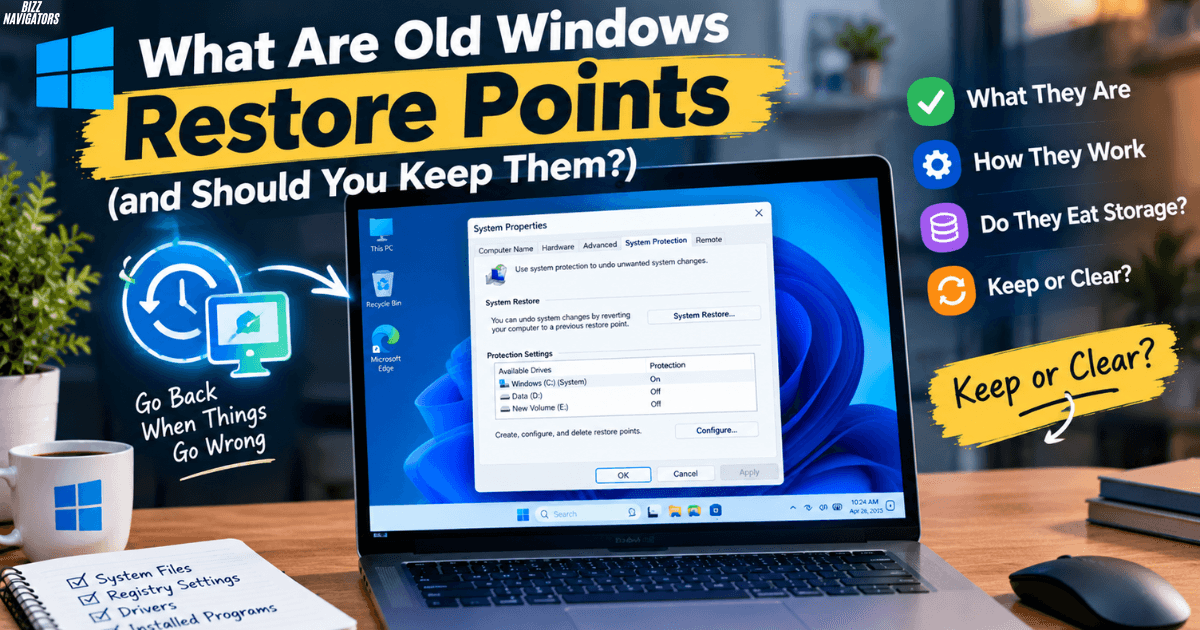
If you have ever opened your PC’s System Protection settings and spotted a list of restore points from months ago, you have probably wondered what they are, whether they still matter, and whether they are quietly eating your storage. This guide answers all of that in plain language, so you can decide what to keep and what to clear out.
What Is Old Windows Restore Points? They are saved snapshots of your computer’s system files, registry settings, drivers, and installed programs from an earlier date. If a bad driver, a faulty app, or a rough update leaves your PC unstable, you can use one of these snapshots to roll back to a point when everything worked.
What Is a Windows System Restore Point?
What Is a Windows System Restore Point?
A restore point is a picture of your system’s health at a particular moment. Windows saves key system files, the registry, and your installed program settings, then lets you go back to that state later.
Two things are worth knowing early on:
- Your personal files stay put. Photos, documents, and emails are not deleted or changed when you restore. A restore point is not a backup of your personal data, so keep a separate backup for that.
- They save space by saving differences. Windows does not copy your whole drive each time. It stores only what has changed since the previous snapshot, which keeps each restore point small.
What Does a System Restore Do on Windows 10?
When you run System Restore on Windows 10, Windows replaces your current system files, drivers, and registry entries with the versions saved in the restore point you choose. Apps and drivers you installed after that date are removed. Anything you removed since then may come back.
Think of it as an “undo” button for system-level mistakes. It will not fix a hard drive failure or recover a deleted holiday album, but it works well when a new update or driver makes your PC act strangely.
How Often Does Windows Save a Restore Point?
Windows creates restore points automatically before significant changes, such as installing certain apps, drivers, or Windows updates. Older versions like Windows 7 also created one about every seven days. Newer versions are more cautious, and by default they create a restore point no more than once every 24 hours.
You can also create one yourself whenever you like. It is a good habit to do this right before you try something risky, like editing system settings or installing software from a source you do not fully trust.
One catch: on many modern PCs, System Protection is switched off by default, so no restore points are made at all until you turn it on. If you never see any restore points, that is probably why.
How Do I Find What Is Old Windows Restore Points on My Computer?
Finding your restore points takes less than a minute:
- Click Start and type Create a restore point, then open the result.
- In the System Protection tab, click System Restore.
- Click Next. You will see a list of available restore points with their dates and descriptions.
- Tick Show more restore points if the list looks short.
On Windows 11, you can also reach this screen through Settings > System > About > System protection. On Windows 7, right-click Computer, choose Properties, and then click System protection.
How Windows Manages Old Restore Points
Windows reserves part of your drive for restore points, commonly somewhere between 1% and 15% of the disk, depending on how you set it. When that space fills up, Windows quietly deletes the oldest restore points to make room for new ones. That means old restore points do not pile up forever. They age out on their own.
You can check and change this limit yourself:
- Open System Protection as described above.
- Select your system drive (usually C:) and click Configure.
- Use the Max Usage slider to set how much space restore points may use.
A smaller limit keeps more of your drive free but gives you fewer restore points to choose from.
Is It Okay to Remove Old Windows Restore Points?
Yes, it is generally fine, and often sensible if you are low on disk space. The trade-off is simple: deleting old restore points frees up storage, but you lose the ability to roll back to those specific dates.
Here are three ways to do it, from gentlest to most thorough:
- Disk Cleanup: Open Disk Cleanup, choose Clean up system files, go to the More Options tab, and click Clean up under System Restore and Shadow Copies. This removes everything except your most recent restore point, which is the safest approach.
- System Protection settings: Click Configure, then Delete. This clears all restore points for that drive, so create a fresh one right afterward.
- Command line: Advanced users can run vssadmin delete shadows /for=c: /oldest from an administrator Command Prompt to remove just the oldest one.
A friendly rule of thumb: keep the newest restore point, especially if your PC has been running well lately. Clear out the rest only if you actually need the space.
How Long Should a Windows Restore Point Take?
There are two timings to think about.
Creating a restore point usually takes just a minute or two. If it seems stuck for much longer, give it a few more minutes before worrying, since a busy disk can slow things down.
Restoring from one takes longer. In most cases, expect somewhere between 15 and 30 minutes, though it can run longer on a slow hard drive or when many changes need to be undone. Your PC will restart at least once during the process.
The most important rule: do not turn off or unplug your computer while a restore is running. Interrupting it can leave your system in a worse state than where you began.
How to Restore Windows 11
Windows 11 uses the same System Restore tool as earlier versions, and the steps are straightforward:
- Search for Create a restore point in the Start menu.
- Click System Restore, then Next.
- Pick the restore point you want, ideally one dated before your problem began.
- Click Scan for affected programs to preview which apps will be removed or restored.
- Click Next, then Finish, and confirm.
Your PC will restart and apply the snapshot. Remember that this only works if System Protection was turned on before the trouble started.
How Much Time Does It Take for System Restore in Windows 11?
Plan for roughly 15 to 30 minutes in Windows 11, and sometimes a little more on older hardware. A fast SSD speeds things up, while a nearly full or aging drive slows things down. If your screen sits on “Restoring files and settings” for a long while, be patient before forcing a shutdown.
Using Restore Points on Windows 7
Windows 7 is an older system, but plenty of people still have it on older machines, and its recovery tools are a bit different. If Windows 7 will not start normally, you can still use your restore points from the recovery environment.
How Do I Access System Recovery Options in Windows 7?
Restart your computer and tap F8 repeatedly before the Windows logo appears. In the Advanced Boot Options menu, choose Repair Your Computer, sign in if asked, and you will land on the System Recovery Options screen. If you have a Windows 7 installation disc, you can also boot from it and choose Repair your computer instead.
How Do I Open the System Recovery Option in Windows 7?
If Windows 7 still starts, you can reach it without the F8 trick. Open the Start menu, type recovery into the search box, and select the recovery tools from the results. From there, choose Open System Restore to browse your saved restore points. If Windows will not start, use the F8 route above.
How Do I Force Windows to Go to Recovery Mode?
When your PC refuses to boot normally, you can push it into recovery. On Windows 7, press F8 during startup. On Windows 10 and 11, turn the computer on and switch it off with the power button as soon as the logo appears. After doing this two or three times in a row, Windows opens the Automatic Repair screen, where you can choose Advanced options and then System Restore.
How Do I Enter Windows 7 Repair Mode?
Repair mode is the same place described above. Use F8, select Repair Your Computer, and you will see these options:
- Startup Repair fixes common boot problems automatically.
- System Restore rolls to a saved restore point.
- System Image Recovery restores from a full backup image.
- Windows Memory Diagnostic checks your RAM for faults.
- Command Prompt gives you manual control for advanced fixes.
Try Startup Repair first, then System Restore if the problem persists.
How to Fix a Corrupted Windows 7 Operating System?
Corrupted system files are one of the best reasons to have a restore point. Work through these in order, stopping when the problem is solved:
- Run Startup Repair from the recovery menu.
- Use System Restore to return to a date before the trouble began.
- Run a system file check from Command Prompt.
- Restore a full system image if you made one earlier.
Each step is more drastic than the last, so start gently.
How Do I Repair Windows 7 Using the Command Prompt?
From System Recovery Options, choose Command Prompt. Here are a few useful commands:
- rstrui.exe opens the System Restore wizard so you can pick a restore point.
- sfc /scannow /offbootdir=C:\ /offwindir=C:\Windows scans and repairs damaged system files on the offline installation.
- bootrec /fixmbr and bootrec /fixboot repair the boot records if the PC will not start.
Type each command carefully, since the recovery environment may assign a different drive letter than the one you expect.
Quick Tips for Keeping Restore Points Useful
- Turn on System Protection for your main drive if it is off.
- Create a manual restore point before big changes.
- Do not let them fill your drive: give them a modest slice of space and let Windows age out the old ones.
- Pair restore points with a real backup of your personal files, since a restore point will not protect your documents.
Final Thoughts
Old restore points are not clutter you must hunt down. They are a safety net that Windows maintains for you, trimming the oldest ones as it needs space. Keep at least the latest one, clear the rest if you need storage, and you will always have a way back when an update or driver goes wrong.

At BizzNavigators, we answer the questions you’re actually searching for, honestly and clearly. We check our facts before we publish anything, and if we’re not sure about something, we tell you instead of guessing. Whatever you’re looking for- a tech fix, a business tip, or a simple how-to- we want to give you an answer you can trust.