
What Are the Best Windows File Explorer Tips?
The best Windows file explorer tips help you organize files, find documents faster, manage folders, customize File Explorer, and reduce repetitive clicks. Windows 11 and Windows 10 include useful features such as tabs, Quick access, search filters, keyboard shortcuts, and customizable folder views.
1. Open File Explorer With the Fastest Shortcuts
The quickest way to launch File Explorer is Windows + E. This shortcut works in both Windows 10 and Windows 11 and is often faster than opening it from the Start menu.
You can also pin File Explorer to the taskbar for one-click access. If you regularly work with files, learning a few additional shortcuts can save significant time.
Useful shortcuts include:
Windows + E: Open File Explorer
Ctrl + N: Open a new File Explorer window
Ctrl + W: Close the current window
Ctrl + Shift + N: Create a new folder
Alt + Up Arrow: Move to the parent folder
Alt + Left Arrow: Go back
Alt + Right Arrow: Go forward
F2: Rename the selected file or folder
Ctrl + L: Select the address bar
Ctrl + F: Focus on search
2. Use File Explorer Tabs in Windows 11
File Explorer tabs are one of the most useful Windows 11 improvements for people who frequently work with multiple folders.
Instead of opening several separate windows, you can keep locations such as Downloads, Documents, and a project folder in the same File Explorer window.
To open a new tab, press Ctrl + T or select the + button beside the existing tabs. You can also right-click a folder and choose the option to open it in a new tab when available.
To close the current tab, press Ctrl + W.
How to Enable File Explorer Tabs in Windows 11
On supported versions of Windows 11, File Explorer tabs are built into the operating system, so you normally do not need a separate application to enable them.
If tabs are missing, install available Windows updates and restart File Explorer. Older Windows 11 builds may not include every modern File Explorer feature.
Windows 10 does not provide the same built-in File Explorer tab experience. If tabs are essential on Windows 10, third-party file managers can provide similar functionality.
3. Open File Explorer Directly to This PC
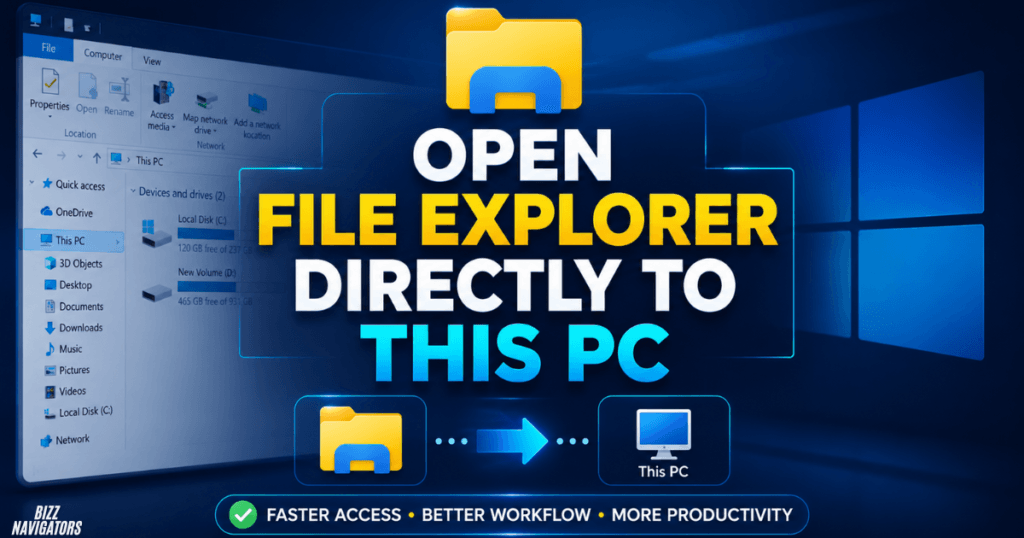
Windows 11 normally opens File Explorer to Home, while some users prefer the traditional This PC view.
This PC gives you immediate access to your drives, folders, and connected storage rather than showing recent files and frequently used locations first.
To change the setting:
1. Open File Explorer.
2. Select the three-dot menu in Windows 11.
3. Choose Options.
4. Find Open File Explorer to.
5. Select This PC.
6. Click Apply and then OK.
This is particularly useful if you regularly manage local drives rather than recently opened files.
4. Organize File Explorer in Windows 11 With a Simple Folder System
Knowing how to organize File Explorer in Windows 11 is more valuable than simply changing its appearance.
A practical structure can separate your files by purpose. For example:
Documents
Work
Projects
Downloads
Personal
Photos
Videos
Archives
Avoid creating dozens of folders with unclear names. A simple hierarchy makes files easier to locate and reduces duplicate storage.
Use descriptive folder names such as 2026 SEO Projects instead of vague names like New Folder or Stuff.
Keep Downloads Under Control
The Downloads folder can quickly become a storage dump.
Move important files to their appropriate folders after downloading them. Delete installers, duplicate documents, compressed files, and other items you no longer need.
For recurring work, create a consistent folder structure so every project follows the same pattern.
5. Customize File Explorer Settings in Windows 11
Windows 11 File Explorer settings let you control how folders, files, extensions, and navigation behave.
Open File Explorer Options by searching for it through Windows Search. From there, you can adjust settings related to general browsing, folder views, and search behavior.
One useful setting is the ability to show file extensions.
With extensions visible, you can distinguish files such as:
.docx
.pdf
.jpg
.png
.zip
.exe
This also makes it easier to identify potentially misleading filenames.
6. Show Hidden Files When You Actually Need Them
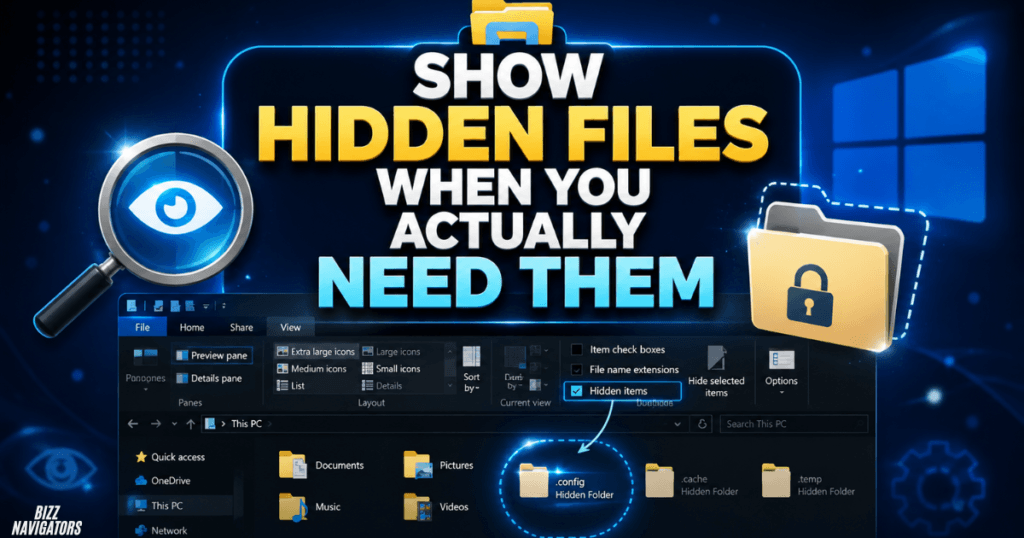
Hidden files are normally kept out of sight to reduce accidental changes to important Windows data.
When troubleshooting or working with application settings, however, you may need to access them.
In modern Windows 11 File Explorer, open View → Show → Hidden items.
Use this setting carefully. Hidden files can include configuration data and system-related files, so avoid deleting or modifying something simply because it looks unfamiliar.
7. Use File Explorer Search More Effectively
Windows File Explorer search becomes much more useful when you search with a specific purpose.
Instead of typing a vague term such as report, narrow your search by filename, type, location, or date.
You can also search within a specific folder instead of searching the entire computer. This reduces irrelevant results and can make large file collections easier to navigate.
For example, searching for a specific file extension can help locate all documents of one type within a folder.
If you frequently search the same locations, improve your folder organization first. Good organization reduces the amount of searching you need to do.
8. Turn On File Name Extensions
File extensions tell Windows and users what type of file they are dealing with.
To display them in Windows 11:
File Explorer → View → Show → File name extensions
This small change can make everyday file management much easier.
For example, a file named invoice.pdf is immediately distinguishable from invoice.docx. It also helps prevent confusion when several files have similar names.
9. Use Quick Access and Home for Frequently Used Folders
You do not need to repeatedly navigate through the same folder hierarchy.
Pin frequently used folders to Quick Access or the relevant Home area in Windows 11. This can be useful for work folders, active projects, or locations that you open several times each day.
A good rule is to pin only genuinely useful locations. Pinning everything defeats the purpose because important folders become harder to spot.
10. Customize Folder Views for Different File Types
Not every folder needs the same layout.
A folder containing photographs may work better with large icons, while a folder containing documents may be easier to manage using a detailed list.
File Explorer provides several viewing options, including:
Extra large icons
Large icons
Medium icons
Small icons
List
Details
Tiles
Content
Use Details when file size, type, and modification date matter. Use larger icons when visual previews are more useful.
11. Rename Multiple Files at Once
Renaming files individually can become tedious when handling photographs, documents, or downloaded files.
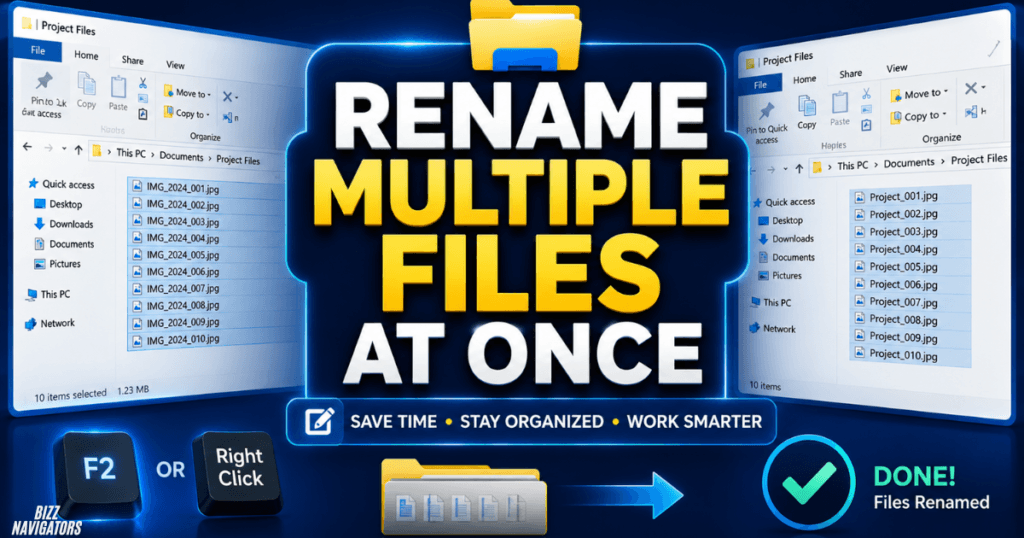
File Explorer lets you select multiple files and rename them together. Windows applies the same base name while adding numbers to distinguish the files.
For example, selecting several images and naming them Project Photos can produce a numbered sequence.
This is particularly useful when cleaning up folders containing large batches of similarly named files.
12. Use OneDrive Carefully With File Explorer
OneDrive integrates closely with File Explorer on Windows 10 and Windows 11.
Its cloud-storage integration can help keep files synchronized across devices, but users should understand the difference between files stored locally and files available through cloud synchronization.
Before moving or deleting important files, check their synchronization status and make sure you understand where the original data is stored.
For important work, maintain an appropriate backup strategy rather than treating synchronization as your only backup.
13. Windows 11 File Explorer Classic View: What You Can Change
Some users searching for Windows 11 File Explorer classic view want the older Windows 10-style interface.
Windows 11 changed parts of the File Explorer design, including the command bar and context menus. You can restore some familiar behaviors through built-in settings, but there is no single official switch that completely turns modern File Explorer into the old Windows 10 interface.
For example, selecting Show more options from the modern context menu reveals additional traditional commands.
It is generally safer to use built-in Windows options instead of registry modifications or unknown customization tools that promise a complete classic interface.
14. Windows 10 File Explorer Tips Still Worth Using
Windows 10 remains familiar to many users, and several File Explorer techniques work similarly across both operating systems.
You can use:
Windows + E to launch File Explorer
Ctrl + Shift + N to create folders
File name extensions for better file identification
Quick access for frequently used locations
Search to locate files quickly
Details view for document-heavy folders
Drag and drop for moving or copying files
The biggest difference is that Windows 11 has introduced newer File Explorer features, including its modern tabbed interface.
15. When Should You Use a Windows File Explorer Alternative?
A Windows File Explorer alternative can make sense when the built-in manager does not provide the workflow you need.
Third-party file managers may offer features such as dual-pane browsing, advanced batch operations, enhanced tab management, folder synchronization, or more detailed file-management controls.
However, most users do not need an alternative simply because File Explorer looks different in Windows 11.
Start with the built-in features first. If your workflow still requires specialized capabilities, then consider a reputable third-party file manager.
Windows 10 vs. Windows 11 File Explorer
| Feature | Windows 10 | Windows 11 |
| File Explorer tabs | Not built in | Available |
| Quick access | Yes | Yes, integrated into newer Home experience |
| This PC startup option | Yes | Yes |
| File extensions | Yes | Yes |
| Hidden files | Yes | Yes |
| Modern interface | Older design | Updated design |
| Alternative file managers | Available | Available |
The exact interface can vary depending on the Windows version and installed updates, so a feature shown in one build may look slightly different in another.
Which Windows File Explorer Tips Matter Most?
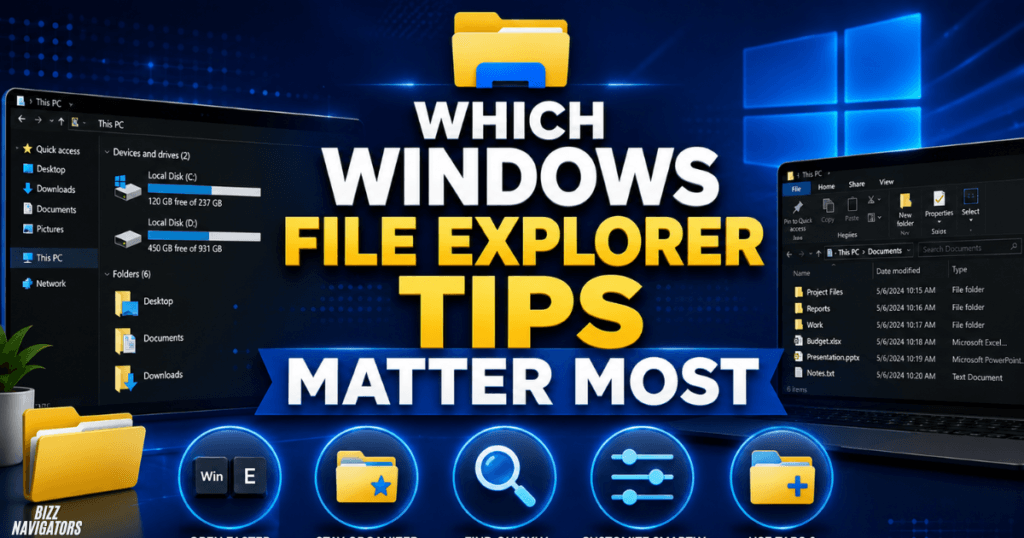
If you want the biggest improvement without changing your entire workflow, start with five habits: use Windows + E, organize folders consistently, enable file extensions, use tabs on Windows 11, and configure File Explorer to open to This PC if that matches your workflow.
These changes take only a few minutes but can eliminate a surprising amount of repetitive navigation.
Frequently Asked Questions
How do I organize File Explorer in Windows 11?
Create a simple folder structure based on projects, file types, or activities, then use meaningful names and keep Downloads under control. Pin only frequently used folders to Quick access or Home.
How do I enable File Explorer tabs in Windows 11?
File Explorer tabs are built into supported Windows 11 versions. Install the latest available updates if the feature is missing, then use Ctrl + T or the + button to create a new tab.
Can I open File Explorer to This PC in Windows 11?
Yes. Open File Explorer Options, find Open File Explorer to, select This PC, and apply the change.
Does Windows 10 have File Explorer tabs?
Windows 10 does not have the same built-in File Explorer tabs as those introduced in Windows 11. Users who need tabbed file management on Windows 10 can consider third-party file managers.
Can I get the classic File Explorer view in Windows 11?
You can restore some traditional commands and behaviors, but Windows 11 does not provide an official setting that completely reverts the modern File Explorer interface to the older Windows 10 design.
Is a third-party Windows File Explorer alternative necessary?
Not for most users. Built-in File Explorer already handles everyday file management well. An alternative becomes worthwhile when you need specialized features such as dual-pane navigation or advanced batch operations.

At BizzNavigators, we answer the questions you’re actually searching for, honestly and clearly. We check our facts before we publish anything, and if we’re not sure about something, we tell you instead of guessing. Whatever you’re looking for- a tech fix, a business tip, or a simple how-to- we want to give you an answer you can trust.
1 thought on “Windows File Explorer Tips: 15 Smart Ways to Work Faster”