
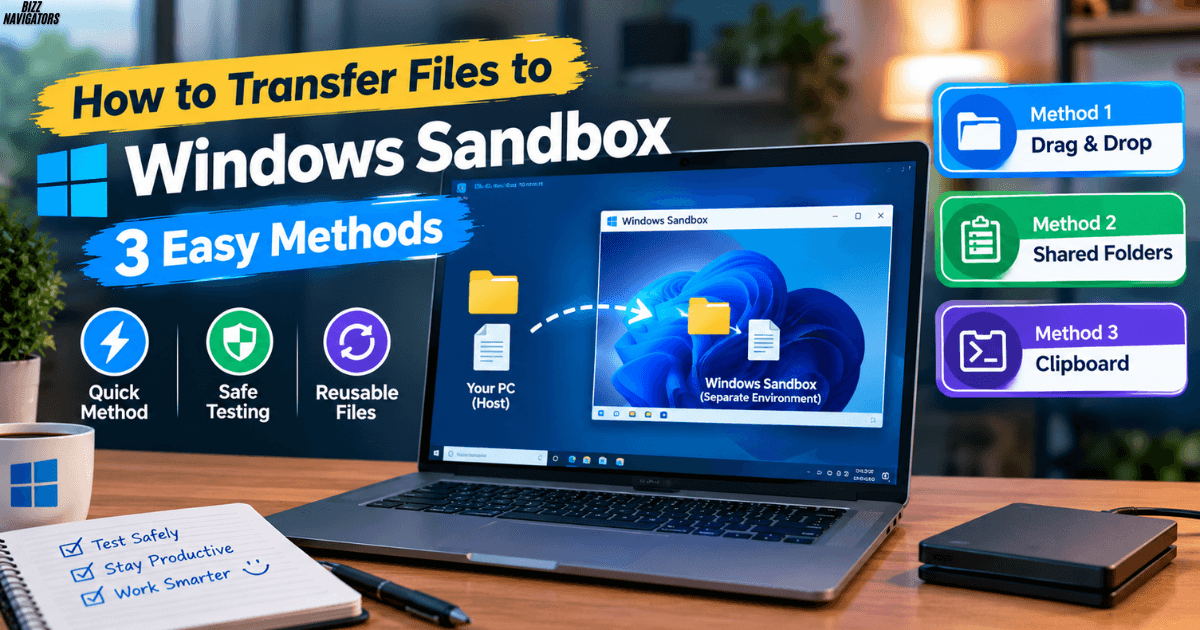
Windows Sandbox is a clean, disposable Windows environment that lives inside your PC. It’s perfect for testing a suspicious installer or trying software you don’t trust. Before you can test anything, though, you need to get your files in there. This article shows you how to transfer files to Windows Sandbox in three ways, from the quickest to the most reusable.
You’ll also learn how to start it, whether it’s safe, whether it’s free, and how to turn it off when you’re done.
How to Use Sandbox (Windows Sandbox Basics)
Windows Sandbox opens a lightweight virtual desktop in a window on your computer. It looks like a fresh copy of Windows. You can install apps, open files, and click around freely. Nothing you do there touches your real system.
When you close the window, everything inside is deleted. That’s the point. Every launch gives you a brand-new, spotless copy of Windows.
To use it well, you need to know two things: how to open it and how to move files in and out. Let’s start with opening it.
How to Start a Sandbox
Starting Windows Sandbox takes only a few seconds once the feature is switched on:
- Click the Start menu.
- Type Windows Sandbox.
- Click the app that appears.
A new Windows desktop opens in a window. If you can’t find it, the feature probably isn’t enabled yet. The next section shows you how to turn it on.
How Do I Make a Sandbox?
You don’t build a sandbox from scratch. You enable it as a built-in Windows feature:
- Press Windows + R, type optionalfeatures, and press Enter.
- Scroll down and tick Windows Sandbox.
- Click OK and restart your PC when asked.
You’ll also need virtualization turned on in your BIOS or UEFI settings. If the option is greyed out, that’s usually why. Later, in Method 3, you’ll learn how to make a custom sandbox using a small configuration file.
Does Windows 11 Have a Sandbox?
Yes, it does. Windows 11 includes Windows Sandbox, and so does Windows 10. There’s one catch: it’s only available on Pro, Enterprise, and Education editions. If you’re on Windows Home, you won’t see the feature in the list, so you’d need to upgrade or use a different tool.
Can I Use Sandbox for Free?
This is a common worry, so here’s the good news: you don’t pay anything extra for Windows Sandbox.
Do You Have to Pay to Use Sandbox?
No. If your edition of Windows includes it, it’s already part of your license. There’s no subscription, no trial period, and no separate download.
Is There Any Free Sandbox Software Available?
Yes. Besides Windows Sandbox, you can find other free tools, such as Sandboxie-Plus or a virtual machine app like VirtualBox. These can be handy if you’re on Windows Home. Windows Sandbox is usually the easiest choice, though, because it needs almost no setup and cleans itself up automatically.
How to Transfer Files to Windows Sandbox
Now for the main event. Here are three reliable ways to get your files into the sandbox. Each suits a different situation, so pick whichever fits what you’re doing.
Method 1: Copy and Paste (The Quickest Way)
This is the easiest method, and it works for both files and folders.
- On your main PC, right-click the file or folder and choose Copy. You can also press Ctrl + C.
- Click inside the Windows Sandbox window.
- Right-click an empty area of the desktop and choose Paste, or press Ctrl + V.
Your file shows up inside the sandbox right away. This also works in reverse, so you can copy a file out of the sandbox and paste it onto your real desktop.
One thing to remember: files you paste this way live only inside the sandbox. They disappear when you close it.
Method 2: Drag and Drop
If you prefer a more hands-on approach, drag and drop works nicely:
- Place your regular File Explorer window and the Windows Sandbox window side by side.
- Click and hold the file on your main PC.
- Drag it into the Sandbox window and let go.
It’s the same idea as copy and paste, only faster when both windows are already on screen. Large files can take a moment, so give them time to finish before you open them.
Method 3: Map a Shared Folder with a .wsb File
If you test files often, you’ll want something more permanent. Mapping a folder gives the sandbox a direct, ready-made connection to a folder on your PC. You set it up with a small configuration file that has a .wsb extension.
Step 1: Create the configuration. Open Notepad on your main PC and paste this:
xml
<Configuration>
<MappedFolders>
<MappedFolder>
<HostFolder>C:\Users\YourUsername\Documents\SandboxShare</HostFolder>
<SandboxFolder>C:\Users\WDAGUtilityAccount\Desktop\SharedFolder</SandboxFolder>
<ReadOnly>false</ReadOnly>
</MappedFolder>
</MappedFolders>
</Configuration>
Step 2: Update the folder path. Replace C:\Users\YourUsername\Documents\SandboxShare with the real path to the folder you want to share. Make sure that folder exists before you launch the sandbox.
Step 3: Choose read or write access. Set <ReadOnly> to true if you want the sandbox to only see your files. Set it to false if you also want it to save changes back to your PC.
Step 4: Save it correctly. Choose File > Save As, set “Save as type” to All Files, and name it something like MySandbox.wsb. If you skip the “All Files” step, Notepad will save it as a plain text file and it won’t work.
Step 5: Launch it. Double-click your .wsb file. Windows Sandbox opens with your shared folder sitting on the sandbox desktop, ready to use.
A shared folder is the best choice when you need to move many files, reuse the same setup, or keep results after the sandbox closes.
Which Method Should You Choose?
| Method | Best for | Files survive closing? |
| Copy and paste | Quick one-off transfers | No |
| Drag and drop | Moving a file while both windows are open | No |
| Mapped shared folder | Repeated testing and saving results | Yes, in the shared folder |
Is Sandbox 100% Safe?
Windows Sandbox is built for safe testing, but no tool gives you absolute protection. Understanding its limits helps you use it wisely.
Is Windows Sandbox 100% Safe?
It’s very safe, but not 100%. Windows Sandbox uses hardware-based virtualization, so a program running inside it is isolated from your main system. Rare security flaws in virtualization software do exist, so you shouldn’t treat any sandbox as bulletproof.
How Safe Is a Sandbox?
For everyday use, it’s safe enough that security professionals rely on it. A few habits make it safer still:
- Keep Windows fully updated.
- Set shared folders to read-only when testing untrusted files.
- Don’t share your important folders, like Documents or Desktop, with the sandbox.
- Avoid logging into personal accounts inside it.
That read-only habit matters most. A writable shared folder gives whatever is running in the sandbox a path to your real files.
Is Sandbox Trustworthy?
Yes, within reason. Windows Sandbox is made by Microsoft and built into Windows itself, so you aren’t installing anything from an unknown source. Its trustworthiness comes from the design: everything is wiped when you close it, so nothing lingers.
How Does Malware Detect Sandbox Environments?
Some clever malware tries to work out whether it’s running inside a virtual environment. It may look for tiny virtual machine clues, such as unusual hardware names, very little disk activity, or a freshly installed Windows with no history. If it senses a sandbox, it may stay quiet and behave harmlessly. That means a quiet result doesn’t always prove a file is safe. If something feels suspicious, don’t rely on a single test.
What Does It Mean If an App Is Sandboxed?
You may hear this phrase outside Windows Sandbox too. When an app is sandboxed, it runs in a restricted space with limited access to the rest of your system. It can’t freely read your files, change settings, or interfere with other programs.
Web browsers do this with every tab, and many phone apps work the same way. It’s a security feature, and in most cases it’s one you want to keep.
What Is a Sandbox and How Do I Disable It?
If you no longer need Windows Sandbox, switching it off is simple. You might want to do this to free up resources or if you simply never use it.
How Do I Deactivate the Sandbox?
- Press Windows + R, type optionalfeatures, and press Enter.
- Untick Windows Sandbox.
- Click OK and restart your PC.
How Do I Get Rid of Sandbox and Remove It?
Unticking the feature is also how you remove it. Windows Sandbox isn’t a separate program with its own uninstaller. Turning off the feature removes it from your system. If you change your mind later, you can tick the box again and restart to bring it back. Any .wsb files you made will stay on your PC, so you can reuse them.
Quick Tips to Make File Transfers Go Smoothly
- Keep your files organized. Put everything you want to test in one folder, so sharing it is quick.
- Save important results outside the sandbox. Anything left inside is gone when you close it.
- Be patient with big files. Large transfers can slow down the sandbox, so wait until they finish.
- Use read-only for risky files. It’s the simplest way to keep your real data protected.
- Check your clipboard if pasting fails. Some custom setups turn clipboard sharing off.
Final Thoughts
Moving files into Windows Sandbox is much easier than it first looks. Copy and paste is the quickest option, drag and drop is great when both windows are open, and a mapped folder with a .wsb file is the best way to build a repeatable setup. Choose the method that matches your task and keep your shared folders read-only when you’re unsure about a file.

At BizzNavigators, we answer the questions you’re actually searching for, honestly and clearly. We check our facts before we publish anything, and if we’re not sure about something, we tell you instead of guessing. Whatever you’re looking for- a tech fix, a business tip, or a simple how-to- we want to give you an answer you can trust.