
What Is Windows Remote Assistance?
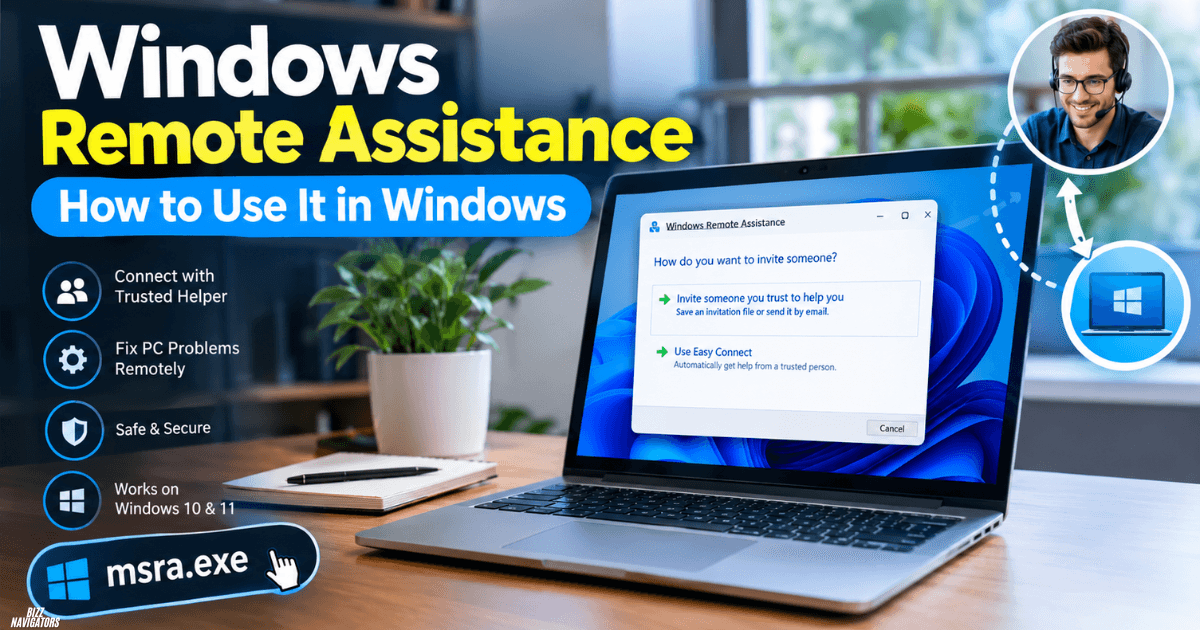
Windows Remote Assistance lets a trusted person connect to your Windows PC and help fix a problem remotely. The helper can view your screen and request control when you approve it.
You can open the classic tool by running msra.exe from Windows Search or the Run dialog.
It is mainly useful when someone needs to troubleshoot your PC without being physically present.
How Do You Use Windows Remote Assistance?
To use Windows Remote Assistance, create an invitation and give it to a trusted helper.
- Press the Windows key.
- Type Remote Assistance.
- Select Invite someone to connect to your PC and help you.
- Select Invite someone you trust to help you.
- Save the invitation as a file or send it by email.
- Give the helper the required password.
- Let the helper open the invitation.
- Approve the connection request on your PC.
After the connection starts, the helper can view your desktop. They can request control if they need to operate the PC.
How Do You Open Remote Assistance With msra.exe?
The fastest way to open the classic tool is with msra.exe.
Press Windows + R, type:
msra.exe
Then press Enter.
You can also type msra.exe into Windows Search and open the result.
This is useful when the normal Remote Assistance shortcut is difficult to find.
How Do You Enable Windows Remote Assistance?
If Remote Assistance is disabled, enable it from Windows system settings.
- Open Control Panel.
- Search for remote.
- Open the Remote Assistance option.
- Select Advanced system settings if required.
- Open the Remote tab.
- Find Allow Remote Assistance connections to this computer.
- Check the option.
- Select Apply and then OK.
Try creating a new invitation after enabling the setting.
How Do You Create a Windows Remote Assistance Invitation?
A Windows Remote Assistance invitation gives your helper the information needed to start a remote support session.
Choose the option to invite someone you trust. Windows then lets you save the invitation or send it through email.
The helper needs the invitation and the associated password to connect.
Create a new invitation if an old one no longer works.
What Is the Windows Remote Assistance Password?
The Windows Remote Assistance password helps protect the invitation from unauthorized use.
Give the password only to the person who is helping you.
Do not post the invitation file or password publicly. If you suspect that someone else has received the details, create a new invitation instead.
How Does a Remote Assistance Connection Work?
A Remote Assistance connection lets another person connect to your Windows PC for troubleshooting.
The helper can see your desktop after you allow the connection. If they need to operate the computer, Windows can ask you to approve control.
You remain involved in the session and can stop the connection when the work is finished.
How Do You Allow Remote Assistance Connections?
To allow Remote Assistance connections:
Control Panel → Advanced system settings → Remote
Then check:
Allow Remote Assistance connections to this computer
Select Apply and OK.
If this option is already enabled, the problem may be related to the invitation, network connection, Windows configuration, or another system setting.
Does Windows Remote Assistance Work on Windows 11?
Yes, the classic Remote Assistance Windows 11 tool can be available through msra.exe on supported Windows configurations.
If you cannot find it through Search, press Windows + R and run msra.exe.
Windows versions and editions can differ, so the available Remote Assistance options may not look exactly the same on every PC.
How Do You Accept a Remote Assistance Request?
When a helper connects, Windows can display a permission prompt.
Check who is requesting access before accepting it.
Approve the connection only if you trust the person. If the helper requests control of your desktop, approve it only when you want them to operate your PC.
End the session after the troubleshooting is complete.
Is Windows Remote Assistance Safe?
Windows Remote Assistance can be safe when you use it with a trusted person and control the permissions.
The main risk is allowing remote access to someone you do not trust.
For safer use:
- Share the invitation only with your helper.
- Keep the password private.
- Do not accept unexpected requests.
- Watch the helper’s activity.
- Approve control requests carefully.
- End the session when finished.
- Disable Remote Assistance if you no longer need it.
Windows Remote Assistance vs Remote Desktop
Windows Remote Assistance and Remote Desktop have different purposes.
| Feature | Windows Remote Assistance | Remote Desktop |
| Main purpose | Remote technical help | Remote PC access |
| Typical use | Troubleshooting | Accessing a computer |
| User approval | Used during assistance | Depends on configuration |
| Invitation | Yes | Usually no invitation file |
| Best for | One-time support | Regular remote access |
Use Windows Remote Assistance when someone needs to help troubleshoot your PC.
Use Remote Desktop when you need regular remote access to a computer.
Why Is Windows Remote Assistance Not Working?
If Remote Assistance does not work, check these common issues.
Remote Assistance Is Disabled
Check the Remote tab and make sure Allow Remote Assistance connections to this computer is enabled.
The Invitation Is Invalid
Create a new invitation and send it to your helper.
The Password Is Incorrect
Make sure the helper is using the password connected to the current invitation.
The Network Is Not Working
Check the internet or network connection on both computers. A connection problem can prevent Remote Assistance from starting.
The Windows Configuration Does Not Support It
Some Windows editions or configurations may not provide the same Remote Assistance features.
Try running msra.exe to confirm whether the classic utility is available.
How Do You Stop Windows Remote Assistance?
You can end the Remote Assistance session after the helper finishes.
If you enabled the feature temporarily, return to the Remote settings and turn off Allow Remote Assistance connections to this computer.
This prevents future Remote Assistance connections until you enable the option again.
Should You Leave Remote Assistance Enabled?
If you rarely use Remote Assistance, you do not need to leave it enabled.
Enable it when you need trusted technical help. After the session ends, disable the feature if you do not expect to use it again.
Frequently Asked Questions
What is the command for Windows Remote Assistance?
The command is msra.exe. Run it through Windows Search or the Windows Run dialog.
How do I open Remote Assistance in Windows 11?
Search for Remote Assistance or press Windows + R, type msra.exe, and press Enter.
Can someone control my PC through Remote Assistance?
Yes. A helper can request control after connecting, but you can approve or reject the control request.
Does Remote Assistance require a password?
Yes, the invitation process uses a password that the trusted helper needs to connect.
Can I stop a Remote Assistance session?
Yes. You can end the session after the helper finishes. You can also disable Remote Assistance from the Remote settings.
Is Remote Assistance the same as Remote Desktop?
No. Remote Assistance is designed mainly for troubleshooting with another person. Remote Desktop is designed for accessing a PC remotely.
What should I do if msra.exe does not open?
Check your Windows edition and configuration. The classic Remote Assistance tool may not be available or enabled on every system.

At BizzNavigators, we answer the questions you’re actually searching for, honestly and clearly. We check our facts before we publish anything, and if we’re not sure about something, we tell you instead of guessing. Whatever you’re looking for- a tech fix, a business tip, or a simple how-to- we want to give you an answer you can trust.
3 thoughts on “Windows Remote Assistance: How to Use It in Windows”