
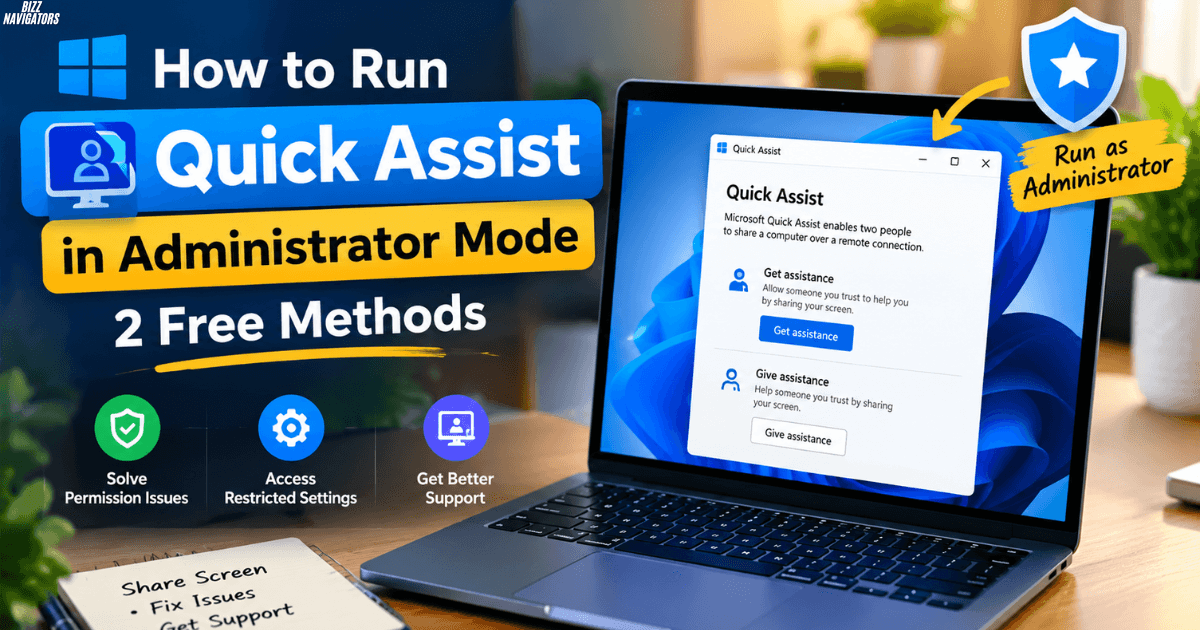
Whether you’re helping a relative fix their laptop or getting support yourself, Quick Assist is one of the easiest ways to share a screen on Windows. Sometimes, though, a normal session isn’t enough. You hit a permissions wall, a settings window won’t respond, or a security prompt blocks everything.
That’s when it helps to run Quick Assist as an administrator. This guide walks you through the full process in plain steps, including the safety side and the common problems.
Getting to Know Quick Assist
What Is Microsoft Quick Assist and Do I Need It?
Quick Assist is a free remote help tool from Microsoft. One person (the helper) gets a short security code, and the other person (the sharer) types it in. After that, the helper can view the sharer’s screen or take control of it, depending on what the sharer allows.
You don’t strictly need it. If you already use another remote tool, you can skip it. But it’s handy because there’s nothing extra to sign up for, and it works well for quick, one-off fixes.
Is Quick Assist Automatically Installed?
On most modern Windows 10 and Windows 11 computers, yes. It comes with the system. Newer builds are delivered through the Microsoft Store, so if you can’t find it, search for it there and install it for free. Keeping it updated through the Store also saves you from many odd bugs.
Does Microsoft Quick Assist Still Work?
It does. Microsoft still supports it, and it remains a quick option for personal help. Larger organizations sometimes use other managed tools, but for everyday troubleshooting between friends, family, or coworkers, Quick Assist is alive and well.
One caution: scammers have misused remote tools, including this one. Only share a code with someone you know and trust, and never give it to a stranger who calls you out of the blue.
How Do I Open Microsoft Quick Assist?
There are a few ways to launch it, and the method you pick matters later when you want admin rights.
How Do I Open Quick Assist?
The simplest route is the Start menu:
- Click the Start button or press the Windows key.
- Type “Quick Assist” in the search bar.
- Click the app in the results.
From there, choose whether you want to help someone or get help, and follow the on-screen prompts.
Is There a Hotkey for Quick Assist?
Yes. Press Ctrl + Windows key + Q and Quick Assist opens right away. It’s a nice time-saver if you help people often. Keep in mind that this opens the app in its normal mode, not an elevated one.
What Does It Mean to Run as an Administrator?
What Does It Mean to Run as an Administrator?
Normally, apps on Windows run with limited permissions. That keeps a faulty or harmful program from changing important system files. When you run an app as an administrator, you give it a higher level of access, so it can change protected settings, edit system folders, and interact with other elevated windows.
What Happens If I Make an App Run as Administrator?
Windows shows a User Account Control (UAC) prompt asking you to confirm. After you click Yes, the app starts with full permissions for that session. It can do more, which is useful for repairs and system changes, but it also means any mistake carries more weight.
For Quick Assist, elevated mode is handy when you need smooth interaction with admin-level windows during a support session. If you’re the helper and you can’t click through security prompts on the other person’s screen, ask them to launch Quick Assist as an administrator on their side too.
Is It Safe to Run as Administrator?
Is It Safe to Run a Program as Administrator?
It’s safe when you trust the program, and you know why you need elevated access. Quick Assist comes from Microsoft, so launching it as an administrator is a reasonable choice for a specific task. The risk grows with unknown software. If a questionable app gets admin rights, it can do much more damage than it could with limited access.
A simple habit helps: elevate only when needed, and go back to normal mode afterward.
What Are the Downsides of Working as an Administrator?
Working with admin rights all the time has a few drawbacks:
- Mistakes (deleting the wrong folder, changing a key setting) can have bigger consequences.
- Malware that sneaks in gets stronger access to your system.
- You may click through security prompts out of habit and miss a real warning.
- Some apps behave oddly when elevated, such as not accepting drag and drop from regular windows.
So think of admin mode as a tool you pick up for a job, not a permanent setting.
How to Run Quick Assist as an Administrator
Here are two ways to do it.
Method 1: Use the Start Menu
This is the easiest option:
- Press the Windows key or click the Start button.
- Type “Quick Assist” in the search bar.
- On the right side of the results, click Run as administrator. You can also right-click the Quick Assist app and choose the same option.
- If a UAC prompt appears, click Yes.
That’s it. Quick Assist opens with elevated permissions.
Method 2: Launch It from an Elevated Command Prompt
If you prefer the command line, open an admin Command Prompt (the next section shows several ways), then start Quick Assist from there. Apps launched from an elevated window usually inherit the same elevated rights. If typing the app’s name doesn’t work on your system, simply use Method 1.
How Do I Enter Administrator Mode in Command Prompt?
Search for “cmd” in the Start menu, then right-click Command Prompt and choose Run as administrator. Click Yes on the UAC prompt, and the window title will begin with “Administrator.” Now every command you type runs with elevated rights.
What Is the Keyboard Shortcut for the Command Prompt in Windows?
Press Win + R, type cmd, and press Enter to open a regular Command Prompt. Here’s a handy trick: press Ctrl + Shift + Enter instead of Enter, and Windows opens it as an administrator. Another quick route is Win + X, which shows a power menu with admin options for the terminal.
How to Force Run as Administrator?
If an app doesn’t ask for elevation on its own, you can push it:
- Right-click the app or its shortcut.
- Choose Run as administrator.
For a lasting setting on regular desktop programs, open Properties, go to the Compatibility tab, and tick “Run this program as an administrator.” Some Microsoft Store apps don’t show that tab, which is why the right-click method is the most reliable for Quick Assist.
How Do I Turn On Administrator in cmd?
Windows includes a hidden, built-in Administrator account that’s turned off by default. In an elevated Command Prompt, type:
net user administrator /active: yes
Press Enter, and the account switches on. To turn it off again, use the same command with /active: no.
How to Enable Administrator Account in Windows 11 in cmd?
The steps are the same on Windows 11. Open Command Prompt as an administrator, run the command above, and you’ll see a confirmation message. If you want to give the account a password (a smart idea), type net user administrator * and follow the prompts.
How Do I Boot into Administrator Mode on Windows 11?
Once the built-in account is enabled, sign out or use Switch user from the Start menu. The Administrator account then appears on the sign-in screen. Select it, and you’re in. When you’re done, sign out and disable the account again, so it doesn’t stay open as an easy target.
Please note that this account is different from simply running one app elevated. For Quick Assist, the Run as administrator option is almost always enough.
How to Set a Shortcut to Always Run as Administrator?
If you use admin mode often, a shortcut saves you the extra clicks.
How to Create a Shortcut with Admin Rights?
- Right-click an empty spot on your desktop and choose New, then Shortcut (or copy an existing shortcut).
- Right-click the shortcut and choose Properties.
- On the Shortcut tab, click Advanced.
- Tick “Run as administrator,” then click OK and Apply.
Here’s another quick trick: pin an app to your taskbar, then hold Ctrl + Shift while clicking its icon. It opens elevated for that session.
Can You Set Something to Always Run as Administrator?
Yes, for most standard programs, use the shortcut or Compatibility settings described above. Microsoft Store apps can be stubborn here, so for those you may need to rely on the right-click or taskbar method each time.
How to Always Run Something as an Administrator?
Pick one of these approaches and stick with it: the shortcut Advanced option, the Compatibility tab, or the taskbar Ctrl + Shift click. All three work well. Choose the one that fits how you launch the app.
How Do I Always Run as Administrator Without Asking?
You may be tempted to turn UAC prompts down or off so nothing interrupts you. I’d gently advise against it. That prompt is one of Windows’ best safety nets. If the prompts truly bother you, keep the shortcut method and accept the single click, or use Task Scheduler to set a trusted task to run with the highest privileges. Both options are safer than switching the warnings off.
How Do I Stop Something from Running as an Administrator?
Just reverse what you did. Right-click the shortcut or program, open Properties, and untick “Run as administrator” (on the Shortcut tab under Advanced, or on the Compatibility tab). Click Apply, and the app returns to normal mode.
Why Is Microsoft Quick Assist Not Working?
If Quick Assist misbehaves, even in admin mode, work through these checks:
- Check your internet connection. Both people need a steady connection.
- Watch the code timer. The security code expires after a short time, so generate a new one if needed.
- Update the app. Open the Microsoft Store and install any pending updates.
- Review your firewall or VPN. Some security tools block remote sessions, so try pausing them briefly.
- Look for work or school restrictions. Managed devices sometimes disable the tool.
- Restart both computers. It sounds simple, but it clears many hidden glitches.
- Try admin mode again. Use Method 1 above, and confirm the UAC prompt.
If nothing helps, reinstall Quick Assist from the Store; it often clears stubborn problems.
Final Thoughts
Running Quick Assist as an administrator is quick once you know the steps: search for the app, choose Run as administrator, and confirm the prompt. If you use it often, add a shortcut or make it a taskbar habit, and stay cautious about who you share your code with. A little care keeps both your computer and your helper’s computer safe.

At BizzNavigators, we answer the questions you’re actually searching for, honestly and clearly. We check our facts before we publish anything, and if we’re not sure about something, we tell you instead of guessing. Whatever you’re looking for- a tech fix, a business tip, or a simple how-to- we want to give you an answer you can trust.