
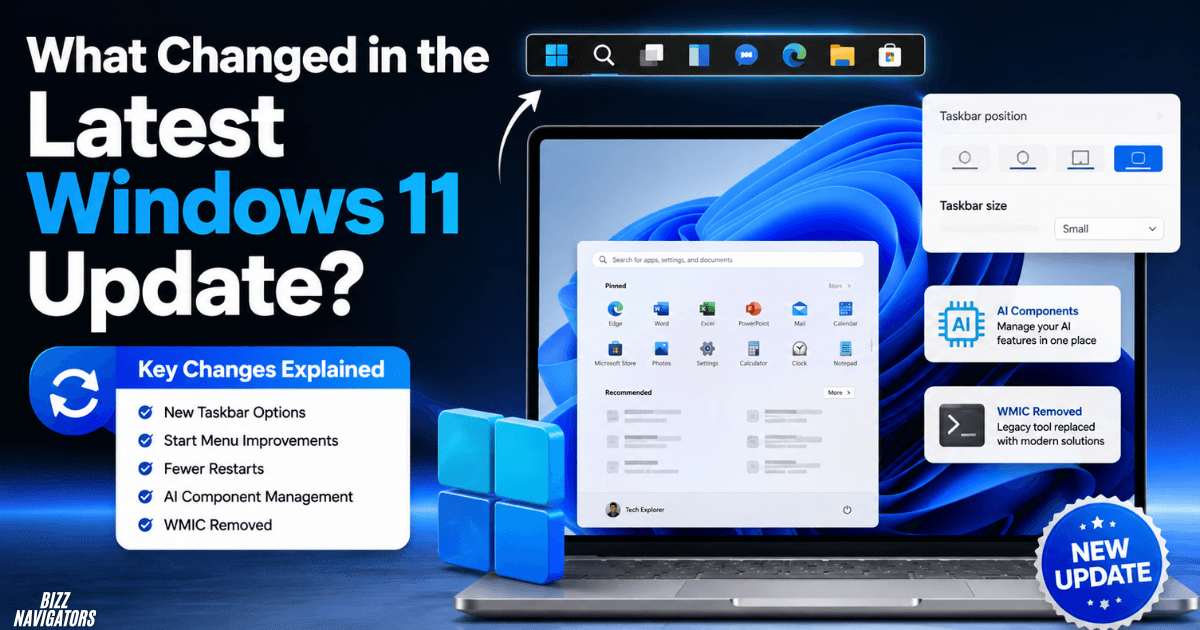
The latest Windows 11 updates bring more customization, smarter update management, and better control over newer system features. Major changes include a movable taskbar, a smaller taskbar option, improved Start menu controls, fewer planned restarts, AI component management, and the removal of legacy WMIC.
These features are rolling out across different Windows 11 builds, so not every PC will receive them at the same time.
What Are the Biggest Changes in Windows 11?
The biggest changes focus on taskbar flexibility, Start menu customization, smoother updates, AI management, and modern system tools.
| New Change | What It Does |
| Taskbar positioning | Moves the taskbar to the top, left, right, or bottom |
| Smaller taskbar | Reduces taskbar size and icons |
| Start menu controls | Gives users more control over recommendations and account details |
| Unified updates | Helps reduce unnecessary monthly restarts |
| AI Components | Provides a dedicated place to manage AI features |
| WMIC removal | Removes the old wmic.exe utility |
The overall direction is clear: Windows 11 is becoming more customizable while replacing older system components.
Can You Move the Windows 11 Taskbar to the Top or Sides?
Yes. Supported Windows 11 preview builds let you move the taskbar to the top, left, right, or bottom of the screen.
This is one of the most noticeable changes because Windows 11 previously kept the taskbar at the bottom.
On supported builds, open Settings > Personalization > Taskbar > Taskbar behaviors to find the available positioning options.
Some taskbar features may still have limitations when you move it away from the bottom.
Can You Make the Windows 11 Taskbar Smaller?
Yes. Microsoft is also testing a smaller taskbar option that reduces both the taskbar height and icon size.
The setting is designed to give users more usable screen space, which can be particularly helpful on laptops and smaller displays.
Look under Settings > Personalization > Taskbar > Taskbar behaviors > Taskbar size if the option is available on your build.
What Changed in the Windows 11 Start Menu?
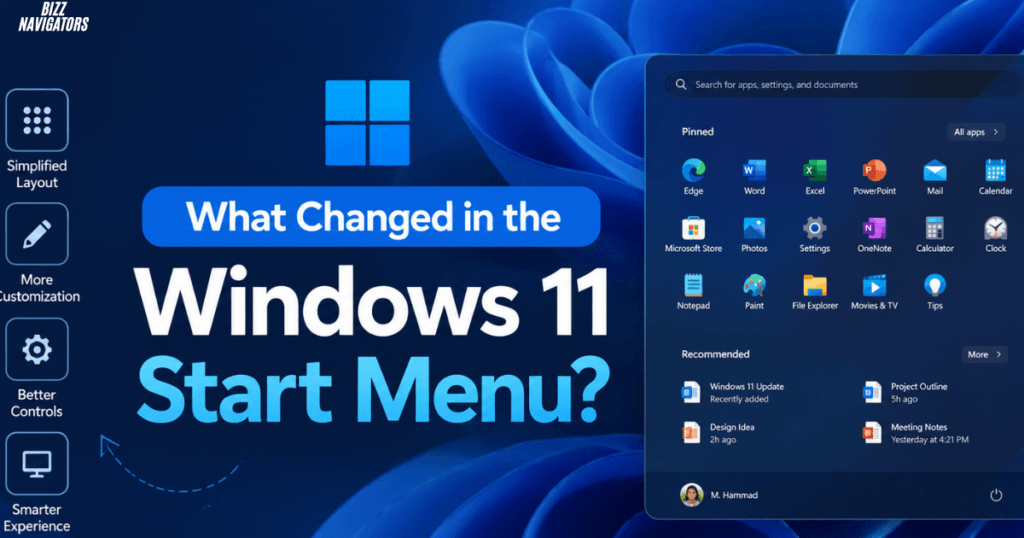
Windows 11 is giving users more control over Start menu recommendations, account information, and the space used by different sections.
Users can manage recommendation-related content instead of being forced to use a fixed Start menu layout.
Depending on the Windows build, available settings can include controls for recommended content, recently added apps, and other Start menu elements.
Can You Hide Recommended Content in Windows 11?
Yes, supported Windows 11 versions provide settings for controlling recommendation-related content.
Go to Settings > Personalization > Start and review the available Start menu options.
When certain recommendation sources are disabled, the corresponding areas can become less prominent instead of unnecessarily consuming space.
Does the Latest Windows 11 Update Reduce Restarts?
Microsoft is moving toward a unified update process that can combine eligible Windows, .NET, driver, and firmware updates to reduce routine restarts.
The goal is to make monthly maintenance less disruptive.
Instead of installing several eligible updates through separate processes, Windows can coordinate them around the monthly quality update where applicable.
This does not guarantee that every Windows update will require only one restart. Emergency updates and specific device conditions can still require additional reboots.
Can You Control Windows 11 Updates More Easily?
Yes. Recent Windows Update improvements provide clearer controls for pausing updates and handling pending restarts or shutdowns.
This gives users more control when they need to keep working instead of immediately dealing with an update.
You can manage available options from Settings > Windows Update.
The exact controls depend on your Windows version and installed build.
What Is the New AI Components Setting in Windows 11?
Windows 11 is introducing a dedicated AI Components area for managing AI-related system components and features.
The move gives users a more centralized way to understand and control AI functionality within Windows.
This is especially relevant as Microsoft adds more AI-powered experiences to the operating system.
However, the presence of AI Components does not mean every Windows 11 PC automatically downloads every AI model.
Some AI features depend on the application, Windows version, hardware capabilities, and the specific feature being used.
Why Is Microsoft Adding AI Component Controls?
Microsoft is making AI functionality easier to manage as Windows becomes more dependent on local and cloud-based AI features.
A dedicated settings area can make installed components easier to identify and manage.
For users, that means less guesswork about which AI-related features are part of Windows and which belong to individual applications.
Is WMIC Removed From Windows 11?
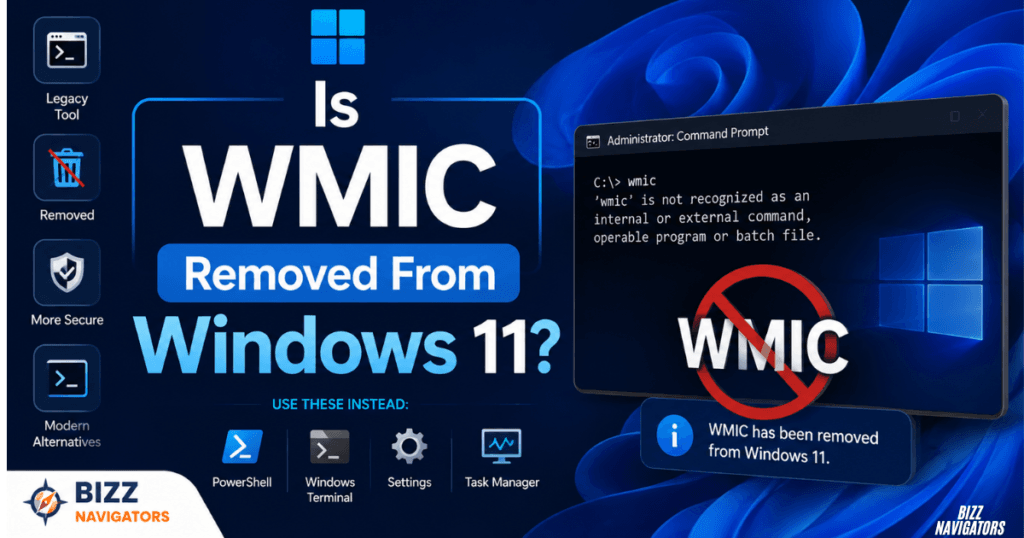
Yes. Microsoft is retiring the legacy Windows Management Instrumentation Command-line utility, known as WMIC or wmic.exe.
The important distinction is that WMI itself is not being removed.
Microsoft is replacing the old command-line utility with newer management approaches, particularly PowerShell and other supported interfaces.
This change mainly affects developers, administrators, IT professionals, and older scripts that still depend on WMIC commands.
What Should You Use Instead of WMIC?
PowerShell and modern WMI management methods are the preferred alternatives to WMIC.
If an old script uses commands such as:
wmic cpu get name
it may need to be rewritten using PowerShell or another supported management method.
For normal Windows users, WMIC removal is unlikely to make any noticeable difference unless they rely on older troubleshooting or automation commands.
Why Are These Windows 11 Changes Important?
These changes matter because Microsoft is addressing several common frustrations at the same time.
The taskbar becomes more flexible, the Start menu becomes less rigid, updates aim to create fewer interruptions, and AI features receive clearer system-level controls.
At the same time, Microsoft is removing older technology instead of maintaining legacy utilities indefinitely.
The result is a Windows 11 experience that offers users more customization while gradually modernizing the underlying operating system.
Are the New Windows 11 Features Available to Everyone?
No. Some of the newest Windows 11 features are still being tested or gradually rolled out.
Microsoft often introduces major changes through Windows Insider builds before making them available to the broader Windows 11 population.
Your available features can depend on:
- Windows 11 version
- OS build
- Insider channel
- Device compatibility
- Microsoft’s staged rollout
- Feature availability in your region or configuration
Therefore, two computers running Windows 11 may show different options even if they appear to be using the same operating system.
How Can You Check Your Windows 11 Version?
Press Windows + R, type winver, and press Enter to see your Windows version and build.
You can also check:
Settings > System > About
Look for the Windows edition, version, and OS build.
This information is useful when troubleshooting missing features because Microsoft often ties new functionality to a specific build.
What Changed for Different Types of Windows 11 Users?
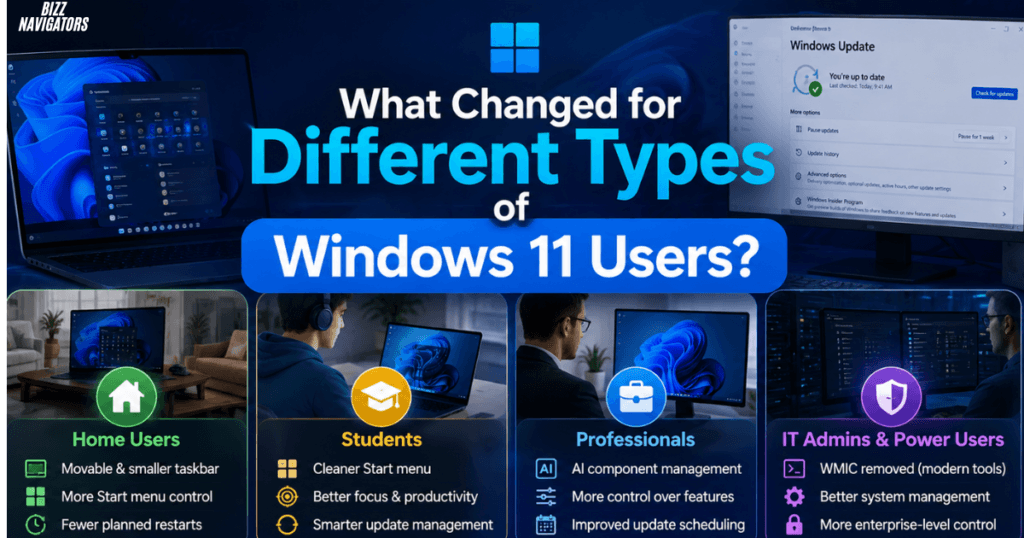
The most useful change depends on how you use your PC.
| Windows 11 User | Most Useful Change |
| Laptop users | Smaller taskbar |
| Power users | Taskbar positioning |
| Desktop users | Start menu controls |
| Office workers | Fewer update interruptions |
| Developers | WMIC replacement |
| AI users | AI Components management |
| Everyday users | Better customization |
Not every change will matter equally to everyone.
For most people, the taskbar and Start menu improvements are the most visible. Technical users are more likely to notice the WMIC changes.
Will the Latest Windows 11 Update Make My PC Faster?
Not necessarily. These changes are mainly focused on usability, customization, maintenance, and system management rather than a major performance boost.
A smaller taskbar can provide slightly more usable screen space, while better update coordination can reduce interruptions.
However, users should not expect the update itself to dramatically increase CPU performance, gaming FPS, or overall system speed.
Performance improvements depend on the specific Windows build, hardware, drivers, and applications installed on the PC.
Should You Install the Latest Windows 11 Update?
Yes, if it is an officially released update for your device, keeping Windows 11 updated is generally recommended for security, stability, and compatibility.
However, users should distinguish between normal Windows releases and preview or Insider builds.
Preview builds can contain unfinished features or bugs. If your PC is important for work, banking, or daily productivity, a stable release is usually the safer choice.
Before installing a major update, keep important files backed up and make sure your applications are compatible.
Final Verdict
The latest Windows 11 changes are mostly about giving users more control while reducing unnecessary system disruption.
The biggest visible improvement is the ability to customize the taskbar more freely. Start menu controls are also becoming more flexible, while unified updates aim to reduce repeated restarts.
For technical users, WMIC’s retirement is more significant because older scripts may require updates.
The important thing to remember is that Windows 11 features do not arrive everywhere at once. If a feature is missing from your PC, check your Windows version and build before assuming something is wrong.
Overall, Microsoft’s latest direction makes Windows 11 more customizable, easier to manage, and better prepared for its growing AI-focused ecosystem.
Frequently Asked Questions
What changed in the latest Windows 11 update?
The latest Windows 11 changes include a movable taskbar, smaller taskbar controls, more flexible Start menu settings, a unified update approach, AI component management, and the retirement of WMIC.
Can I move the Windows 11 taskbar to the top?
Yes. Supported newer Windows 11 builds allow the taskbar to move to the top, left, right, or bottom of the screen.
Can I make the Windows 11 taskbar smaller?
Yes. Microsoft is introducing a smaller taskbar option that reduces the taskbar height and icon size on supported builds.
Is WMIC completely removed from Windows 11?
WMIC is being retired from Windows 11, while the underlying Windows Management Instrumentation technology remains available. Users should migrate old WMIC commands to modern alternatives.
Will Windows 11 require fewer restarts?
Microsoft’s unified update approach is designed to reduce routine monthly restarts by coordinating eligible Windows, .NET, driver, and firmware updates.
Why can’t I see the new Windows 11 features?
The feature may not have reached your Windows build yet. Microsoft uses staged rollouts and preview channels, so availability varies between devices.
How do I check whether my PC received the latest Windows 11 changes?
Press Windows + R, enter winver, and check your Windows version and OS build. Then compare your build with Microsoft’s current release information.

At BizzNavigators, we answer the questions you’re actually searching for, honestly and clearly. We check our facts before we publish anything, and if we’re not sure about something, we tell you instead of guessing. Whatever you’re looking for- a tech fix, a business tip, or a simple how-to- we want to give you an answer you can trust.
1 thought on “What Changed in the Latest Windows 11 Update”