
How to Show Hidden Files in Windows 11
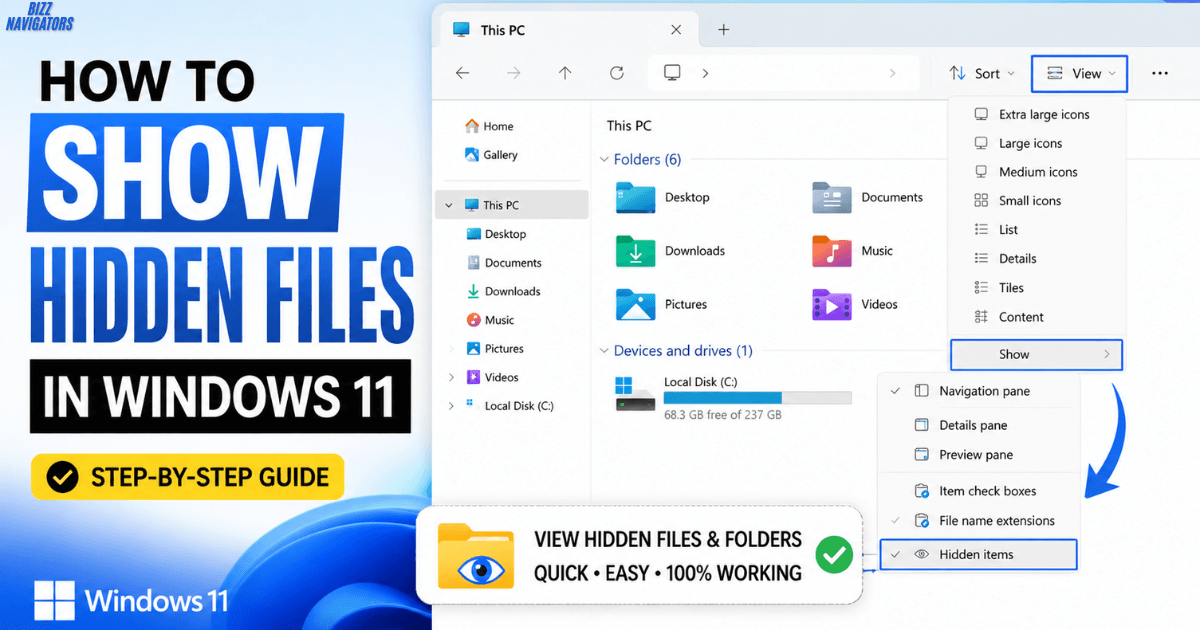
To show hidden files in Windows 11, Open File Explorer with Windows + E. Click View, select Show, and turn on Hidden items. Windows will immediately show hidden files and folders in the current location.
You do not need Command Prompt or third-party software for the normal method.
How to Show Hidden Files in File Explorer
Windows 11 has a built-in option for hidden files.
Follow these steps:
- Press Windows + E.
- Open the folder where the hidden file is located.
- Click View at the top.
- Select Show.
- Turn on Hidden items.
Hidden files will now appear in File Explorer.
They may look slightly faded. This means the file is still marked as hidden.
Microsoft recommends this method for viewing hidden files and folders in Windows 11.
How to Unhide a Hidden File in Windows 11
Showing a hidden file does not remove its hidden attribute.
If you want the file to stay visible, you need to unhide it.
- Turn on Hidden items.
- Find the file.
- Right-click it and select Properties.
- Under Attributes, clear Hidden.
- Click Apply and then OK.
The file should now remain visible even when Hidden items is turned off.
How to Show Hidden Folders Like AppData
The AppData folder is hidden by default on Windows.
To see it:
- Open File Explorer.
- Go to C:\Users\YourName.
- Select View > Show > Hidden items.
- Open AppData.
You can also type %AppData% into the File Explorer address bar.
This opens the Roaming folder inside AppData. If you need the main AppData folder, go up one level.
Why Is AppData Hidden?
AppData contains application settings, cached data, and other files used by Windows programs.
Windows hides it to reduce accidental changes. You normally do not need to modify these files.
If you only need to access AppData, turning on Hidden items is enough.
How to Show Hidden Files Using Folder Options
You can also change the hidden-file setting through File Explorer Options.
Open File Explorer and select:
View > See more (…) > Options
Then:
- Open the View tab.
- Find Hidden files and folders.
- Select Show hidden files, folders, and drives.
- Click Apply.
- Click OK.
This method is useful if the Hidden items option is missing or does not work as expected.
How to List Hidden Files in CMD
Command Prompt can show hidden files without using File Explorer.
Open Command Prompt and go to the folder you want to check.
Then run:
dir /a
The /a option tells the dir command to display files based on their attributes, including hidden and system files.
To show hidden files specifically, use:
dir /a:h
Microsoft documents /a and its attribute filters for the Windows dir command.
How to See Hidden Files in Subfolders
If you want to include subfolders, add /s:
dir /a /s
This searches the current directory and its subdirectories.
You can also search for a specific file type:
dir /a /s *.txt
This is useful when you know the file extension but cannot find the file in File Explorer.
How to Show Protected System Files
Hidden files and protected operating system files are not the same.
Turning on Hidden items shows normal hidden files and folders. Some protected Windows files can remain hidden because Windows treats them differently.
You should normally leave protected operating system files hidden.
Changing or deleting an important Windows file can cause system or application problems.
If you only need to find something such as AppData, do not change the protected-file setting.
Why Are Hidden Files Still Not Showing?
If you enabled Hidden items but cannot find the file, check these things:
Check the Correct Folder
Hidden items only become visible in locations where they actually exist.
Make sure you are looking in the correct folder.
Check the File Name
The file may have a different name or extension than you expect.
For example, a configuration file may use .ini, .dat, .json, or another extension.
Check Protected Files
The item may be a protected operating system file rather than an ordinary hidden file.
Use Command Prompt
If File Explorer does not help, run:
dir /a
This can reveal hidden and system items in the selected folder.
Hidden Files vs Unhidden Files
These two actions are easy to confuse.
| Action | What happens |
| Turn on Hidden items | Windows shows hidden files |
| Turn off Hidden items | Hidden files become hidden again |
| Clear the Hidden attribute | The file becomes normally visible |
| Use dir /a | CMD lists hidden and system items |
So, if you only want to see a hidden file, use Hidden items.
If you want to make it permanently visible, remove the Hidden attribute.
How to See All Files on a Windows 11 PC
There is no single safe File Explorer option that makes every file on your PC appear as a normal file.
For ordinary hidden files, turn on Hidden items.
For a detailed directory listing, use:
dir /a
If you need to search through subfolders as well:
dir /a /s
Keep in mind that Windows protects some system files for a reason.
You should not change their attributes unless you know what the file does.
What Is the Fastest Way to Find a Hidden File?
The fastest method is usually:
Windows + E → View → Show → Hidden items
Then open the folder where you expect the file to be.
If you still cannot find it, use the File Explorer search box or Command Prompt with dir /a.
For a known file name, searching for the exact name is usually faster than browsing the entire drive.
Quick Answer
If you just want the fastest solution, press Windows + E, open File Explorer, select View > Show > Hidden items, and Windows 11 will display hidden files and folders.
For a command-line listing, use dir /a.
For a permanently visible file, open Properties and remove the Hidden attribute.
Frequently Asked Questions
How do I unhide a hidden file?
Right-click the file, select Properties, clear the Hidden attribute, and click Apply.
How do I force Windows to show hidden files?
Open File Explorer and select View > Show > Hidden items.
You can also use View > See more (…) > Options > View > Show hidden files, folders, and drives.
How do I see hidden programs in Windows 11?
Some programs store files in hidden folders such as AppData. Turn on Hidden items and check the relevant folder.
However, hidden program files are not the same as hidden installed applications.
How do I see all files in a folder and its subfolders?
Open Command Prompt in the target folder and run:
dir /a /s
This lists files and folders, including hidden and system items, across subdirectories.
How do I see all files in CMD?
Use:
dir /a
For hidden files specifically:
dir /a:h
What displays all files and folders on a computer?
For a specific directory, the Windows dir command can display its files and folders.
Use dir /a when you also want hidden and system items included.
Why are hidden folders not showing up?
Make sure View > Show > Hidden items is enabled.
If the folder is still missing, it may be a protected system folder, may have different permissions, or may not exist in the location you are checking.

At BizzNavigators, we answer the questions you’re actually searching for, honestly and clearly. We check our facts before we publish anything, and if we’re not sure about something, we tell you instead of guessing. Whatever you’re looking for- a tech fix, a business tip, or a simple how-to- we want to give you an answer you can trust.
1 thought on “How to Show Hidden Files in Windows 11: Simple Clicks”