
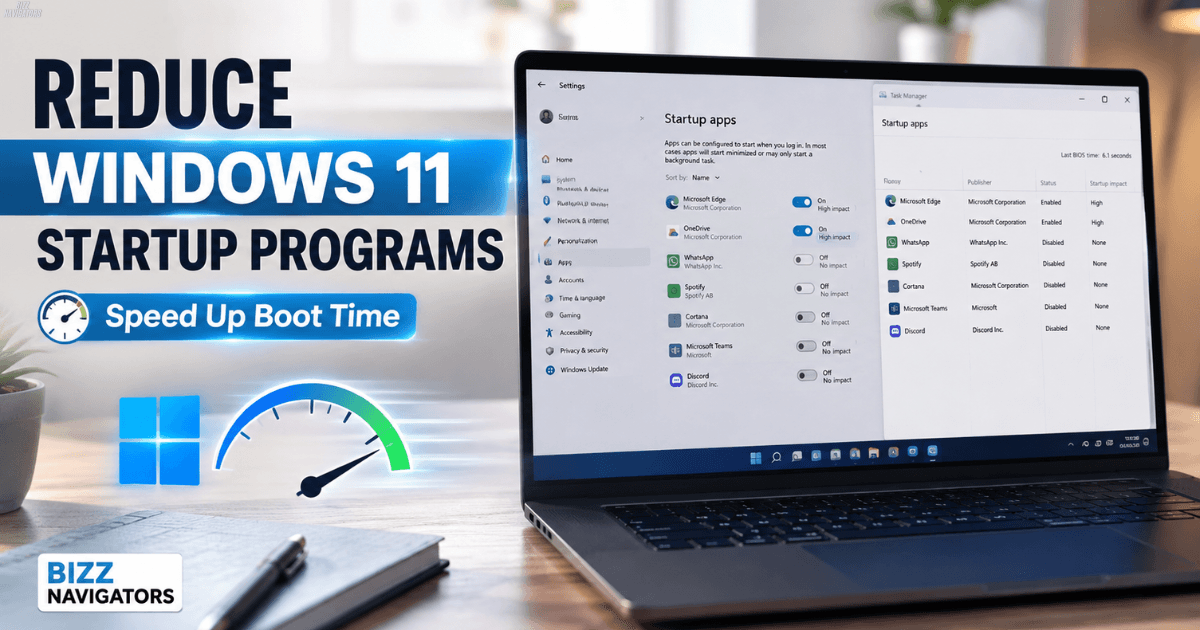
How to Reduce Windows 11 Startup Programs
The easiest way to reduce Windows 11 startup programs is to disable apps you do not need in Settings > Apps > Startup, or in Task Manager > Startup apps. Task Manager also shows each app’s startup impact, which helps you decide what to turn off first.
Turn Off Startup Apps From Settings
Windows 11 lets you stop apps from launching automatically when you sign in.
- Press Windows + I to open Settings.
- Select Apps.
- Click Startup.
- Find an app you do not need at startup.
- Switch it to Off.
The app will remain installed. You can still open it normally whenever you need it.
Disable Startup Programs With Task Manager
Task Manager is better when you want to see which apps have the biggest effect on startup.
- Press Ctrl + Shift + Esc.
- Select Startup apps.
- Select an app you do not need.
- Click Disable.
Task Manager shows startup impact as Low, Medium, or High, along with other statuses such as Not Measured. A High impact rating means the app uses more CPU or disk resources during startup; it does not automatically mean you should disable it.
Which Startup Programs Should You Disable?
Disable apps that you recognize but rarely need immediately after signing in.
Common examples include:
- Game launchers
- Chat apps you rarely use
- Media launchers
- Software updaters
- Optional productivity tools
- Apps that you can easily open manually
Do not disable an app just because its startup impact is High. If you need that app immediately, keeping it enabled may be the better choice.
Also avoid randomly disabling Windows components, security software, drivers, or hardware utilities.
How to Check All Startup Apps
Start with these two locations:
- Settings > Apps > Startup
- Task Manager > Startup apps
They provide the normal controls for startup applications registered with Windows. Task Manager presents additional startup-impact information.
If an app does not appear there but still starts automatically, check the Startup folder.
Press Windows + R, type:
shell: startup
and press Enter.
Windows opens the Startup folder for your current user. Apps with shortcuts in this folder can start automatically when you sign in.
How to Reduce Windows 11 Boot Time
Reducing unnecessary startup apps can help Windows become ready faster because fewer applications need to start after you sign in. Microsoft notes that startup applications can affect startup speed and overall system performance.
For the best result:
- Disable apps you do not use.
- Start with unnecessary High-impact apps.
- Restart your PC.
- Check whether startup feels faster.
- Re-enable an app if you notice a problem.
Do not expect every disabled app to produce a major speed increase. The result depends on your hardware and the number and type of startup applications.
Should You Disable All Startup Programs?
No.
Windows does not need to have zero startup apps. Some programs are useful when they start automatically.
For example, you may want a security tool, cloud-sync app, or hardware utility to run when Windows starts.
A better rule is simple:
Disable what you do not need. Keep what you use.
This avoids unnecessary background activity without breaking features you rely on.
How to Clean Up Windows 11 for Better Performance
Startup programs are only one part of PC performance. If your computer is also low on storage, clean unnecessary files through Windows’ built-in tools.
Go to:
Settings > System > Storage > Cleanup recommendations
Windows can suggest temporary files, large or unused files, cloud-synced files, and unused apps that you may want to remove.
You can also enable Storage Sense under:
Settings > System > Storage
Storage Sense can automatically remove certain unnecessary temporary files and help free disk space.
Does Windows 11 Have a Built-In PC Cleaner?
Yes. Windows 11 includes built-in storage cleanup features.
Storage Sense can automatically clean certain unnecessary files, while Cleanup recommendations help you review files and apps that may be safe to remove.
You do not need a third-party cleaner just to perform basic Windows startup or storage cleanup.
Is CCleaner Better Than Windows Cleanup Tools?
For basic Windows cleanup, start with the tools already included in Windows 11.
Storage Sense and Cleanup recommendations are Microsoft’s built-in options for managing unnecessary files and freeing storage space.
If your goal is specifically to reduce startup programs, you do not need a cleaner at all. Task Manager and Settings are the relevant tools.
How to Perform a Clean Boot in Windows 11
A clean boot is different from simply disabling startup apps.
It starts Windows with essential drivers and startup programs so you can find software conflicts. Microsoft recommends it mainly for troubleshooting apps, games, and background software problems.
To perform a clean boot:
- Search for System Configuration and open it.
- Select the Services tab.
- Select Hide all Microsoft services.
- Click Disable all.
- Open the Startup tab.
- Select Open Task Manager.
- Disable the required startup items.
- Restart the PC.
A clean boot can temporarily remove some functionality, so do not use it simply as a routine way to make Windows faster.
How to Repair Windows at Startup
If Windows starts normally but takes too long to become usable, reducing startup programs is the appropriate first step.
If Windows cannot start correctly, the problem is different. Windows includes Startup Repair, a recovery tool that can diagnose and attempt to fix certain startup problems.
In the Windows Recovery Environment, go to:
Troubleshoot > Advanced options > Startup Repair
Startup Repair can address issues such as damaged system files and boot configuration problems.
Startup Programs vs Startup Repair
| Feature | What It Does |
| Settings > Apps > Startup | Turns startup apps on or off |
| Task Manager > Startup apps | Manages startup apps and shows impact |
| Startup folder | Controls apps launched through startup shortcuts |
| Storage Sense | Removes certain unnecessary files |
| Clean Boot | Troubleshoots software conflicts |
| Startup Repair | Fixes certain Windows startup problems |
These tools solve different problems, so using the right one matters.
What If a Disabled App Still Starts?
If an app continues to launch, check these places:
- Settings > Apps > Startup
- Task Manager > Startup apps
- shell: startup
- The app’s own settings
Some programs have their own Start with Windows or Launch at startup option.
If the app is not listed in the normal startup locations, Windows also supports other startup mechanisms. Avoid editing the Registry unless you know exactly what you are changing. Microsoft warns that incorrect Registry changes can cause unintended problems.
Best Way to Reduce Startup Programs in Windows 11
The safest method is to review startup apps instead of disabling everything.
Open Task Manager, check the Startup impact, and disable applications you recognize but do not need immediately after signing in. Restart Windows and check the result.
If the PC is still slow, review storage and unused apps under Settings > System > Storage. Windows provides Storage Sense and Cleanup recommendations for this additional cleanup.
You do not need complicated software or risky Registry tweaks for normal startup cleanup.
Frequently Asked Questions
How do I stop programs from running at Windows 11 startup?
Open Task Manager > Startup apps, select the program, and click Disable. You can also use Settings > Apps > Startup.
How do I minimize startup programs in Windows 11?
Disable unnecessary apps in Settings > Apps > Startup, or in Task Manager > Startup apps. Start with apps you do not use immediately after signing in.
How do I check all startup programs?
Check Settings > Apps > Startup and Task Manager > Startup apps. If an app is missing but still launches, check shell: startup.
Is it good to disable Fast Startup in Windows 11?
Not if your goal is simply to reduce startup applications. Fast Startup and startup apps are different Windows features. Manage unnecessary programs through Startup apps instead.
How do I clean up my PC to make it run faster?
Start by disabling unnecessary startup apps. Then check Settings > System > Storage > Cleanup recommendations and use Storage Sense if needed.
How do I clear cache and junk files in Windows 11?
Open Settings > System > Storage and review Cleanup recommendations. You can also enable Storage Sense to manage certain temporary files automatically.
What is the difference between a clean boot and disabling startup apps?
Disabling startup apps is normal startup management. A clean boot is a troubleshooting method that temporarily starts Windows with essential services and startup programs to help identify software conflicts.
How do I repair Windows if it will not start?
Use Windows Recovery Environment > Troubleshoot > Advanced options > Startup Repair. It can diagnose and attempt to repair certain startup problems.

At BizzNavigators, we answer the questions you’re actually searching for, honestly and clearly. We check our facts before we publish anything, and if we’re not sure about something, we tell you instead of guessing. Whatever you’re looking for- a tech fix, a business tip, or a simple how-to- we want to give you an answer you can trust.