
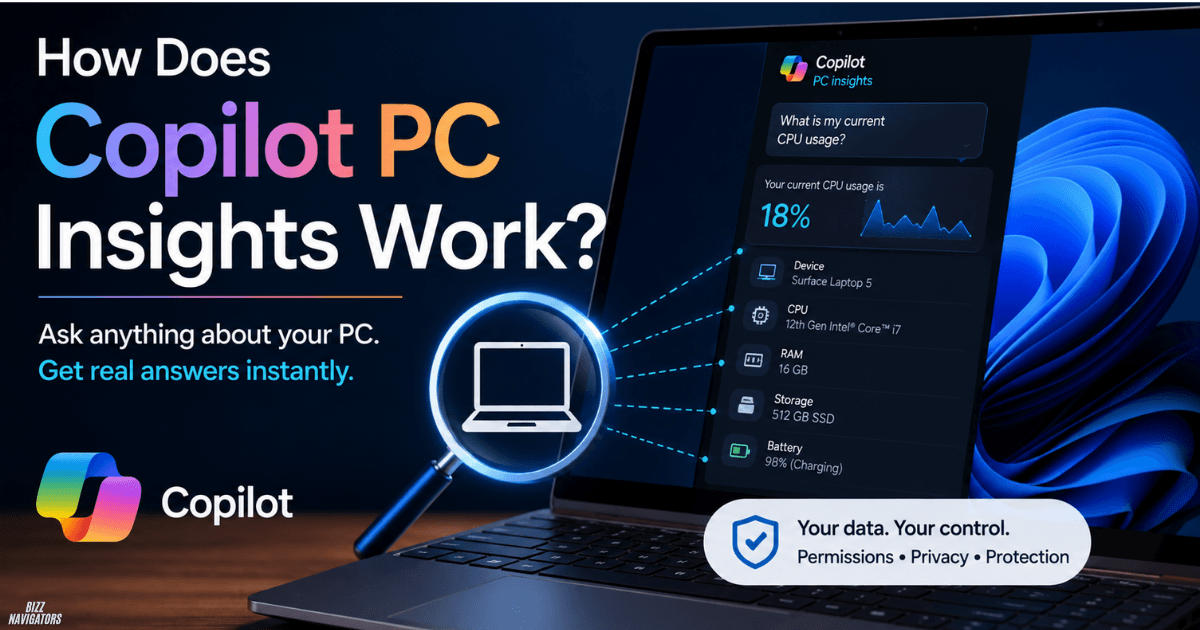
How does Copilot PC Insights work?
Copilot PC Insights works by using relevant information from your Windows PC to answer questions about your device, system, performance, storage, files, and connected hardware. You ask a question, Copilot identifies the information it needs, asks for permission, retrieves the required data, and explains the result in simple language.
The main idea is simple: you ask instead of searching through Windows settings.
For example, you can ask:
- “What graphics card do I have?”
- “What is my current CPU usage?”
- “Do I have enough storage for a 100GB game?”
- “What is my BIOS version?”
Copilot can use relevant PC information to answer these questions after you approve access.
How PC Insights works step by step
PC Insights follows a simple four-step process:
1. You ask a question.
You type a question about your PC or files in the Copilot app.
2. Copilot identifies the required information.
It determines what device or file information is needed to answer you.
3. Copilot asks for permission.
It does not simply access the requested system or file data without your approval.
4. Copilot retrieves the needed data and answers.
After permission is granted, Copilot gets the relevant information and explains it in plain language.
This is what makes PC Insights different from a normal AI question.
A standard AI chatbot may explain how to find your GPU. PC Insights can potentially tell you which GPU is actually installed on your PC.
What can Copilot PC Insights tell you?
PC Insights can answer questions about your device, system information, performance, storage, files, and connected devices. Microsoft gives several examples of questions you can ask through the feature.
Device and system information
You can ask about basic technical details, such as:
- Your full PC specifications
- Graphics card
- BIOS version
- Battery health
- Antivirus status
This saves you from opening several Windows menus just to find one piece of information.
Performance and activity
PC Insights can also help you understand current device activity.
For example:
“What is my current CPU usage?”
You can also ask about connected hardware, USB devices, external drives, and network adapters.
Storage and files
PC Insights can answer certain questions about your files and storage.
For example:
“How big is my Downloads folder?”
Or:
“Do I have enough storage for a large game?”
This can be much quicker than manually checking folders and available disk space.
Connected devices
You can also ask questions about devices connected to your PC.
Examples include:
- “Is my printer online?”
- “Is my webcam detected?”
- “Is my external hard drive recognized?”
Microsoft lists connected-device questions as one of the supported PC Insights use cases.
Does PC Insights access all your files?
No. PC Insights does not automatically access all your files. Microsoft says Copilot retrieves only the specific information needed to answer your question and asks for permission before accessing relevant system or file data.
That distinction is important.
If you ask about your Downloads folder, the feature does not need to inspect unrelated personal documents to answer the question.
Microsoft also says PC Insights does not access work email, Teams chats, calendars, organizational documents, or other Microsoft 365 organizational data.
Can you control PC Insights permissions?
Yes. You control whether PC Insights can access the required information.
Microsoft currently provides options such as:
- Allow for this session
- Always allow for similar requests
- Not now
You can also change or revoke permissions later from Copilot’s privacy settings.
A session-based permission lasts until the PC restarts or the Copilot app is stopped.
So you don’t necessarily have to give permanent permission just to get one answer.
Does Copilot PC Insights monitor your PC?
No. PC Insights does not continuously monitor your computer in the background.
Microsoft says it accesses PC information when you ask a question and approve the request. It is not designed to continuously watch your system activity.
This means PC Insights is different from a dedicated monitoring application.
It does not sit in the background and constantly track your CPU, files, devices, or other system activity.
Can PC Insights fix Windows problems?
No. PC Insights can provide information and explanations, but it cannot automatically fix problems or change your Windows settings. Microsoft specifically says the feature does not perform fixes, automatically run troubleshooting steps, or make system changes.
For example, you could ask:
“Why is my CPU usage high?”
Copilot may help you understand the available information.
But it will not automatically change Windows settings to solve the problem.
That makes PC Insights more of an AI-powered PC information assistant than an automatic repair tool.
Is Copilot PC Insights private?
PC Insights includes permission controls, and Microsoft says it does not store or use your personal files to train its models. You can also revoke access through Copilot’s privacy settings.
There is one important distinction.
Microsoft says PC Insights does not store or use personal files and system information to train models. However, Copilot conversation activity can be handled separately according to your Copilot settings.
So, don’t treat every Copilot privacy setting as if it controls every Copilot feature in the same way.
Is PC Insights available on every Windows PC?
No. PC Insights is being gradually rolled out and may not be available on every Windows device. Microsoft currently describes it as an opt-in experimental feature.
This also means the feature can change over time.
Microsoft warns that PC Insights may not always provide complete or accurate information because the experience is still evolving.
If you don’t see PC Insights in Copilot, that does not automatically mean something is wrong with your PC.
The feature may simply not be available for your device yet.
Is PC Insights the same as ChatGPT?
No. PC Insights and ChatGPT serve different purposes.
ChatGPT is a general-purpose AI assistant that can explain concepts, troubleshoot problems, write content, analyze information, and handle many other tasks.
PC Insights has a narrower purpose: understanding information from your Windows PC when you give Copilot permission to access it.
For example:
ChatGPT:
“How can I check my graphics card?”
PC Insights:
“What graphics card do I have?”
The first question needs instructions.
The second needs information from the actual computer.
That is where PC Insights has a practical advantage.
Is Copilot just ChatGPT?
No. Microsoft Copilot is not simply ChatGPT with a different name. Copilot is Microsoft’s own AI product family, while ChatGPT is OpenAI’s product.
They can have overlapping capabilities, but their apps, integrations, features, data controls, and use cases can differ.
PC Insights is a good example of this difference because it is designed around Windows device information.
What are the disadvantages of Copilot PC Insights?
The biggest limitations are straightforward:
- It is still experimental.
- Availability is being rolled out gradually.
- Answers may not always be complete or accurate.
- It requires permission to access relevant PC information.
- It cannot automatically fix Windows problems.
- It cannot change system settings for you.
- It does not continuously monitor your PC.
So, PC Insights should not replace Windows diagnostic tools when you need detailed technical troubleshooting.
It is better for quick answers and easier access to information.
Should you use Copilot PC Insights?
Yes, if you frequently need quick information about your Windows PC and don’t want to dig through Settings, Task Manager, or folders.
It is especially useful for simple questions such as:
“What CPU do I have?”
“How much storage is available?”
“What is my BIOS version?”
“Is my webcam detected?”
For advanced troubleshooting, however, traditional Windows tools can still provide more detailed information.
Frequently Asked Questions
Is Copilot safer than ChatGPT?
There is no simple “safer” winner. Security and privacy depend on the specific product, feature, account, permissions, and settings you use. For PC Insights, Microsoft provides permission controls and says relevant PC information is accessed only after approval.
Can Microsoft Copilot be trusted?
For PC Insights, Microsoft documents clear permission and access controls. However, the feature is experimental, and Microsoft warns that its responses may not always be complete or accurate. Important technical information should still be verified when necessary.
Why does PC Insights need permission?
Because it needs access to relevant information on your device to answer PC-specific questions. Microsoft says Copilot asks before accessing system or file data and retrieves only the information required for the request.
Can PC Insights access my work emails?
No. Microsoft says PC Insights does not access work emails, Teams chats, calendars, organizational Microsoft 365 documents, or other organizational data.
Can PC Insights change my Windows settings?
No. It provides information and guidance but does not make system changes or perform fixes on your behalf.
Why did Copilot give me an incorrect answer?
PC Insights is still an experimental feature. Microsoft states that it may not always provide complete or accurate information. For important hardware or system decisions, verify the information through Windows or the manufacturer’s documentation.
The Bottom Line
Copilot PC Insights works by connecting your natural-language question with relevant information from your Windows PC. It identifies what it needs, asks for permission, retrieves the necessary data, and gives you a simple answer.
Its biggest benefit is convenience.
Instead of searching through Windows settings, Task Manager, or folders, you can simply ask Copilot what you want to know.
But PC Insights has clear limits. It does not monitor your PC in the background, automatically repair problems, or change Windows settings. It is also an experimental feature that Microsoft is still rolling out and improving.

At BizzNavigators, we answer the questions you’re actually searching for, honestly and clearly. We check our facts before we publish anything, and if we’re not sure about something, we tell you instead of guessing. Whatever you’re looking for- a tech fix, a business tip, or a simple how-to- we want to give you an answer you can trust.
4 thoughts on “How Does Copilot PC Insights Work? Everything Here”