
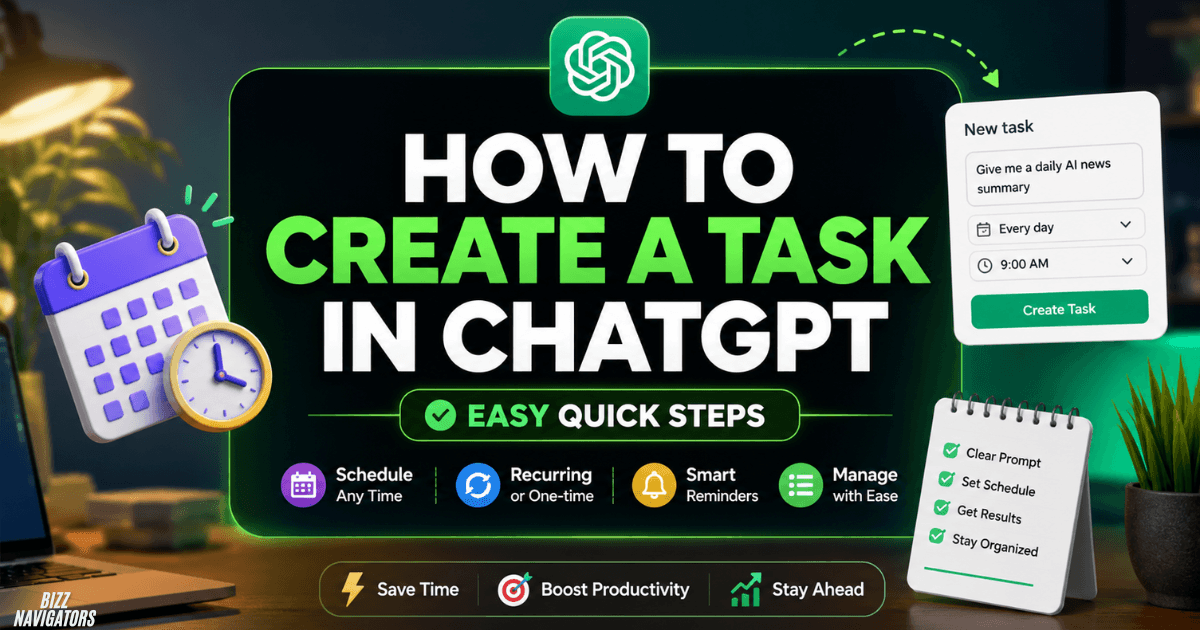
How to create a task in ChatGPT?
How to create a task in ChatGPT, open ChatGPT and ask it to perform something at a specific time or on a recurring schedule. You can also use the Scheduled section to create and manage tasks. A clear task should include the action, timing, frequency, and preferred output so ChatGPT knows exactly what to do.
For example, you can type:
“Every weekday at 9 AM, remind me to review my SEO priorities and give me a three-item checklist.”
ChatGPT can turn this instruction into a scheduled task when the feature is available on your account.
This approach works well for reminders, recurring briefings, learning routines, work planning, and monitoring requests.
What are ChatGPT Tasks?
ChatGPT Tasks are scheduled instructions that tell ChatGPT to perform a request at a future time or repeat it according to a schedule. Instead of manually sending the same prompt every day or week, you create the task once and let ChatGPT handle the scheduled request.
A task can be one-time or recurring. Depending on the task and account capabilities, ChatGPT can send the resulting notification through supported push notifications or email.
Common uses include:
Daily reminders
Recurring work updates
News briefings
Study routines
Weekly planning
Productivity checklists
Scheduled research
Monitoring for important updates
The key difference between a normal prompt and a task is timing. A normal prompt waits for you to send it, while a scheduled task can run automatically according to its instructions.
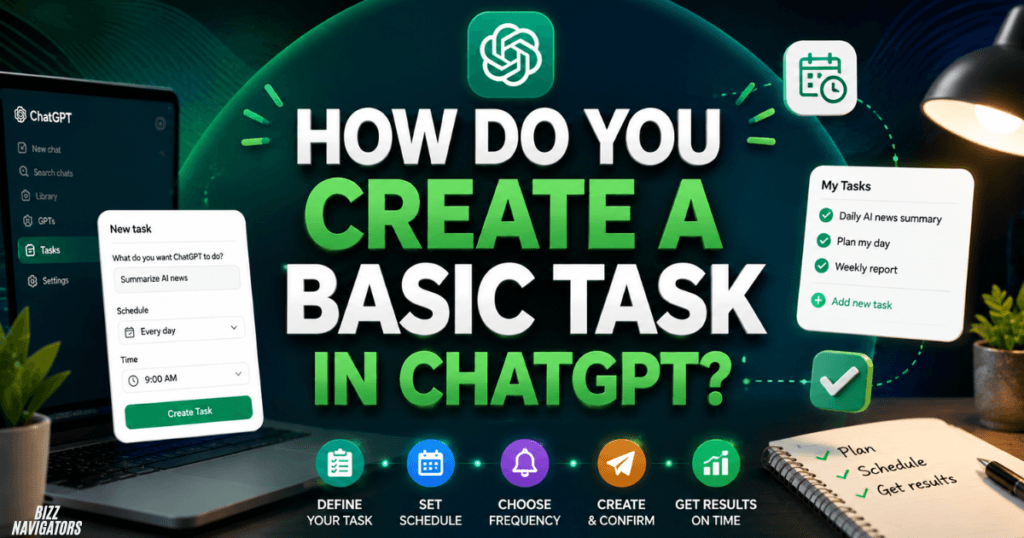
How do you create a basic task in ChatGPT?
Creating a basic task is mainly a matter of giving ChatGPT a clear instruction and schedule. Start a new conversation, describe the action you want ChatGPT to perform, and specify when it should happen. If Tasks are available for your account, ChatGPT can confirm the scheduled instruction after you submit it.
A simple example is:
“Remind me tomorrow at 10 AM to send the monthly report.”
For a recurring task, you could write:
“Every Monday at 9 AM, create a checklist of my most important work priorities.”
The more specific your prompt is, the easier it is to get a predictable result.
What should a ChatGPT task prompt include?
A reliable task prompt normally contains four parts:
1. Action — what ChatGPT should do.
2. Time — when it should happen.
3. Frequency — whether it happens once or repeatedly.
4. Output — how you want the result presented.
For example:
“Every Friday at 4 PM, summarize five important SEO developments from that week in short bullet points.”
This specifies the action, timing, frequency, topic, and output format in one instruction.
How to create a task from the Scheduled section?
You can manage scheduled tasks through the Scheduled area in ChatGPT when the feature is available to your account. Open the task management area, choose the option to create a task, and describe the instruction and schedule.
The exact interface can change as OpenAI updates ChatGPT, but the underlying process remains simple: define the task, specify when it should run, review the details, and save it.
The Scheduled area is also useful when you have several tasks because it gives you a central place to review and manage them.
What can you manage from Scheduled?
Depending on the current ChatGPT experience and account availability, the task management interface can let you:
View scheduled tasks
Check upcoming runs
Edit instructions
Change schedules
Pause tasks
Resume paused tasks
Delete tasks
This makes Scheduled more useful than creating isolated reminders and forgetting where they were configured.
How to schedule a recurring task in ChatGPT?
To schedule a recurring ChatGPT task, tell ChatGPT what should happen and how often it should repeat. You can use schedules such as daily, weekly, or other recurring intervals supported by the task system.
For example:
“Every weekday at 8 AM, give me a summary of the latest technology news.”
Or:
“Every Sunday at 6 PM, create a checklist for my upcoming work week.”
When timing matters, include the relevant timezone in your instruction. A specific schedule is better than vague wording such as “send this to me in the morning.”
One-time vs. recurring tasks
The main difference is how often the instruction runs.
| Task type | Best use | Example |
| One-time | Single reminder or future action | “Remind me tomorrow at 9 AM.” |
| Daily | Repeated daily information | “Give me a daily AI briefing.” |
| Weekly | Recurring weekly planning | “Prepare my Monday work checklist.” |
| Monitoring | Check for meaningful changes | “Tell me when there is an important update.” |
Choose a one-time task when you only need one future action. Use a recurring task when you perform the same activity repeatedly.
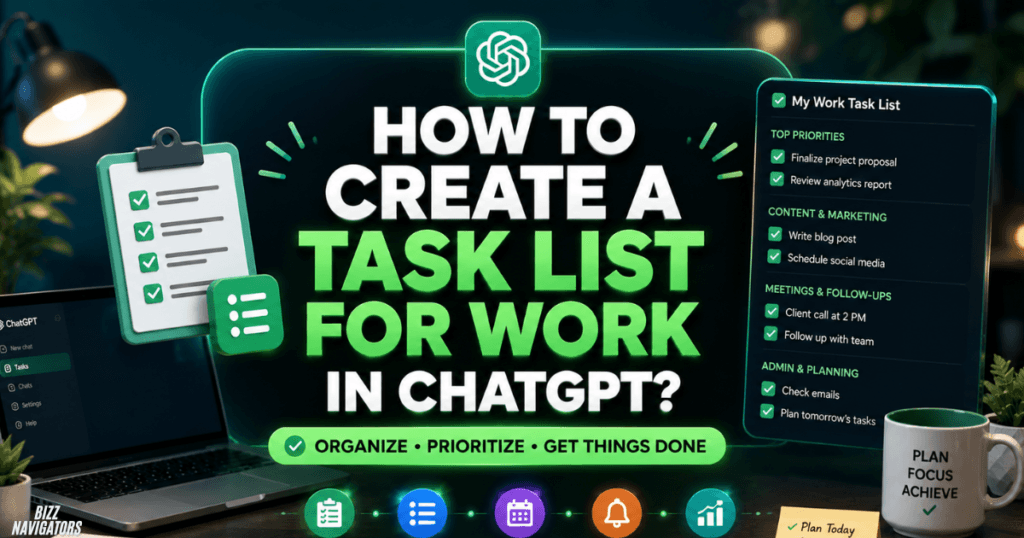
How to create a task list for work in ChatGPT?
To create a task list for work, tell ChatGPT which work areas to include, how frequently you want the list generated, and how you want priorities displayed. A scheduled work-planning task can turn a repetitive planning routine into an automatic checklist.
For example:
“Every Monday at 9 AM, create my weekly work task list with sections for SEO, content, technical work, and outreach. Give me the five highest-priority actions first.”
You can make the result more useful by adding deadlines, priority levels, project names, or time limits.
Example work task structure
A practical ChatGPT-generated work list could contain:
SEO
Keyword research
Search intent analysis
Content optimization
Content
New article planning
Existing-content updates
Internal linking
Technical
Indexing checks
Site errors
Performance review
Outreach
Prospect research
Email outreach
Link-building follow-ups
This is different from a traditional project-management system. ChatGPT can generate and schedule the planning instructions, while a dedicated project-management tool may be better for assigning tasks, tracking status, and managing team ownership.
How to make ChatGPT Tasks more useful?
The best ChatGPT Tasks are specific rather than vague. Tell ChatGPT exactly what information to use, what result to produce, and what limitations to follow.
Compare these two prompts:
“Give me SEO news every day.”
with:
“Every weekday at 9 AM, summarize the five most important SEO developments from the previous 24 hours. Use short bullet points, explain why each update matters, and include the source for each item.”
The second instruction gives ChatGPT a much clearer framework.
Use a consistent task formula
A useful formula is:
Action + topic + schedule + output + constraints
For example:
“Every Monday at 8 AM, review the latest AI developments and give me seven important updates in under 300 words, using short bullet points.”
This structure reduces ambiguity and makes recurring results easier to use.
Add a timezone when necessary
If you work with international teams or have a strict schedule, specify the timezone.
Instead of:
“Every day at 9 AM.”
Use:
“Every weekday at 9 AM Pakistan Standard Time.”
This removes unnecessary uncertainty around when the task should run.
What can you use ChatGPT Tasks for?
ChatGPT Tasks work particularly well for repetitive instructions that have a predictable schedule or trigger.
Daily information
You can schedule a daily briefing about technology, business, SEO, AI, or another topic you follow.
Example:
“Every morning at 8 AM, give me five important AI developments with a one-sentence explanation for each.”
Work planning
A recurring task can prepare your priorities before you begin work.
Example:
“Every Monday morning, create my weekly work priorities and separate urgent tasks from routine tasks.”
Learning
You can build a regular learning routine by asking ChatGPT to deliver a short lesson on a schedule.
Example:
“Every evening at 7 PM, teach me one SEO concept with a practical example.”
Reminders
Simple reminders are another straightforward use case.
Example:
“Remind me tomorrow at 3 PM to review the website analytics report.”
Monitoring
Tasks can also be useful when you want ChatGPT to periodically check for meaningful developments and notify you when something relevant occurs.
This is different from asking for the same generic briefing every day because the task can focus on changes that meet your specified criteria.
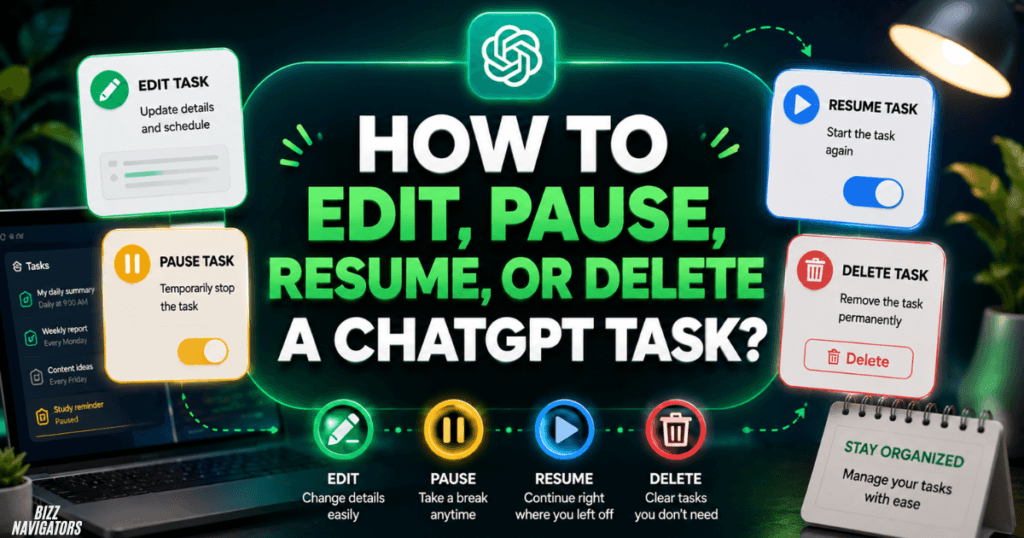
How to edit, pause, resume, or delete a ChatGPT Task?
You can manage an existing task through the Scheduled task management area. Depending on the current interface, you can edit its instructions or schedule, pause it temporarily, resume it later, or delete it when you no longer need it.
If you only want to change the timing, editing the existing task is generally more convenient than creating a replacement.
For example:
“Change this task from every Monday at 9 AM to every Tuesday at 10 AM.”
If you no longer need the task, delete it rather than leaving an unnecessary recurring instruction active.
What are the limitations of ChatGPT Tasks?
ChatGPT Tasks have limitations, and their availability can depend on the current ChatGPT plan and product configuration. OpenAI’s documentation also describes limits on active tasks and notes that some ChatGPT capabilities are not supported within scheduled tasks.
Tasks are therefore best suited to scheduled, repeatable instructions, rather than every type of automated workflow.
You should also avoid assuming that a task can access every file, conversation feature, or ChatGPT capability. Check the current task documentation if your workflow depends on a specific feature.
Important limitations to remember
Before relying on a task for important work:
Check whether Tasks are available on your account.
Confirm the scheduled time.
Use a specific timezone when necessary.
Review the task after creating it.
Check notification permissions.
Avoid depending on unsupported features.
Review active tasks periodically.
Because ChatGPT continues to evolve, the available task features and interface can change.
FAQs About Creating a Task in ChatGPT
Can I create a ChatGPT Task just by asking ChatGPT?
Yes. When Tasks are available, you can describe the instruction and schedule directly in a ChatGPT conversation. Include what you want ChatGPT to do, when it should run, and whether it should repeat.
Can I create a task without knowing how to use the Scheduled page?
Yes. You can create a task through a natural-language instruction when the feature is available. The Scheduled area is mainly useful for viewing and managing tasks after or alongside creation.
Can ChatGPT Tasks run every day?
Yes. Recurring schedules can be used for daily routines such as reminders, briefings, learning prompts, and work planning. State the preferred time and timezone clearly if the schedule is important.
Can I change a ChatGPT Task after creating it?
Yes. Existing tasks can be managed through the Scheduled interface, including supported options for editing or changing the schedule. This lets you update an existing instruction instead of starting over.
Can I pause a recurring ChatGPT Task?
Yes. Supported tasks can be paused and resumed from the task management interface. Pausing is useful when you temporarily do not want a recurring task to run but may need it again later.
Can I delete a ChatGPT Task?
Yes. You can delete a scheduled task from the task management interface when you no longer need it.
What is the best prompt for creating a ChatGPT Task?
A strong task prompt clearly states the action, topic, schedule, output format, and constraints. For example: “Every Friday at 5 PM, summarize this week’s five most important SEO updates in 150 words using bullet points.”
Final answer
The easiest way to create a task in ChatGPT is to describe what you want ChatGPT to do, when you want it done, how often it should run, and what the output should look like. You can create reminders, recurring briefings, work-planning routines, learning prompts, and monitoring tasks.
For the most reliable results, avoid vague instructions. A specific prompt such as “Every Monday at 9 AM, create my weekly work priorities in five bullet points” gives ChatGPT a clear action and schedule, making the task much easier to manage.

At BizzNavigators, we answer the questions you’re actually searching for, honestly and clearly. We check our facts before we publish anything, and if we’re not sure about something, we tell you instead of guessing. Whatever you’re looking for- a tech fix, a business tip, or a simple how-to- we want to give you an answer you can trust.