
Why Is ChatGPT Tasks Not Working?
ChatGPT Tasks may stop working because the task is paused, notifications are blocked, you have reached your active-task limit, the associated chat was deleted, or the task uses an unsupported feature such as voice chat or GPTs. Checking the Scheduled page first usually reveals whether the task is active, paused, missing, or due to run later.
If a ChatGPT task was working before and suddenly stopped, do not immediately recreate it. The problem may be with the task status, notification permissions, account limits, scheduling, or the task itself.
The good news is that most task problems can be identified in a few minutes.
Check Whether Your ChatGPT Task Is Actually Active
The first thing to check is the task’s current status. ChatGPT now provides a dedicated Scheduled page where you can view existing tasks, see their next run time, and pause, resume, edit, or delete them. You can also manage tasks through Settings → Notifications → Manage tasks.
If your task appears there, check whether it says active or paused.
A paused task will not run until you resume it. Open the task, review its schedule, and select the option to resume it.
If the task does not appear at all, it may not have been created successfully. In that situation, creating a new task with a clear schedule is usually more reliable than assuming ChatGPT will remember an earlier request.
Look for the Next Run Time
A task can appear to be broken when it simply has not reached its scheduled time yet.
Check the next scheduled execution before changing anything. ChatGPT supports one-time and recurring schedules, including broader windows such as morning, afternoon, or evening. Tasks cannot run more than once per hour.
Make Sure ChatGPT Task Notifications Are Enabled
If the task runs successfully but you never receive a notification, the problem may not be the task itself.
ChatGPT allows task notifications through push notifications, email, or both. Desktop notifications may also require permission from your browser or operating system.
Check ChatGPT → Settings → Notifications and make sure task notifications are enabled.
If you use ChatGPT in a browser, also check the browser’s notification permission for the ChatGPT website. A browser can block notifications even when ChatGPT’s own notification setting is enabled.
On mobile, notification permission must also be allowed for the ChatGPT app.
Task Works but No Notification Appears
This is an important distinction:
Task runs, but no alert appears: check notification permissions.
Task is paused: resume it.
Task is active but has not reached its schedule: wait for the next run.
Task disappeared: check whether the associated chat was deleted or whether it was never successfully created.
Task cannot be created: check plan limits and supported features.
Separating the task execution problem from the notification problem can save a lot of unnecessary troubleshooting.
Check Your Active Task Limit
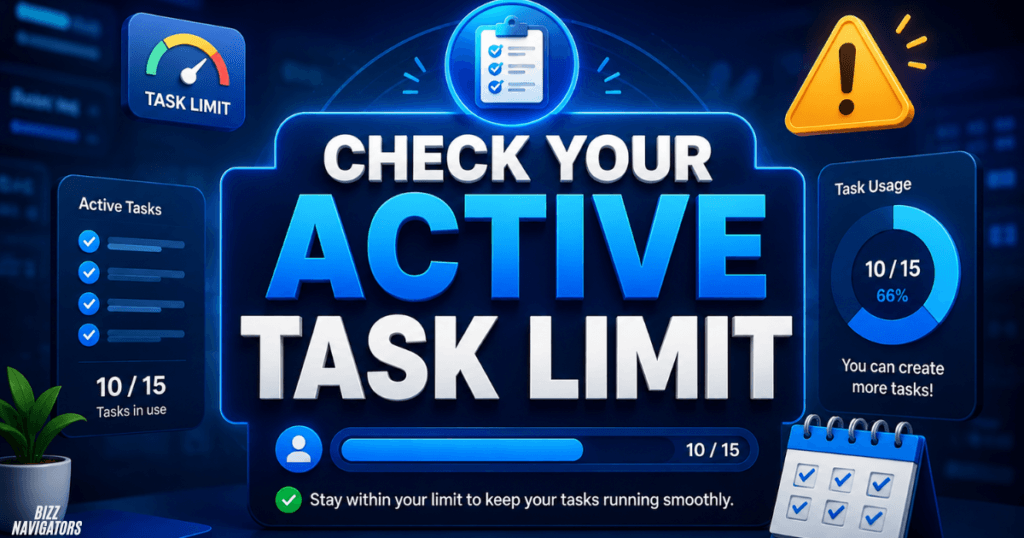
Another common reason ChatGPT Tasks stops accepting new tasks is the active-task limit for your plan.
Current OpenAI documentation lists different limits by plan: Go users can have up to 3 active tasks, Plus users up to 5, Business and Edu users up to 10, and Pro and Enterprise users up to 15 active tasks. If you reach the limit, ChatGPT cannot create another task or resume a paused task until you pause or delete an existing active task, or an existing task completes according to its schedule.
| Plan | Active task limit |
| Go | Up to 3 |
| Plus | Up to 5 |
| Business | Up to 10 |
| Edu | Up to 10 |
| Pro | Up to 15 |
| Enterprise | Up to 15 |
If you have created several reminders, recurring reports, monitoring tasks, or other scheduled activities, your account may already be at its limit.
Delete Tasks You No Longer Need
Open the Scheduled task manager and remove old tasks that you no longer use.
Do not keep multiple versions of the same reminder active. Cleaning up inactive workflows can make it easier to identify which task is actually supposed to run.
Check Whether the Task Uses an Unsupported Feature
Not every ChatGPT capability works with Scheduled Tasks.
OpenAI currently lists voice chats and GPTs among the features that are not supported with Tasks.
For example, if you are trying to create a scheduled workflow that depends on a GPT, changing the wording of the prompt may not solve the underlying problem. The limitation comes from the task feature itself.
Instead, rewrite the task so it uses capabilities supported by Scheduled Tasks.
For example:
Less suitable:
Use my custom GPT every morning to analyze my documents.
Better approach:
Every morning at 9 AM, give me a concise summary of the latest information about [topic].
The second request focuses on the scheduled task itself instead of depending on an unsupported GPT workflow.
Check Whether You Deleted the Chat Connected to the Task
Deleting a chat associated with a scheduled task can cause the task to pause automatically. OpenAI specifically states that deleting the associated chat automatically pauses its scheduled task.
This can easily look like a random failure.
If you recently cleaned up old conversations, check your Scheduled page. The task may still exist but be paused.
If it is available, resume or edit the task rather than creating unnecessary duplicates.
Simplify the Task Prompt
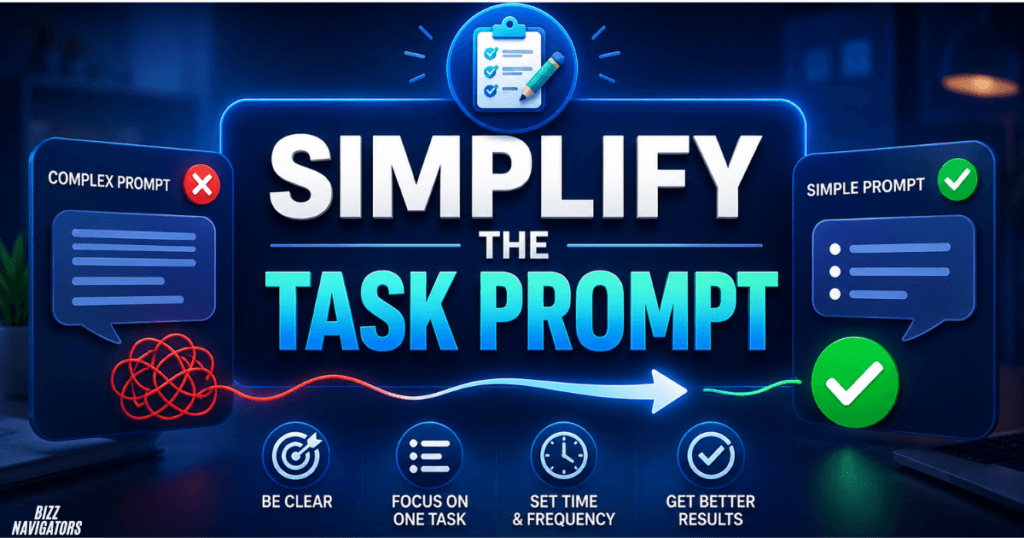
Sometimes the best troubleshooting step is to make the task simpler.
A scheduled task should clearly state:
1. What ChatGPT should do.
2. When it should do it.
3. How often it should run.
4. What information it should use.
5. What result you want.
For example:
Every weekday at 8 AM, summarize the three most important technology news developments from the previous day in five bullet points.
This is much easier to interpret than a long instruction containing several unrelated actions.
If a complicated task repeatedly fails, create a basic test task first.
Test With a Simple Reminder
Try something like:
Remind me tomorrow at 9 AM to check my email.
If the simple task works, the original problem may be related to the complexity or unsupported requirements of your previous task.
If even the simple task cannot be created or managed, investigate account limits, task availability, status, and notifications instead.
Check Whether the Task Has Been Automatically Paused
A task may stop because it has been inactive for a period of time. OpenAI notes that unattended tasks may automatically pause after a period of inactivity. A task can also pause when it needs additional action from the user.
That means a task that worked for a while does not necessarily have a permanent failure.
Open the Scheduled page and look for paused tasks.
If the task is paused, review the task instructions and schedule before selecting Resume.
If it pauses again, recreating it with a simpler instruction may help identify whether the original task has a specific limitation.
Check Your ChatGPT Plan and Feature Availability
Scheduled Tasks are available globally to Plus, Pro, Business, and Enterprise users on ChatGPT web, mobile, and the desktop app according to the current OpenAI Help Center documentation.
However, feature availability and limits can change as OpenAI updates ChatGPT.
If you cannot find Scheduled Tasks at all, first check that you are signed into the intended ChatGPT account and that your plan supports the feature.
Also make sure you are using the current ChatGPT interface. OpenAI has recently introduced a dedicated Scheduled page and improved task-management experience.
What to Do If ChatGPT Tasks Still Are Not Working
If you have checked the obvious settings and the task still fails, use this order:
1. Open Scheduled Tasks
Go to the Scheduled page or Settings → Notifications → Manage tasks and find the affected task.
2. Check the Status
Confirm that the task is active rather than paused.
3. Check the Schedule
Verify the date, time, recurrence, and next run.
4. Check Notifications
Enable ChatGPT notifications and browser or device permissions if you expect an alert.
5. Check Your Task Limit
Pause or delete unnecessary active tasks if you have reached your plan’s limit.
6. Remove Unsupported Features
Avoid relying on voice chats or GPTs inside Scheduled Tasks.
7. Simplify the Prompt
Create a basic test task to determine whether the issue is caused by the original instructions.
8. Recreate the Task
If the task remains unreliable after checking its settings, delete the problematic task and create a clean version with a short, specific prompt.
9. Check OpenAI’s Current Documentation
Scheduled Tasks are an evolving ChatGPT feature. OpenAI has recently introduced improvements to task creation, management, scheduling, and notifications, so current documentation is the best reference when the interface or limits change.
Why Does My ChatGPT Task Say Paused?
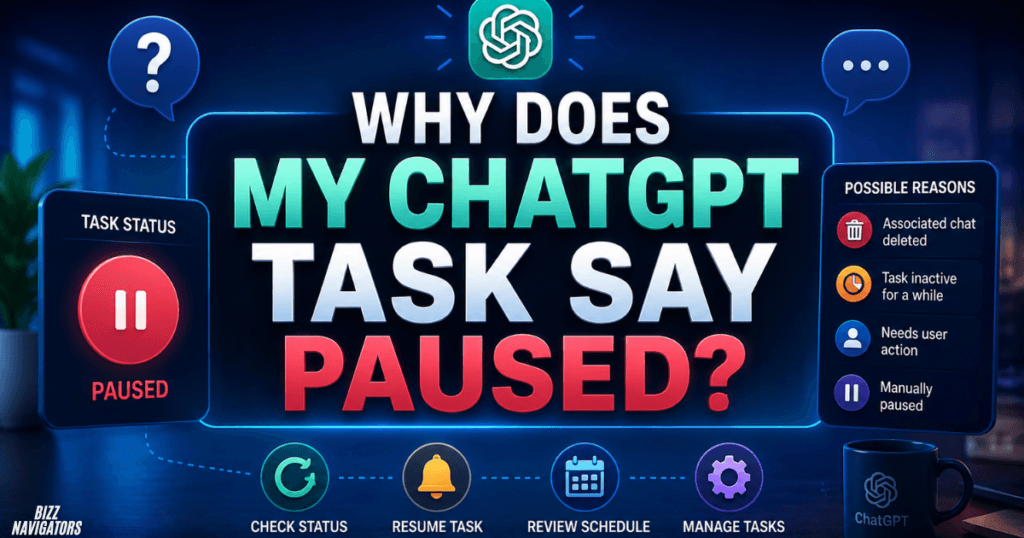
A ChatGPT task can become paused if you manually paused it, if the associated chat was deleted, or if the task became inactive and was automatically paused. Open the Scheduled page to inspect the task and resume it if appropriate.
Why Is My ChatGPT Task Not Sending Notifications?
The task may still be running even if you receive no alert. Check ChatGPT’s notification settings first, then verify browser or device notification permissions. ChatGPT supports push and email notifications for task updates.
Why Can’t I Create a New ChatGPT Task?
You may have reached the active-task limit for your plan. Go users can have up to 3 active tasks, Plus users up to 5, Business and Edu users up to 10, and Pro and Enterprise users up to 15. Unsupported features can also prevent a task from working as expected.
Can ChatGPT Tasks Run Every Few Minutes?
No. OpenAI’s current documentation says Scheduled Tasks cannot run more than once per hour. If you need an interval shorter than one hour, Scheduled Tasks are not designed for that frequency.
Can ChatGPT Tasks Use GPTs or Voice Chats?
No. OpenAI currently lists GPTs and voice chats as unsupported features for Scheduled Tasks. If your workflow depends on either one, redesign the task around supported ChatGPT functionality.
Final Troubleshooting Checklist
When ChatGPT Tasks is not working, start with the task status instead of immediately creating another task. Open Scheduled Tasks, check whether it is active or paused, verify its next run, confirm notifications, and check your active-task limit.
Then remove unsupported features and simplify the prompt. If the task’s associated chat was deleted, remember that the task may have been automatically paused.
In most cases, this process quickly identifies whether you are dealing with a notification problem, scheduling issue, task limit, unsupported feature, paused task, or task-configuration problem.

At BizzNavigators, we answer the questions you’re actually searching for, honestly and clearly. We check our facts before we publish anything, and if we’re not sure about something, we tell you instead of guessing. Whatever you’re looking for- a tech fix, a business tip, or a simple how-to- we want to give you an answer you can trust.