
How to Edit ChatGPT Tasks?
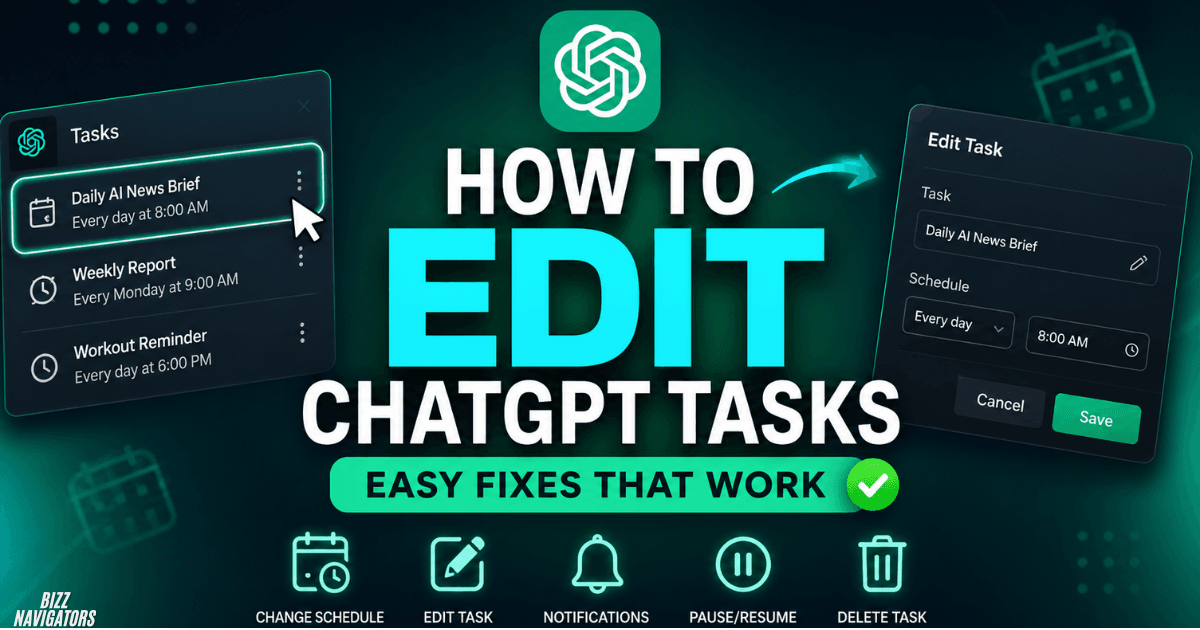
You can edit a ChatGPT task by opening the task from the chat or Scheduled page, selecting the task, and choosing Edit. ChatGPT lets you change the task instructions, schedule, and related settings without creating the task again. You can also pause, resume, or delete tasks from the task-management interface.
The exact interface can vary as OpenAI continues updating Scheduled Tasks, but the current workflow is straightforward:
1. Open ChatGPT.
2. Go to Scheduled from the sidebar, if available.
3. Select the task you want to change.
4. Open the task details.
5. Choose Edit.
6. Change the prompt, timing, or other available settings.
7. Save the changes.
If you are already viewing the task inside its conversation, clicking the task pill or task title opens the editing sidebar.
How Do I Change the Schedule of a ChatGPT Task?
To change a task’s schedule, open the task, select Edit, and update when you want ChatGPT to run it. Scheduled Tasks support one-time and recurring schedules, with newer scheduling options also allowing broader periods such as morning, afternoon, or evening.
For example, you can change a daily task from a morning run to an evening run, or adjust a recurring task when your routine changes.
A useful schedule prompt is:
“Run this task every weekday at 8:00 AM instead of 9:00 AM.”
If the interface gives you direct scheduling controls, use those controls to confirm the new time before saving.
Can You Change a One-Time Task Into a Recurring Task?
If the edit interface provides the required scheduling options, you can modify the task’s recurrence settings. ChatGPT supports both one-time and recurring scheduled tasks.
If the required option does not appear in your account, creating a new task with the desired schedule may be the simpler solution.
How Do I Change the Instructions or Prompt of a ChatGPT Task?
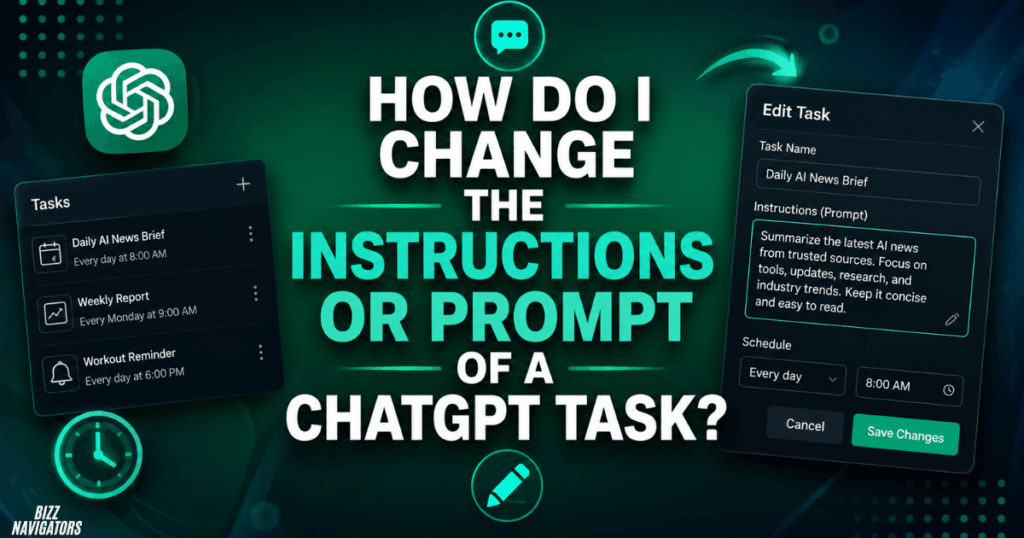
Open the task and select Edit, then modify the instructions that tell ChatGPT what to do. This is useful when you want to improve the output without changing the entire task.
For example, instead of:
“Send me a daily technology update.”
you could edit it to:
“Send me a daily technology update at 8 AM. Focus on major AI, cybersecurity, software, and consumer-tech developments. Summarize each item in two sentences.”
The second version gives ChatGPT clearer instructions about what to monitor, how to summarize it, and which topics matter.
Keep scheduled-task prompts specific. Clear instructions generally make recurring outputs more consistent and easier to use.
How Do I See My Scheduled Tasks in ChatGPT?
You can view your scheduled tasks from the Scheduled page when that interface is available in your ChatGPT account. OpenAI has introduced a dedicated location for managing scheduled tasks, where users can view existing tasks and check when they are expected to run next.
You can also reach task management through Settings → Notifications → Manage tasks. From an individual task, the three-dot menu can also provide access to task management.
The task-management area is useful when you have several recurring reminders or automated jobs and need to find one quickly.
Can You Rename a Scheduled Task in ChatGPT?
You can change the task’s editable details through the task editor, but OpenAI’s current documentation does not specifically guarantee a separate Rename button for every version of the interface. If a title field is available when you edit the task, you can change it there.
For example, a vague title such as Daily Update could be changed to Daily AI News Briefing to make the task easier to identify.
If your interface does not provide a title field, change the task instructions instead or create a replacement task with the preferred wording.
How Do I Pause or Resume a ChatGPT Task?
Open the task and use the Pause or Resume control. ChatGPT’s current task-management interface allows users to pause, resume, edit, and delete scheduled tasks. (OpenAI Help Center)
Pausing is useful when you temporarily do not need a recurring task but expect to use it again later. It is usually better than deleting the task because you can resume it without rebuilding the instructions.
OpenAI also notes that tasks can automatically pause in certain situations, including when the associated chat is deleted or when an unattended task becomes inactive.
How Do I Delete a ChatGPT Scheduled Task?
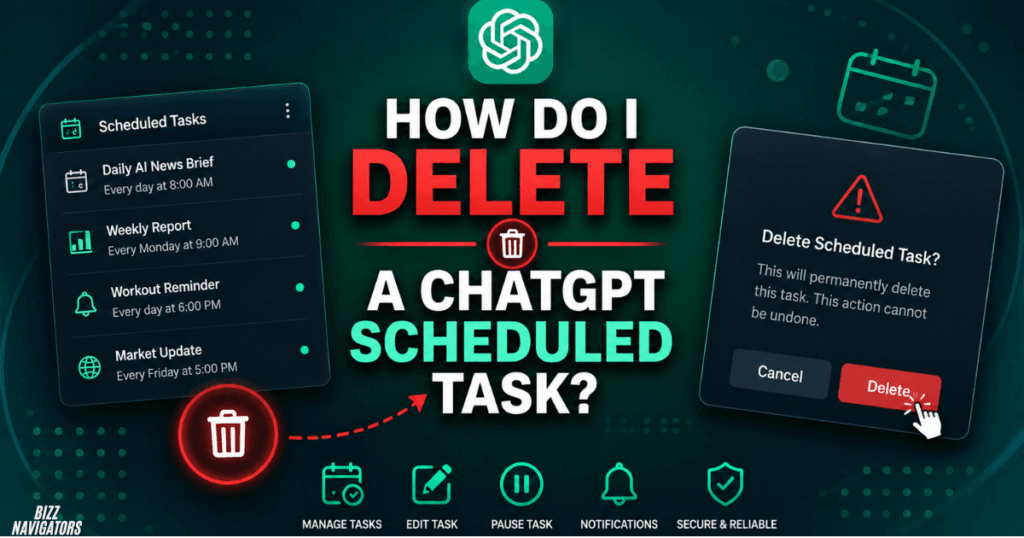
Open the task from the Scheduled page or its associated conversation and choose Delete. Deleting a scheduled task removes the task itself, but OpenAI says deleting the task does not delete its associated chat.
Be careful not to confuse deleting a task with deleting the conversation. Deleting the associated chat can cause the scheduled task to pause automatically.
If you only need a temporary break, use Pause instead of Delete.
How Do I Schedule a Task in ChatGPT?
You can schedule a task by telling ChatGPT what you want it to do and when you want it to happen. You can also create a task from the Scheduled page and select its timing there.
For example:
“Every weekday at 9 AM, give me a summary of the latest AI news.”
A good scheduling request contains three elements:
Action: What should ChatGPT do?
Timing: When or how often should it happen?
Output: What should the result look like?
This makes the task easier to understand and reduces ambiguity.
What Are ChatGPT Tasks?
ChatGPT Tasks are scheduled instructions that allow ChatGPT to perform certain work proactively at a specified time or on a recurring schedule. They can be used for reminders, recurring briefings, scheduled work, and monitoring tasks that check for meaningful changes and notify you.
Tasks are different from an ordinary ChatGPT conversation because you do not have to return to the chat and manually repeat the same request each time.
For example, a task could remind you about an event, prepare a recurring briefing, or monitor a topic and alert you when something important changes.
How Do Scheduled Tasks Work?
A scheduled task stores your instructions together with a schedule. When the scheduled time arrives, ChatGPT processes the task and provides the resulting response or notification according to the task’s configuration.
Monitoring tasks work slightly differently. They can periodically check for changes and notify you when there is something meaningful to report. OpenAI says previous runs can be remembered for monitoring tasks, and some monitoring tasks can stop when their defined end condition is reached.
Tasks therefore work best for repeatable, clearly defined jobs, rather than complicated workflows that require constant human decisions.
Why Are My ChatGPT Scheduled Tasks Not Working?
If a ChatGPT scheduled task is not working, check whether it is paused, whether its associated chat was deleted, whether notifications are enabled, and whether your account has reached its active-task limit. OpenAI also notes that tasks cannot run more than once per hour and that unattended tasks may automatically pause after inactivity.
Try these checks:
1. Open Scheduled and find the task.
2. Confirm that it is active rather than paused.
3. Check its next scheduled run.
4. Review your notification settings.
5. Confirm that the task instructions are still correct.
6. Check whether you have reached your plan’s active-task limit.
7. Recreate the task if the existing configuration is no longer behaving as expected.
Notifications can include push notifications, email, or both, depending on your settings. Desktop notifications may also require browser permission.
How Do I Enable ChatGPT Task Notifications?
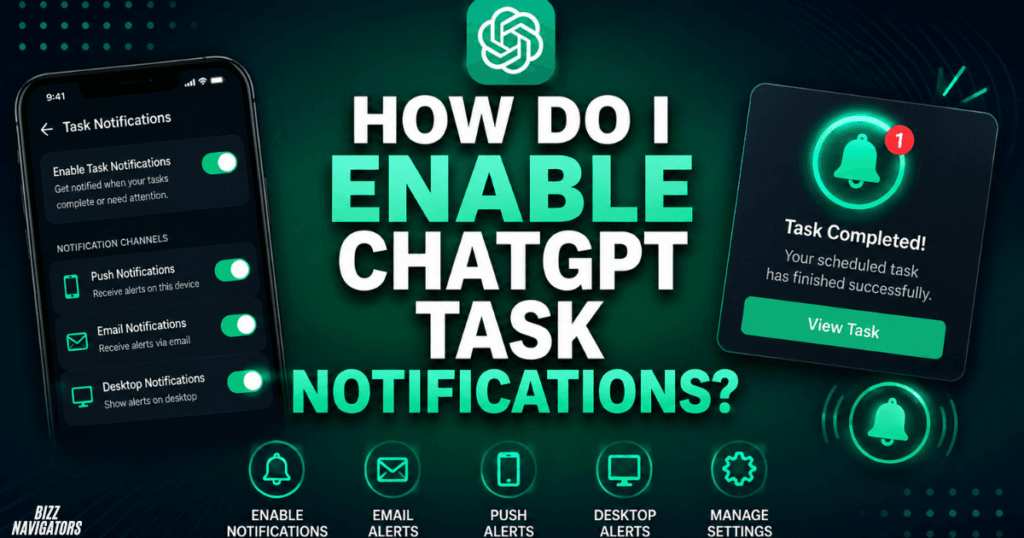
You can manage task notifications through ChatGPT’s notification settings. OpenAI currently supports notification options including Push, Email, or both, while desktop notifications may additionally require browser permission.
If a task runs successfully but you never see the result, notification permissions are one of the first things worth checking.
On mobile, ChatGPT may request notification permission when you create your first task. Once permission is granted, task notifications can be delivered across the platforms where you use ChatGPT.
What Are the Best Ways to Use ChatGPT Scheduled Tasks?
The best scheduled tasks handle repetitive activities that have a predictable format and timing. Good examples include daily briefings, recurring reminders, routine summaries, and monitoring requests.
Useful task ideas include:
Daily technology news summaries
Morning work briefings
Weekly content planning
Recurring reminders
Industry or topic monitoring
Regular research summaries
Scheduled learning exercises
For professional use, avoid vague instructions such as “Help me with SEO every day.” A better task defines the exact job, audience, format, timing, and information you want.
How Do I Customize ChatGPT?
You can customize ChatGPT through features and settings that control how the assistant behaves, while scheduled tasks can be customized individually through their instructions and scheduling options.
For a task, the most important customization comes from the prompt itself. Specify the desired tone, format, length, subject area, frequency, and output requirements.
For example:
“Every Monday at 9 AM, create a concise SEO content plan with five topic ideas, search intent, suggested titles, and one primary keyword for each topic.”
That gives the task a defined job instead of leaving the result open-ended.
What Should You Not Tell ChatGPT?
Do not treat ChatGPT as a place to casually share passwords, authentication codes, private financial credentials, or other highly sensitive information. You should also avoid putting confidential business information into a task unless you understand the applicable privacy, account, and workspace controls.
The same principle applies to scheduled tasks: because the instructions may run automatically later, review them carefully before saving sensitive information.
A good rule is simple: Only provide information that the task actually needs to perform its job.
How Do You Schedule Tasks for Work?
The most effective work tasks automate repetitive activities rather than replacing decisions that require human judgment. Start with a recurring task that has a clear trigger, predictable output, and measurable usefulness.
For example:
“Every Friday at 4 PM, summarize my weekly content-planning priorities into five actionable points.”
You can then edit the task after several runs if the output needs more detail, a different format, or a different schedule.
This edit-and-improve approach is more practical than trying to create a perfect prompt on the first attempt.
What Are the Current Limits of ChatGPT Tasks?
ChatGPT Tasks have operational limits that vary by plan and account. OpenAI states that tasks cannot run more than once per hour, while active-task limits depend on the subscription tier. OpenAI’s documentation also says some features, including voice chats and GPTs, are not supported with Tasks.
Because OpenAI continues changing the Scheduled Tasks experience, users should check the current task-management interface and their account’s available limits rather than relying on older tutorials.
Another important limitation is that a task created inside a project with files cannot access those project files.
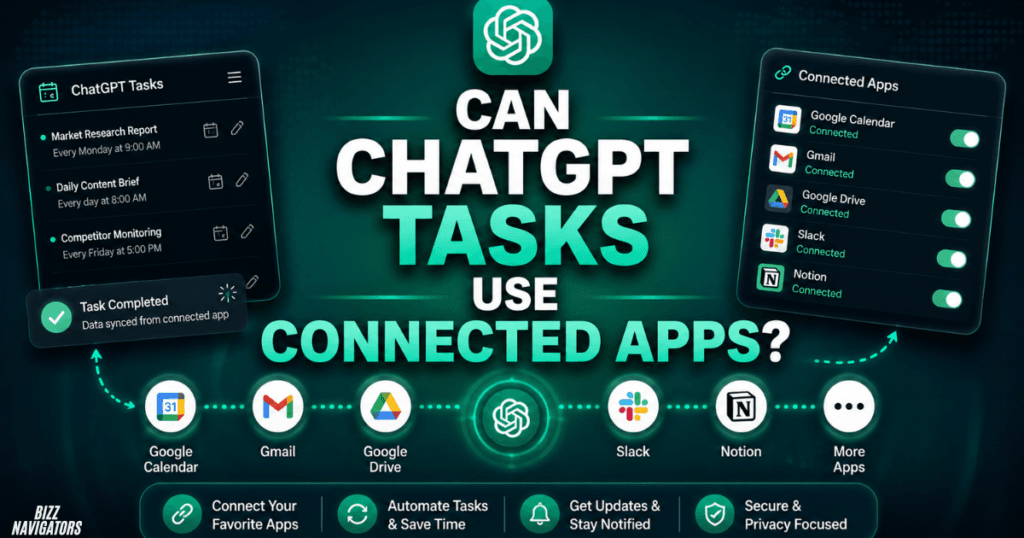
Can ChatGPT Tasks Use Connected Apps?
Yes, scheduled tasks can work with supported connected apps when those apps are available for the account or workspace. App permissions determine what ChatGPT can read or do, and Business or Enterprise workspaces may have additional administrator controls.
This makes connected-app tasks more useful for workflows that depend on current information, but permissions should always be reviewed before enabling automated actions.
What Is the Best Prompt for ChatGPT Tasks?
The best prompt clearly defines the task, timing, context, constraints, and output format. Instead of asking ChatGPT to perform a broad job, tell it exactly what successful completion looks like.
A strong structure is:
“Every [time], [act] using [context]. Return the result as [format], focusing on [specific requirements].”
For example:
“Every weekday at 8 AM, summarize the most important AI industry developments from the previous 24 hours. Give me five items, explain why each matters, and keep each summary under 80 words.”
That structure gives ChatGPT enough direction to produce a useful recurring result while keeping the task easy to edit later.
Final Answer: How to Edit ChatGPT Tasks
The quickest method is to open the task, select its task pill or title, and use Edit. From there, you can update the instructions and available scheduling options, while the task-management area also lets you pause, resume, or delete tasks
If a task stops working, check its status, next run time, notifications, limits, and associated chat before recreating it. For better results, keep every scheduled task specific, concise, and focused on one repeatable job.

At BizzNavigators, we answer the questions you’re actually searching for, honestly and clearly. We check our facts before we publish anything, and if we’re not sure about something, we tell you instead of guessing. Whatever you’re looking for- a tech fix, a business tip, or a simple how-to- we want to give you an answer you can trust.
2 thoughts on “How to Edit ChatGPT Tasks: Easy Fixes That Work”