
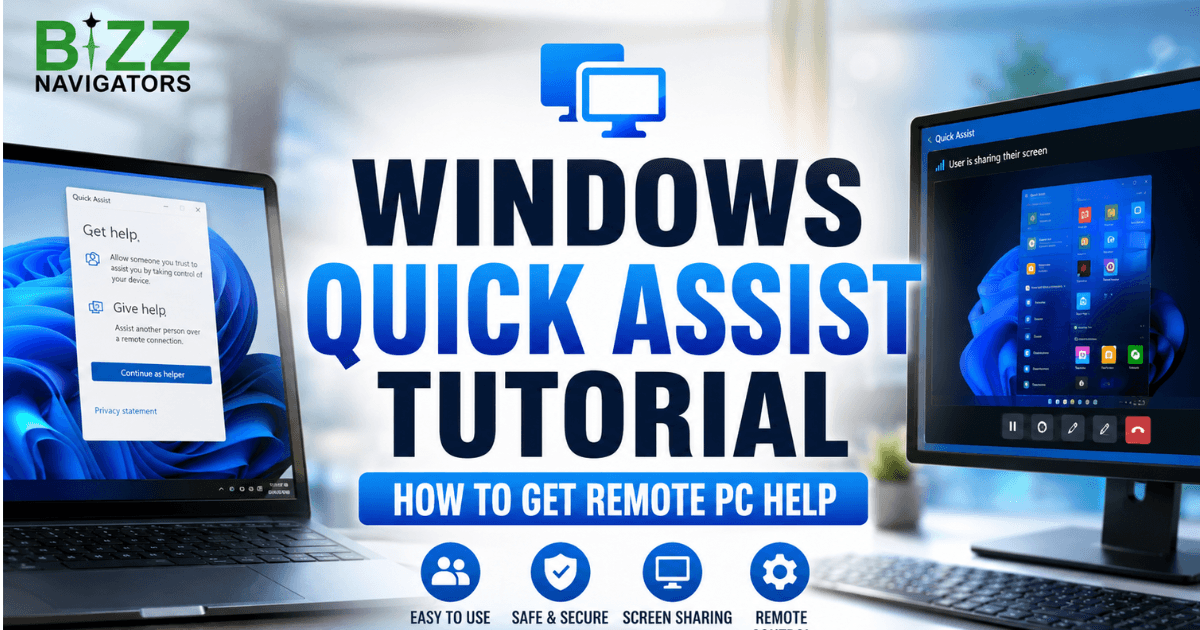
What Is It and How Does It Work?
A Windows Quick Assist tutorial helps you learn how to provide or receive remote technical support without installing a traditional third-party remote desktop program. Quick Assist lets a trusted person view your screen and, when you allow it, interact with your PC to troubleshoot problems, change settings, or guide you through a fix. Microsoft supports Quick Assist on Windows 10 and Windows 11.
Quick Assist is especially useful when a family member, friend, colleague, or support professional needs to help with a Windows problem from another location.
Instead of trying to explain every step over a phone call, you can share your screen and let the helper see exactly what is happening.
The important point is that Quick Assist should only be used with someone you trust. Remote assistance can expose what is visible on your screen, and interactive control can allow the helper to operate your computer when you approve it.
What Is Quick Assist Used For?
Quick Assist is designed for remote PC assistance. A helper can use it to diagnose common Windows problems, demonstrate settings, guide a user through software issues, or interact with the computer when the recipient grants permission.
Typical situations include:
Helping someone change Windows settings
Troubleshooting application problems
Diagnosing basic desktop issues
Guiding a less experienced Windows user
Demonstrating how to perform a task
Providing remote technical support
Viewing a problem that is difficult to explain verbally
It is not intended to replace every professional remote-management solution. For personal troubleshooting and straightforward support, however, it can be extremely convenient.
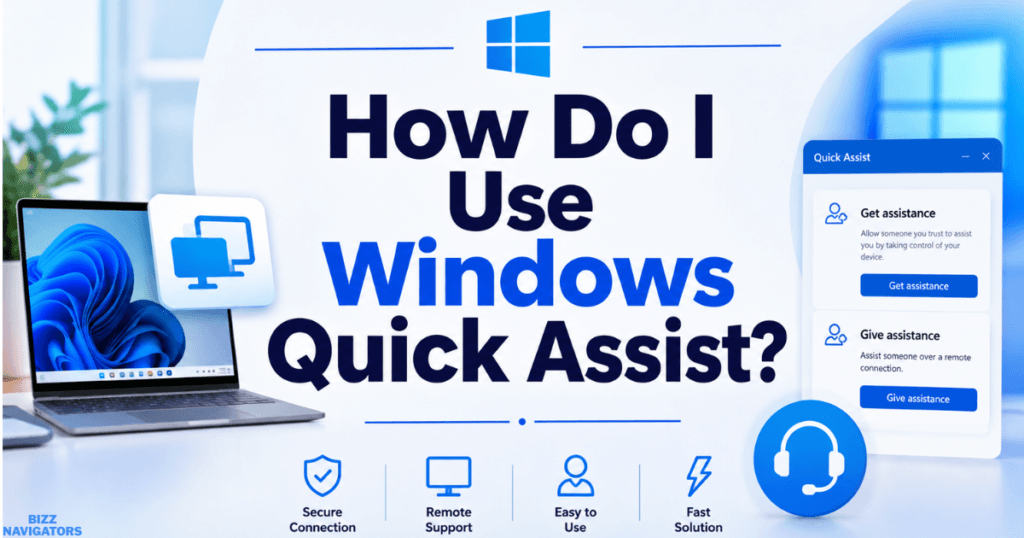
How Do I Use Windows Quick Assist?
To use Quick Assist, the helper and the person receiving assistance need to start a Quick Assist session. The helper generates a temporary security code, and the recipient enters that code in Quick Assist. After the connection request appears, the recipient decides whether to allow screen sharing and, where applicable, control of the PC.
Step 1: Open Quick Assist
The easiest method is to press:
Windows + Ctrl + Q
Microsoft lists Windows key + Ctrl + Q as the keyboard shortcut for opening Quick Assist.
You can also open Windows Search and type Quick Assist, then select the application.
If Quick Assist is not installed, you may need to install it through the Microsoft Store. Microsoft provides Quick Assist as a Store application, and its availability can depend on Windows configuration and organizational policies.
Step 2: Choose Whether You Are Helping or Receiving Help
Quick Assist is designed around two roles:
Helper: The person providing technical assistance.
Recipient: The person whose computer needs assistance.
The helper starts the process and obtains a temporary security code. The recipient enters that code into their Quick Assist session.
Step 3: Generate the Security Code
If you are helping another person, select the option to assist someone and follow the instructions displayed by Quick Assist.
The application generates a temporary security code.
Send that code only to the person you intend to help.
Do not publish the code in a public chat, forum, social media post, or website.
Step 4: Enter the Code on the Recipient’s PC
The recipient opens Quick Assist and enters the security code supplied by the helper.
After the code is accepted, Quick Assist asks the recipient to approve the connection.
This approval step is important because the recipient remains responsible for deciding whether the remote session should proceed.
Step 5: Allow Screen Sharing
Once connected, the recipient can allow the helper to see the screen.
Screen sharing is useful when the helper only needs to observe what is happening and explain what to click.
For many basic problems, simply viewing the screen may be enough.
Step 6: Allow Remote Control When Necessary
Some troubleshooting tasks require more than screen viewing.
If the recipient approves remote interaction, the helper can operate the PC within the permissions provided by Quick Assist.
Only enable this capability when you understand who is connected and what they are trying to do.
What Does Win Ctrl+Q Do?
Win + Ctrl + Q opens Quick Assist in Windows. It is Microsoft’s dedicated keyboard shortcut for quickly launching the remote assistance application.
This shortcut can save time when you need help immediately and do not want to search through the Start menu.
If nothing happens after pressing the shortcut, search for Quick Assist manually. If the application is missing or fails to start, installation, Microsoft Store, Windows configuration, or WebView2 could be involved.
How to Open Quick Assist Using CMD
You can also try launching Quick Assist from Windows tools when the normal shortcut or Start menu is inconvenient.
Press Windows + R, type:
quickassist
Then press Enter.
If the command does not launch Quick Assist on your particular Windows installation, use Windows Search or Microsoft Store to locate and open the application instead.
For administrators and troubleshooting workflows, it is useful to remember that Quick Assist is an application rather than a traditional built-in command-line utility. Therefore, command behavior can vary depending on the Windows version, installation state, application registration, and organizational policies.
Can You Open Quick Assist From PowerShell?
You can attempt to launch an installed Windows application through PowerShell, but the exact command depends on how the application is registered on the system.
For normal users, Windows Search, Windows + Ctrl + Q, or the Start menu is usually more reliable than relying on a command-line launch method.
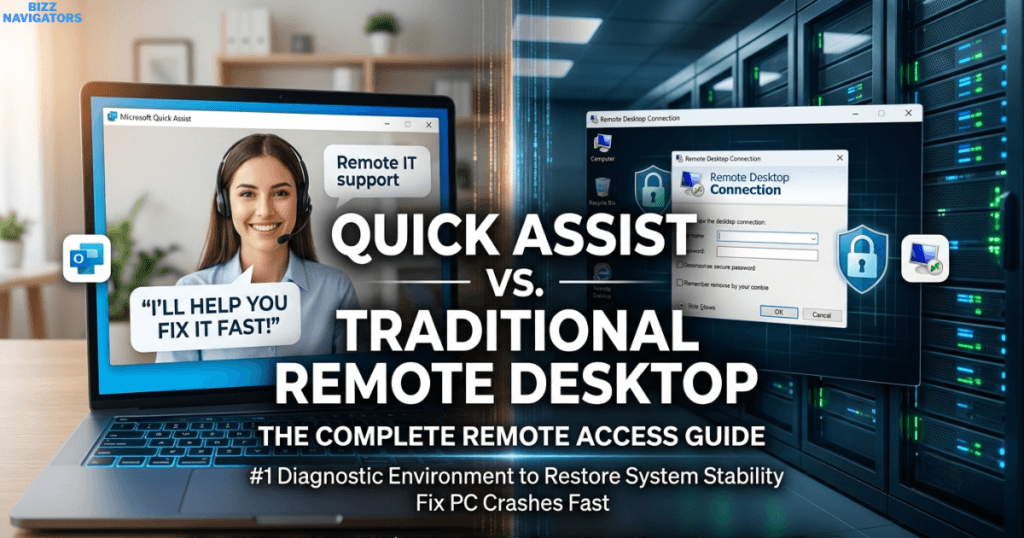
Quick Assist vs. Traditional Remote Desktop
Quick Assist and Remote Desktop serve different purposes.
| Feature | Quick Assist | Remote Desktop |
| Main purpose | Remote troubleshooting | Remote access to a PC |
| Best for | Friends, family, support | Ongoing remote access |
| Temporary support | Yes | Not its main purpose |
| User approval | Central to the support session | Depends on configuration |
| Screen sharing | Yes | Yes |
| Remote interaction | Available with permission | Designed for remote sessions |
| Setup complexity | Relatively simple | Can require additional configuration |
Quick Assist is therefore a better fit when someone needs to help you solve a specific Windows problem.
Remote Desktop is more appropriate for scenarios where a user or administrator needs structured remote access to a computer.
Microsoft also warns users about technical-support scams. You should never give remote access to an unknown caller simply because they claim your PC has a problem.
Quick Assist Not Working? Try These Fixes
If Quick Assist refuses to open, crashes, or displays an error, start with the simplest troubleshooting steps.
Check Your Internet Connection
Quick Assist requires a working network connection for remote assistance.
Make sure both computers can access the internet before starting the session.
Update Windows and Microsoft Store Apps
Install available Windows updates and check Microsoft Store for application updates.
Microsoft recommends keeping Windows and Store applications updated when troubleshooting Store-based application problems.
Check Microsoft Edge WebView2
One commonly overlooked dependency is Microsoft Edge WebView2.
Microsoft states that Quick Assist requires WebView2. If WebView2 is missing, damaged, or cannot load correctly, Quick Assist may fail to initialize.
Microsoft identifies several Quick Assist errors associated with WebView2, including problems where the component fails to load, install, or update.
If Quick Assist reports a WebView2-related problem, make sure Microsoft Edge is correctly installed and updated, then follow Microsoft’s WebView2 troubleshooting guidance.
Restart Quick Assist
Close the application completely and launch it again.
A temporary application failure can sometimes disappear after restarting the program.
Reinstall Quick Assist
If Quick Assist remains broken, reinstalling the application through Microsoft Store can help.
Microsoft recommends standard Store-app troubleshooting steps such as closing and reopening the app, updating Windows, checking application compatibility, and updating Microsoft Store applications.
Check Organizational Restrictions
A work or school computer may have restrictions that affect Microsoft Store applications or remote assistance.
If the computer belongs to an organization, contact the IT administrator before changing system policies.
Is Windows Quick Assist Safe?
Quick Assist can be safe when you use it correctly, but the biggest risk is who you allow to connect.
A remote helper may be able to see sensitive information displayed on your screen. If you grant control, they may also interact with your computer.
For that reason:
Only accept help from someone you trust.
Never share a Quick Assist security code publicly.
Do not follow instructions from unexpected technical-support callers.
Close private documents before sharing your screen.
Monitor what the helper is doing.
End the session when the support task is complete.
Never provide passwords, banking details, or authentication codes to a remote helper.
Microsoft specifically highlights the risk of technical-support scams and recommends allowing remote access only when you initiated the interaction with legitimate support.
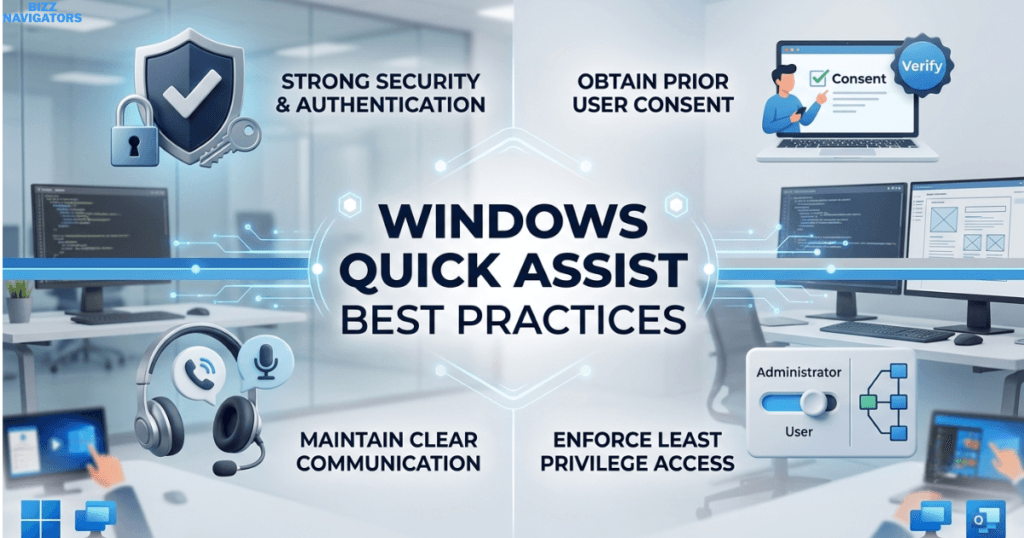
Windows Quick Assist Best Practices
A good Quick Assist session should be short, controlled, and focused on one problem.
Before connecting, explain the issue clearly to the helper.
During the session, watch the screen and avoid leaving confidential documents, passwords, financial information, or private conversations visible.
If the helper only needs to explain something, screen viewing may be sufficient. Do not provide more access than the task requires.
After the problem is solved, end the session and close Quick Assist.
This approach keeps remote assistance practical without turning a simple troubleshooting session into an unnecessary security risk.
Key Takeaways
Windows + Ctrl + Q opens Quick Assist quickly.
Quick Assist provides remote technical assistance on Windows.
A helper uses a temporary security code to initiate the session.
The recipient controls whether the connection is allowed.
Remote control should only be granted to a trusted person.
Quick Assist can be useful for family, friends, coworkers, and technical support.
Microsoft Edge WebView2 is required for Quick Assist.
Microsoft Store and Windows updates can help resolve application problems.
Never give remote access to an unexpected or suspicious support caller.
Frequently Asked Questions
How do I use Windows Quick Assist?
Open Quick Assist with Windows + Ctrl + Q, or search for Quick Assist from the Start menu. The helper generates a security code, and the recipient enters it before approving the connection and screen-sharing permissions.
What does Win Ctrl+Q do?
Windows + Ctrl + Q opens Quick Assist. Microsoft officially lists this keyboard combination among Windows keyboard shortcuts.
What is Quick Assist used for?
Quick Assist is used to provide remote help with Windows computers. It allows a trusted helper to view the recipient’s screen and, when permission is granted, interact with the computer to troubleshoot problems.
How to open Quick Assist using CMD?
You can try launching Quick Assist by pressing Windows + R, entering quickassist, and pressing Enter. If that does not work, search for Quick Assist through Windows Search or open it from the Microsoft Store.
Does Quick Assist work on Windows 11?
Yes. Microsoft documents Quick Assist for Windows 11 and Windows 10.
Why is Quick Assist not opening?
Possible causes include a missing or malfunctioning WebView2 component, outdated Windows or Store applications, application installation problems, or organizational restrictions. Microsoft specifically identifies WebView2 as a required component for Quick Assist.
Should I give Quick Assist access to a stranger?
No. Only allow a trusted person to connect. Unexpected technical-support requests are a common scam tactic, and remote access can expose your computer and personal information.

At BizzNavigators, we answer the questions you’re actually searching for, honestly and clearly. We check our facts before we publish anything, and if we’re not sure about something, we tell you instead of guessing. Whatever you’re looking for- a tech fix, a business tip, or a simple how-to- we want to give you an answer you can trust.
1 thought on “Windows Quick Assist Tutorial: How to Get Remote PC Help”