
How to Find Large Files on Windows 11
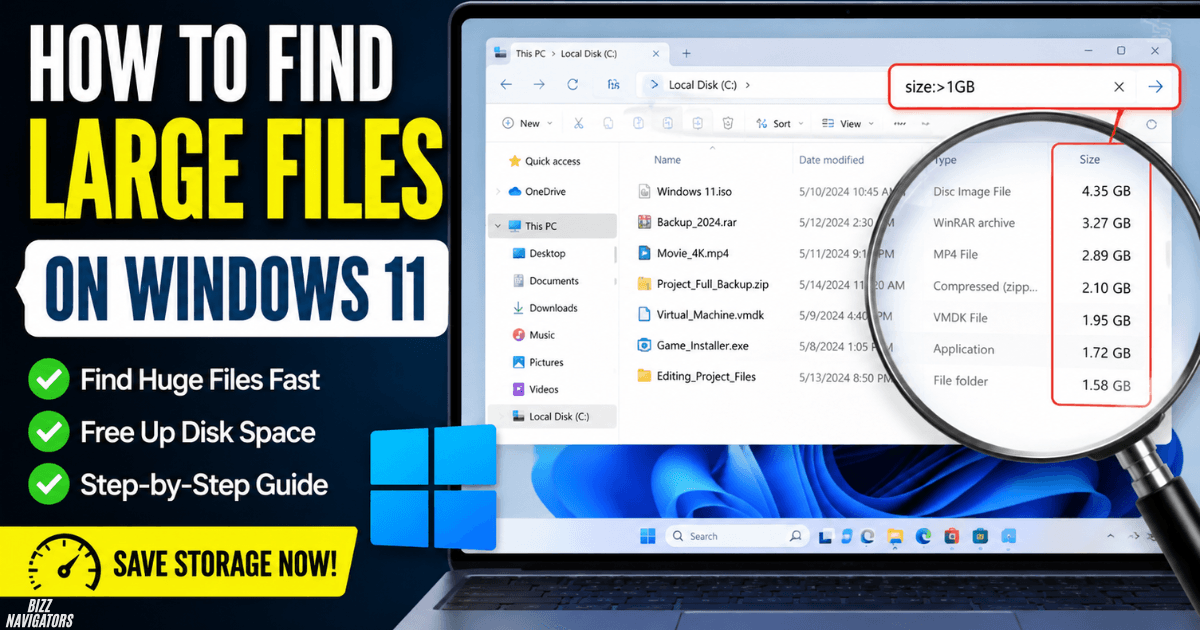
The easiest way to find large files on Windows 11 is with File Explorer. Press Win + E, open This PC, select a drive, and type size:>1GB in the search box. Windows will show files larger than 1 GB. You can then sort the results by Size to find the biggest files first.
Find Large Files With File Explorer
Follow these steps:
- Press Windows + E to open File Explorer.
- Click This PC.
- Open the drive you want to check, such as Local Disk (C:).
- Click the search box in the top-right corner.
- Type size:>1GB.
- Press Enter.
- Change the view to Details if needed.
- Click the Size column to sort files by size.
This is the quickest built-in method for finding large files. Windows Search supports size-based queries through its Advanced Query Syntax (AQS).
Windows 11 Large File Search Commands
You can change the search command depending on how large the files are.
| Search | Finds |
| size: large | Large files |
| size: huge | Very large files |
| size: gigantic | Extremely large files |
| size:>500MB | Files larger than 500 MB |
| size:>1GB | Files larger than 1 GB |
| size:>5GB | Files larger than 5 GB |
| size:1GB..5GB | Files between 1 GB and 5 GB |
For storage problems, size:>1GB is usually the best starting point. If you still have too many results, increase the threshold.
Microsoft documents size comparisons and ranges as part of Windows Search syntax.
How to Find the Largest Files on a Drive
To find the largest files on a specific drive, open that drive before searching.
For example:
File Explorer → This PC → Local Disk (C:) → Search → size:>1GB
When the results appear, select Details view and sort by Size.
Start with the largest files at the top. This makes it easier to find files that are using hundreds of megabytes or several gigabytes of storage.
You do not need to check every folder manually.
How to Find Large Files by Type
You can combine a file type with a size search.
For example, to find large videos, search:
kind: video size:>1GB
To find large ISO files:
ext:.iso size:>2GB
To find large ZIP files:
ext:.zip size:>1GB
You can also search for large pictures:
kind: picture size:>500MB
These searches help when you know what type of file is filling your drive. Windows Search supports combining search properties to narrow results.
How to Find What Is Taking Up Space on Windows 11
If you want to see which categories are using your storage, use Windows 11’s Storage settings.
Go to:
Settings → System → Storage
Windows shows storage usage by categories such as Installed apps, Temporary files, Documents, Pictures, Videos, and other files.
This is different from File Explorer. Storage settings show where your space is going, while File Explorer helps you find the individual files.
For a quick cleanup, also open:
Settings → System → Storage → Cleanup recommendations
Windows can recommend large or unused files, temporary files, and other items that may be safe to remove.
Should You Use File Explorer or Storage Settings?
| Method | Best for |
| File Explorer | Finding individual large files |
| Storage | Checking overall disk usage |
| Cleanup recommendations | Finding files Windows suggests removing |
| Storage Sense | Automating supported cleanup tasks |
For a specific large file, File Explorer is the better choice.
For a nearly full drive, check Storage first and then use File Explorer to investigate large files.
How to Delete Large Files Safely
Do not delete a file just because it is large.
First check:
- What the file is
- Where it is stored
- Whether you still need it
- Whether you have another copy or backup
Good candidates for cleanup often include old videos, unused installers, large downloads, duplicate archives, old ISO files, and files you have already backed up.
After deleting a file, it may remain in the Recycle Bin. Empty the Recycle Bin if you want to reclaim that space.
Microsoft recommends reviewing personal folders such as Downloads, Videos, Pictures, and Documents when looking for files that can be moved or deleted.
Do Not Delete Unknown Windows Files
Be careful with large files inside folders such as:
- C:\Windows
- C:\Program Files
- C:\Program Files (x86)
A large system or application file may be required by Windows or another program.
If you do not know what a file does, do not delete it just to free up space. Use Windows’ built-in cleanup options instead.
Does Windows 11 Have a Built-In PC Cleaner?
Yes. Windows 11 includes built-in storage cleanup features.
Storage Sense can automatically remove certain unnecessary files and manage items such as temporary files and Recycle Bin content.
You can find it under:
Settings → System → Storage → Storage Sense
Windows also provides Cleanup recommendations, which let you review suggested cleanup items before removing them.
You do not need a third-party PC cleaner just to find large files.
Why Is My C Drive So Full?
A full C: drive can have several causes. Large personal files are only one possibility.
Common causes include:
- Large videos and downloads
- Installed applications and games
- Temporary files
- Windows update files
- Recycle Bin contents
- Locally stored cloud files
- Old backups
- Large archives and installers
Start with Settings → System → Storage to see which category is consuming the most space.
Then use File Explorer and search for:
size:>1GB
This gives you a practical way to identify individual files that deserve attention.
What Should You Delete to Free Up Space?
Start with files you personally recognize and no longer need.
Good places to check include:
Downloads: Old installers, ZIP files, and downloaded videos.
Videos: Large recordings, movies, and exported projects.
Pictures: Duplicate or outdated media.
Recycle Bin: Previously deleted files that still occupy storage.
Large archives: Old ZIP, RAR, and backup files.
Avoid manually removing unknown files from Windows or application folders.
If Windows lists temporary files or cleanup recommendations, review those options before removing them.
What If File Explorer Cannot Find a Large File?
If you know a large file exists, but File Explorer does not show it, check the specific folder or drive directly.
Windows Search depends on its search index for fast results. You can review Windows Search settings under:
Settings → Privacy & security → Searching Windows
You can also search within a specific folder or drive instead of searching the entire PC.
For most normal personal files, however, searching the drive with a query such as size:>1GB should be enough.
Quick Answer: What Is the Fastest Method?
Use this method:
Win + E → This PC → Open C: → Search size:>1GB → Sort by Size
If you want smaller files, try:
size:>500MB
If you want very large files, try:
size:>5GB
If you want a specific range, try:
size:1GB..5GB
This is the simplest way to find large files on Windows 11 without installing additional software.
FAQs
How do I search Windows 11 for large files?
Open File Explorer, select a drive, and search for size:>1GB. Press Enter and sort the results by Size.
How can I search for the largest files in a drive?
Open the drive in File Explorer, search for size:>1GB, and sort the results by the Size column.
How do I find files taking up space on Windows 11?
Go to Settings → System → Storage to see storage categories. Then use File Explorer to find individual large files.
How do I delete large files in Windows 11?
Find the file, confirm that you no longer need it, right-click it, and select Delete. Empty the Recycle Bin afterward if needed.
What is the safest way to clean unnecessary files?
Use Storage → Cleanup recommendations and Storage Sense for Windows-supported cleanup. Manually delete only files you recognize and no longer need.
Can I find files larger than 1 GB?
Yes. Search for:
size:>1GB
You can replace 1GB with another threshold, such as 500MB or 5GB.
Can Notepad++ open very large files?
Notepad++ can open large files, but performance depends on the file size, system resources, and the file’s contents. If your goal is simply to find large files, you do not need Notepad++; File Explorer can do that directly.
Bottom Line
The fastest way to find large files on Windows 11 is to use File Explorer and search for size:>1GB.
For a fuller storage check, open Settings → System → Storage. Use Cleanup recommendations or Storage Sense for supported cleanup tasks.
The key is simple: find the biggest files first, check what they are, and delete only files you no longer need.

At BizzNavigators, we answer the questions you’re actually searching for, honestly and clearly. We check our facts before we publish anything, and if we’re not sure about something, we tell you instead of guessing. Whatever you’re looking for- a tech fix, a business tip, or a simple how-to- we want to give you an answer you can trust.
1 thought on “How to Find Large Files on Windows 11: Fast and Secure Way”