
What Are the Best Windows Backup Options?
Windows backup options include several built-in tools and cloud-based methods that protect your files, settings, apps, and Windows installation. For most users, the safest approach is not to depend on one method alone. A practical setup combines Windows Backup or OneDrive for everyday files, an external drive for an additional copy, and a recovery option for serious system problems.
Windows 11 includes the Windows Backup app, which can back up selected folders to OneDrive and remember supported apps, settings, preferences, accounts, Wi-Fi information, and other data.
However, Windows Backup is not the same as making a complete image of your entire PC. If your goal is to recover everything after a major drive failure, you need a different backup strategy.
This guide explains the main Windows backup options, what each one protects, and which method makes sense for different situations.
Why Windows Backups Matter
A backup gives you another copy of important information when the original becomes unavailable. Files can disappear because of accidental deletion, hardware failure, malware, software problems, or other unexpected events.
Microsoft separates backup, restore, and recovery into different concepts. A backup creates a copy of your data, restore brings backed-up information back, and recovery tools help repair or reinstall Windows when the operating system has serious problems.
That distinction matters because a restore point, recovery drive, and personal file backup do not perform the same job.
Different Types of Windows Backups
There is no single backup method that fits every Windows user. The right choice depends on whether you want to protect personal files, Windows settings, or the entire computer.
1. Windows Backup
Windows Backup is one of the simplest built-in options in Windows 11 and Windows 10.
You can open it by searching for Windows Backup from the Start menu. In Windows 11, you can also manage its configuration through Settings > Accounts > Windows backup.
It can back up supported folders such as:
Desktop
Documents
Pictures
Videos
Music
These folders can be backed up to OneDrive. Windows Backup can also remember supported apps and several Windows settings and preferences.
This option is particularly useful when moving to a new Windows PC because you can sign in with the same Microsoft account and restore supported settings and backed-up information.
2. OneDrive Cloud Backup
OneDrive is useful when you want important files available beyond your local hard drive.
When you enable folder backup, selected Windows folders are synchronized with your OneDrive account. Microsoft says a free Microsoft account includes 5 GB of OneDrive storage, with additional storage available through paid plans.
Cloud storage also protects files against a physical problem with your computer. If the laptop stops working, you can sign in to OneDrive from another device and access synchronized files.
Still, cloud synchronization should not be treated as your only backup for critical data. Keeping another independent copy is a safer approach.
3. File History
File History is designed for protecting personal files by keeping previous versions of files stored on a separate drive or network location.
It is useful when you accidentally edit, replace, or delete a file and need an earlier version.
For users who regularly work with documents, photographs, or other changing files, versioned backups can be more useful than simply keeping one current copy.
4. System Image Backup
A system image is designed for a much broader recovery scenario. Instead of protecting only selected personal folders, it can represent the Windows installation, system files, applications, settings, and other information on the backed-up system.
This type of backup is valuable when you want to restore a computer after a major system or storage failure.
Windows Recovery Environment includes System Image Recovery, which can restore a computer using a system image backup.
For advanced users and businesses, system imaging can provide a more complete recovery path than a normal file backup.
5. Recovery Drive
A Recovery Drive creates USB recovery media containing important Windows recovery files. It can help you restore Windows when the computer has a serious problem or when the original drive needs to be replaced.
However, there is an important limitation: a Recovery Drive does not contain your personal files. Microsoft recommends using another backup method, such as Windows Backup or File History, for personal data.
Think of it as a recovery tool rather than a replacement for your personal backup.
6. System Restore
System Restore is another useful Windows recovery feature, but it is not a full personal-file backup.
It creates restore points containing system configuration information. You can use them to roll back system files, registry settings, installed programs, and related settings after certain software or configuration problems. Personal files are not the target of this process.
For example, if a new driver causes Windows to behave badly, System Restore may help return the system to an earlier working state.
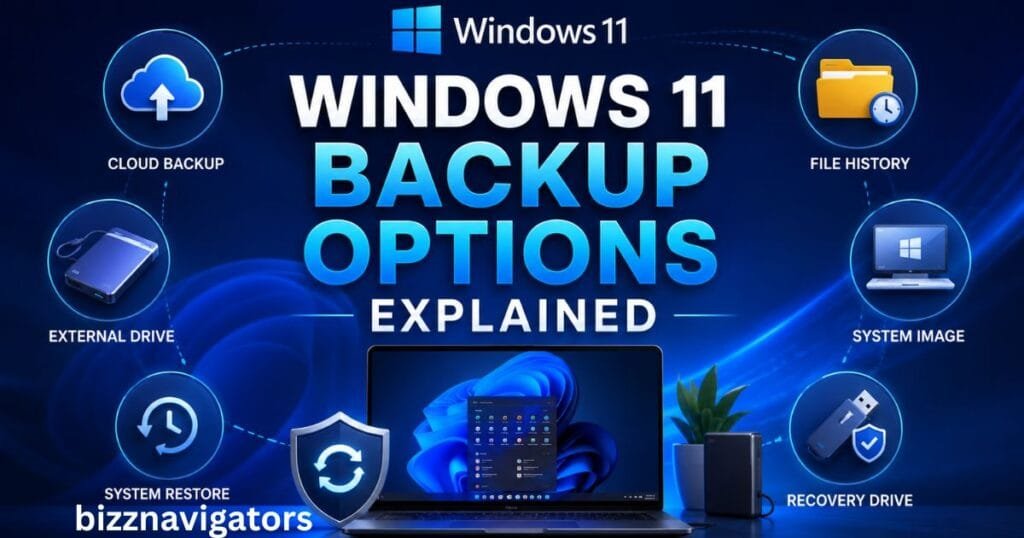
Windows 11 Backup Options Explained
Windows 11 gives users several ways to protect their data and recover from system problems.
| Backup or Recovery Option | Main Purpose | Personal Files | Full PC Recovery |
| Windows Backup | Files, apps, settings and preferences | Yes, supported folders | No |
| OneDrive | Cloud file storage and synchronization | Yes | No |
| File History | Previous versions of personal files | Yes | No |
| System Image | Broad system recovery | Yes, as part of image | Yes |
| Recovery Drive | Windows recovery | No | Recovery support |
| System Restore | Roll back system changes | Does not target personal files | No |
The key point is that backup and recovery tools complement each other. Microsoft also notes that recovery tools such as Reset this PC, Startup Repair, System Restore, and Windows Recovery Environment address different types of system problems.
How Do I Back Up My Entire Windows PC?
If you want to back up your entire Windows PC, do not rely only on Windows Backup.
Start by protecting your personal files with Windows Backup and OneDrive. Then consider creating a system image or using a reputable full-disk backup solution that supports complete system recovery.
An external hard drive or SSD is useful for storing a separate local copy. Keep the backup disconnected when you are not using it if you want additional protection from certain malware or ransomware scenarios.
A Practical Full-PC Backup Strategy
A strong setup can follow this pattern:
- Cloud copy: Back up important folders to OneDrive.
- Local copy: Keep another copy on an external drive.
- Versioned files: Use File History where appropriate.
- System recovery: Maintain a recovery drive.
- System image: Create one when you need broader disaster recovery.
- Test the backup: Periodically confirm that important files can actually be restored.
This approach reduces the risk of losing everything because one backup location fails.
Does Windows 10 Have a Built-In Backup Program?
Yes. Windows 10 includes built-in backup and recovery features, including Windows Backup, File History, System Restore, Recovery Drive, and older Backup and Restore functionality.
However, there is an important current consideration: Microsoft ended support for Windows 10 on October 14, 2025. The operating system can still run, but Microsoft no longer provides normal free Windows Update security fixes and technical support for Windows 10.
If your computer supports Windows 11, moving to a supported operating system is worth considering.
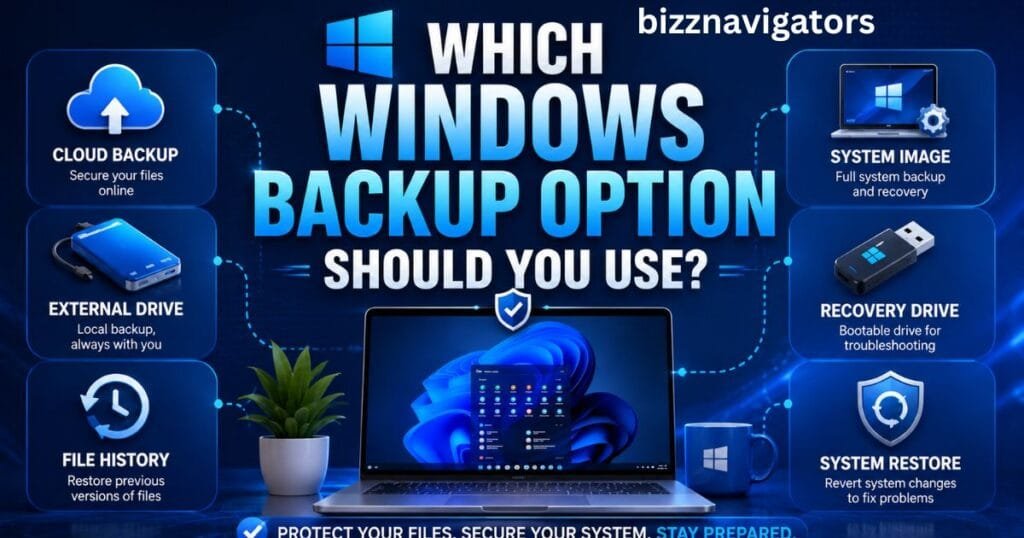
Which Windows Backup Option Should You Use?
The best method depends on what you are trying to protect.
For Everyday Documents and Photos
Use OneDrive or Windows Backup for supported folders. This makes files accessible across devices and protects them if your computer fails.
For Older File Versions
Use File History when you want to recover earlier versions of personal files.
For Major Windows Problems
Use System Restore when a recent application, driver, or configuration change causes Windows to become unstable.
For a Dead or Replaced Drive
Use a system image or another full-system backup when you need broader restoration of the Windows environment.
For Emergency Windows Recovery
Create a Recovery Drive on a separate USB device. Microsoft recommends periodically recreating recovery media to ensure it includes the latest Windows updates and improvements.
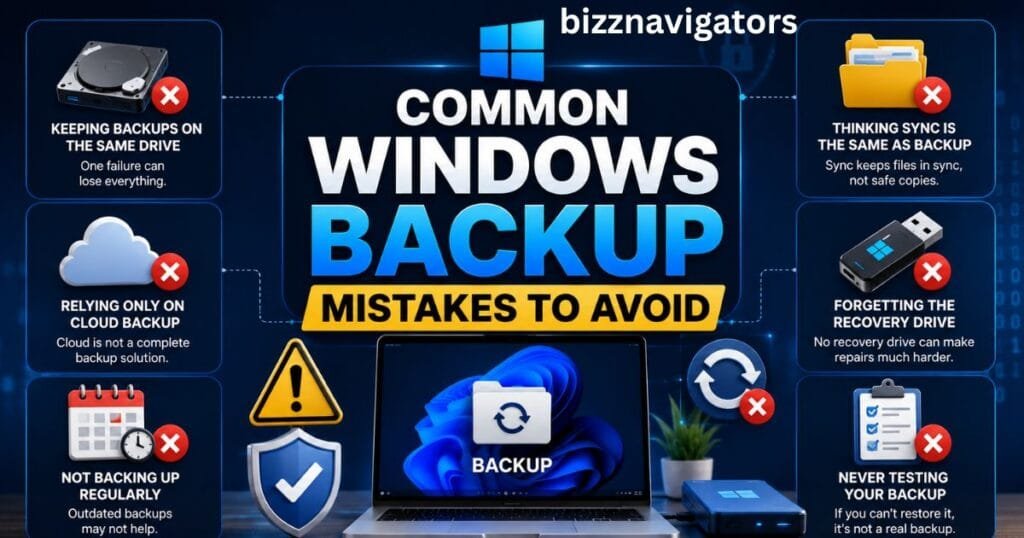
Common Windows Backup Mistakes to Avoid
One common mistake is assuming that synchronization automatically means a complete backup. Cloud synchronization and backup can serve different purposes.
Another mistake is keeping every backup on the same computer. If the computer’s drive fails, locally stored backup data may become unavailable too.
Users also sometimes create a recovery drive and assume their personal documents are included. They are not. Microsoft specifically states that Recovery Drive does not include personal files.
Finally, never assume a backup works simply because Windows says it completed. Test recovery of a few important files and confirm that your backup destination is accessible.
Key Takeaways
The most useful Windows backup options are not competitors; they solve different problems.
Windows Backup and OneDrive are convenient for files, settings, apps, and moving to a new PC. File History can help preserve earlier file versions. System Restore handles certain system configuration problems, while a Recovery Drive helps when Windows cannot start normally. For comprehensive disaster recovery, a system image or full-system backup is the better choice.
For important data, the safest approach is to maintain more than one copy in more than one location. A simple cloud-plus-external-drive strategy can provide much stronger protection than relying on a single backup method.
FAQs About Windows Backup Options
What are the different types of Windows backups?
The main Windows backup options include Windows Backup, OneDrive, File History, system image backups, Recovery Drive, and System Restore. They serve different purposes, so no single option replaces all the others.
What are Windows 11 backup options?
Windows 11 supports Windows Backup for selected files, apps, settings, and preferences, along with OneDrive, File History, System Restore, Recovery Drive, and system image recovery.
How do I back up my entire Windows PC?
For complete protection, combine a personal-file backup with a full-system backup such as a system image or another reliable disk-imaging solution. A Recovery Drive alone does not back up personal files.
Does Windows 10 have a built-in backup program?
Yes. Windows 10 includes several built-in backup and recovery tools. However, Microsoft ended Windows 10 support on October 14, 2025, so supported Windows users should consider upgrading to Windows 11 where compatible.
Is Windows Backup enough by itself?
For everyday files, settings, and supported apps, Windows Backup can be very useful. For complete disaster recovery, however, it should not be your only protection. Combining cloud storage with an independent local backup gives you broader coverage.
What is the safest way to back up a Windows PC?
Use multiple backup layers: keep important files in cloud storage, maintain a separate external-drive copy, and prepare a recovery method for Windows problems. For critical computers, also consider a full system image and regularly test whether your backups can be restored.

At BizzNavigators, we answer the questions you’re actually searching for, honestly and clearly. We check our facts before we publish anything, and if we’re not sure about something, we tell you instead of guessing. Whatever you’re looking for- a tech fix, a business tip, or a simple how-to- we want to give you an answer you can trust.